EasyManua.ls Logo

Samsung BD-D5500 - Page 75

Samsung BD-D5500
91 pages
Print Icon
To Next Page IconTo Next Page
To Previous Page IconTo Previous Page
Loading...
BLU-RAY
DISC
PLAYER
Quick
Setup
Guide
BD-D5500
Connecting
to
a TV
Connectin to a
TV
with
an
HDMI Cable - Best Quali
Recommended
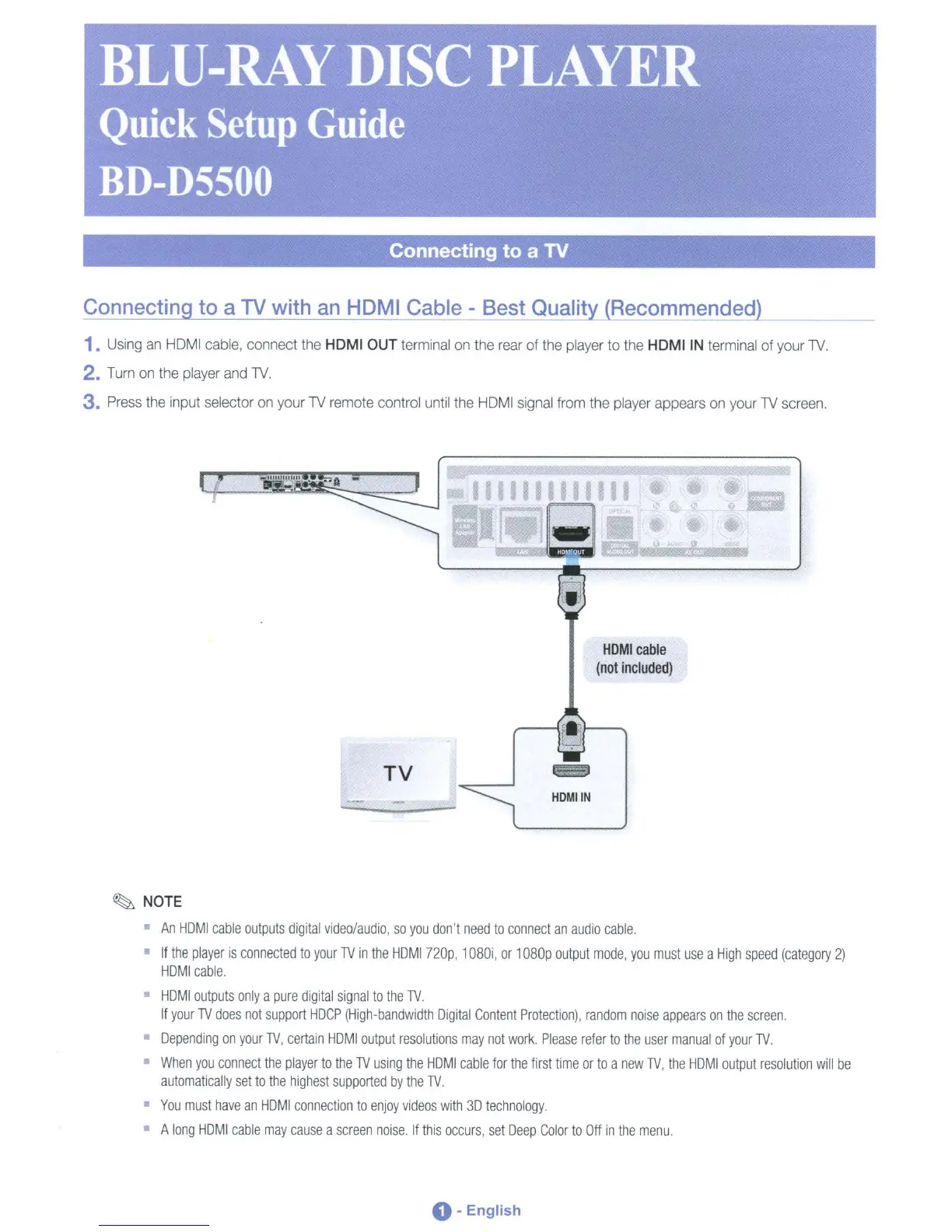
1.
Using
an
HDMI
cable,
connect
the
HDMI
OUT
terminal
on
the
rear
of
the
player
to
the
HDMIIN
terminal
of your
lV.
2.
Turn
on
the
player
and
lV.
3.
Press
the
input selector
on
your
lV
remote control until
the
HDMI
signal
from
the
player
appears
on
your
lV
screen.
_lit""
....
!.!.
A
HOM!
cable
(not
included)
TV
HDMIIN
~
NOTE
An
HOM
I
cable
outputs
digital
video/audio,
so
you
don't
need
to
connect
an
audio
cable.
If
the
player
is
connected
to
your
lV
in
the
HOMI
nop,
1080i,
or
1080p
output
mode,
you
must
use
a
High
speed
(category
2)
HOMI
cable.
HOMI
outputs
only
a
pure
digital
signal
to
the
1V.
If
your
lV
does
not
support
HOCP
(High-bandwidth
Digital
Content
Protection),
random
noise
appears
on
the
screen.
Depending
on
your
lV,
certain
HOM
I
output
resolutions
may
not
work.
Please
refer
to
the
user
manual
of
your
lV.
When
you
connect
the
player
to
the
lV
using
the
HOMI
cable
for
the
first
time
or
to
a
new
lV,
the
HOMI
output
resolution
will
be
automatically
set
to
the
highest
supported
by
the
lV.
You
must
have
an
HOMI
connection
to
enjoy
videos
with
3D
technology.
A
long
HOMI
cable
may
cause
a
screen
noise.
If
this
occurs,
set
Deep
Color
to
Off
in
the
menu.
0-
English

Table of Contents

Other manuals for Samsung BD-D5500

Related product manuals