Connecting to a TV with a Component Cable - Better Quality
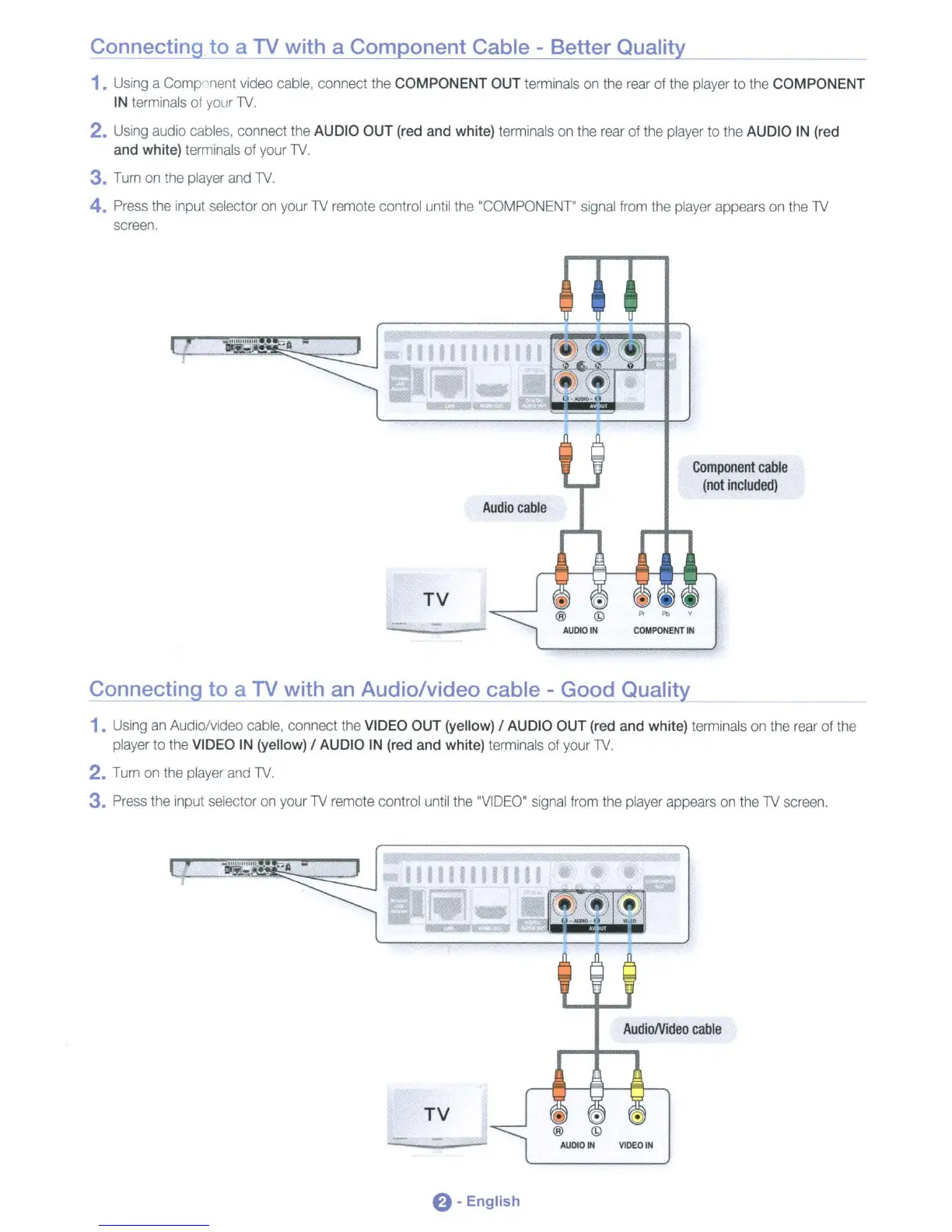
1. Using a Compnnent video cable, connect the COMPONENT OUT terminals on the rear of the player to the COMPONENT
IN terminals of your
lV
2. Using audio cables, connect the AUDIO OUT (red
and
white) terminals on the rear
of
the player
to
the AUDIO IN (red
and white) terminals of your
TV.
3. Turn on the player and
TV.
4. Press the input selector on your
TV
remote control until the "COMPONENT" signal from the player appears on the
TV
screen.
~"'.··~A
111111111
Audio
cable
TV
Component
cable
(not
included)
"
""
,
COMPONENT
IN
Connecting to a TV with an Audio/video
cable,_-_G-=-=o-=o-=d'---Q=ua=l:.:,:it:Ly
_
1.
Using
an
Audio/video cable, connect the VIDEO OUT (yellow) / AUDIO OUT (red
and
white) terminals on the rear
of
the
player to the VIDEO IN (yellow) / AUDIO IN (red
and
White) terminals of your
TV.
2. Turn on the player and
TV.
3. Press the input selector on your
TV
remote control until the "VIDEO" signal from the player appears on the
TV
screen.
~'''
.....
A-
111111111
Iijjl
..
-.e-~
AudioNideo
cable
TV
VIDEO
IN
e -
English











 To Next Page