EasyManua.ls Logo

Samsung BD-D5500 - Page 77

Samsung BD-D5500
91 pages
Print Icon
To Next Page IconTo Next Page
To Previous Page IconTo Previous Page
Loading...
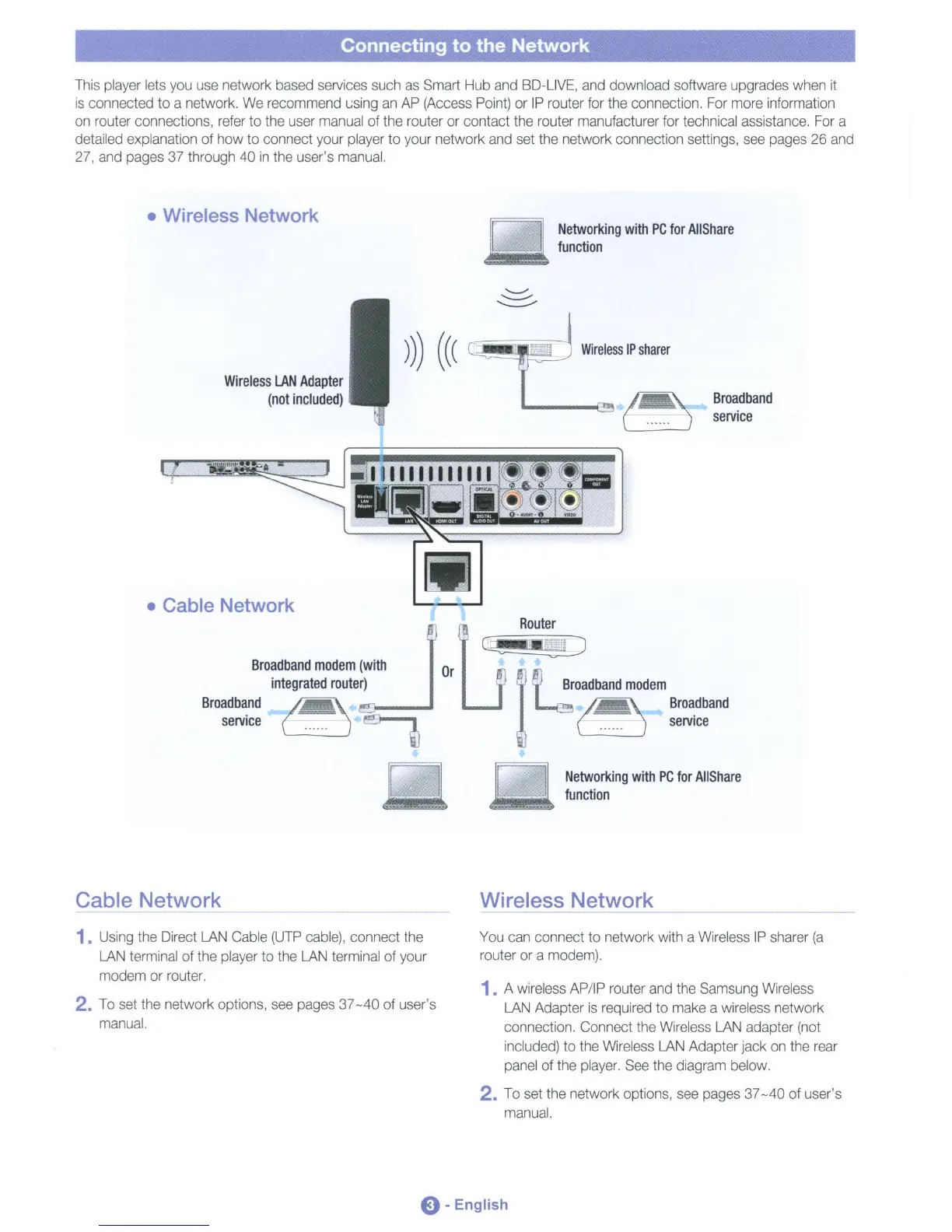
Connecting to the Network
This
player
lets
you
use
network
based
services
such
as
Smart
Hub
and
BD-L1VE,
and
download software upgrades
when
it
is
connected to a network.
We
recommend
~sing
an
AP
(Access
Point)
or
IP
router
for
the
connection.
For
more
information
on
router connections,
refer
to
the
user
manual
of
the
router or contact
the
router manufacturer
for
technical
assistance.
For
a
detailed
explanation
of
how to connect
your
player
to
your
network
and
set
the
network connection
settings,
see
pages
26
and
27,
and
pages
37
through 40
in
the
user's
manual.
Wireless Network
Networking
with
PC
for
AIiShare
function
Wireless
LAN
Adapter
(not
included)
~"'"
A-
Cable Network
Wireless
IP
sharer
Broadband
service
Router
Networking
with
PC
for
AIiShare
function
D
Cb£2CD
Broadband
modem
(with
Or
Broadband
(
~
f
~
Broadband
service
......
~
......
service
D
Cable Network
Wireless Network
1.
Using
the
Direct
LAN
Cable
(UTP
cable),
connect
the
LAN
terminal
of
the
player
to
the
LAN
terminal
of
your
modem or
router.
2.
To
set
the
network options,
see
pages
37
-40
of
user's
manual.
You
can
connect
to
network with a
Wireless
IP
sharer
(a
router or a
modem).
1. A
wireless
AP/IP
router
and
the
Samsung
Wireless
LAN
Adapter
is
required
to
make
a
wireless
network
connection. Connect
the
Wireless
LAN
adapter
(not
included)
to
the
Wireless
LAN
Adapter jack
on
the
rear
panel
of
the
player.
See
the
diagram
below.
2.
To
set
the
network options,
see
pages
37
-40
of
user's
manual.
e- English

Table of Contents

Other manuals for Samsung BD-D5500

Related product manuals