96
•
Hide declined events
hides (checked) or displays
(unchecked) those events that have been declined via
the calendar application.
Adding an Event to the Calendar
Your Calendar helps organize your time and reminds
you of important events.
1. Press and tap
➔
.
Note:
To synchronize calendar events among your Google and
Corporate accounts, make sure they are being managed
by your device (page 46).
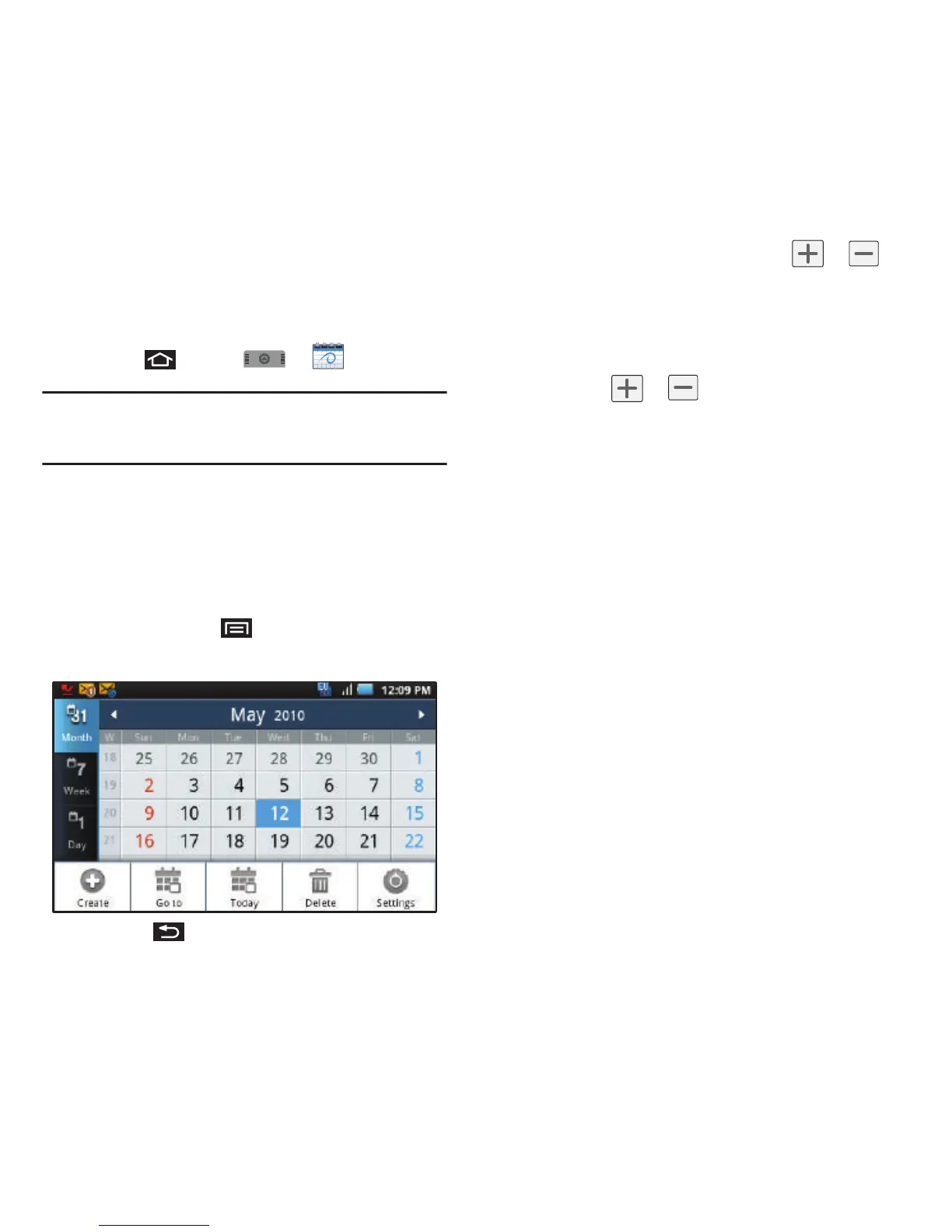
The default view for the Calendar is the
Month
view.
To
change the view, tap the available tabs along the top of the
Calendar screen (left of the screen in Landscape mode).
Choose from
Month, Week, Day,
and
List
.
2. Tap a day to which you would like to add an
event and press and tap
Create
.
•
Press to hide the menu options.
3. Tap the
Event
field and enter a title for the
event.
4. Select a
From/To
date for the event by tapping
the corresponding fields, and adjusting the
month, day, and year by tapping or .
5. Tap
Set
when finished.
6. Select a time for the event by tapping the time
field and then adjusting the hour and minute by
tapping or .
7. Tap the
AM
or
PM
button to change the value.
8. Tap
Set
when finished.
9. Tap the
All day
field to assign this as an all day
event. If assigned as an all day event, the time
fields are removed as options.
10. Assign the new calendar event to a current
account by tapping the Calendar field and then
selecting an account. For this example we are
choosing a Google.
•
My calendar
entries are stored locally on the device
and not part of an email account.
•
Google/Gmail
calendar entries are synchronized
between your device and your online Google account.
•
Corporate
calendar entries are synchronized between
your device and either an Exchange Server or
available from within Microsoft® Exchange.
•
default calendar
entries are synchronized between
your device and your default email account.
11. Tap
OK
when finished.













 To Next Page