68
3.
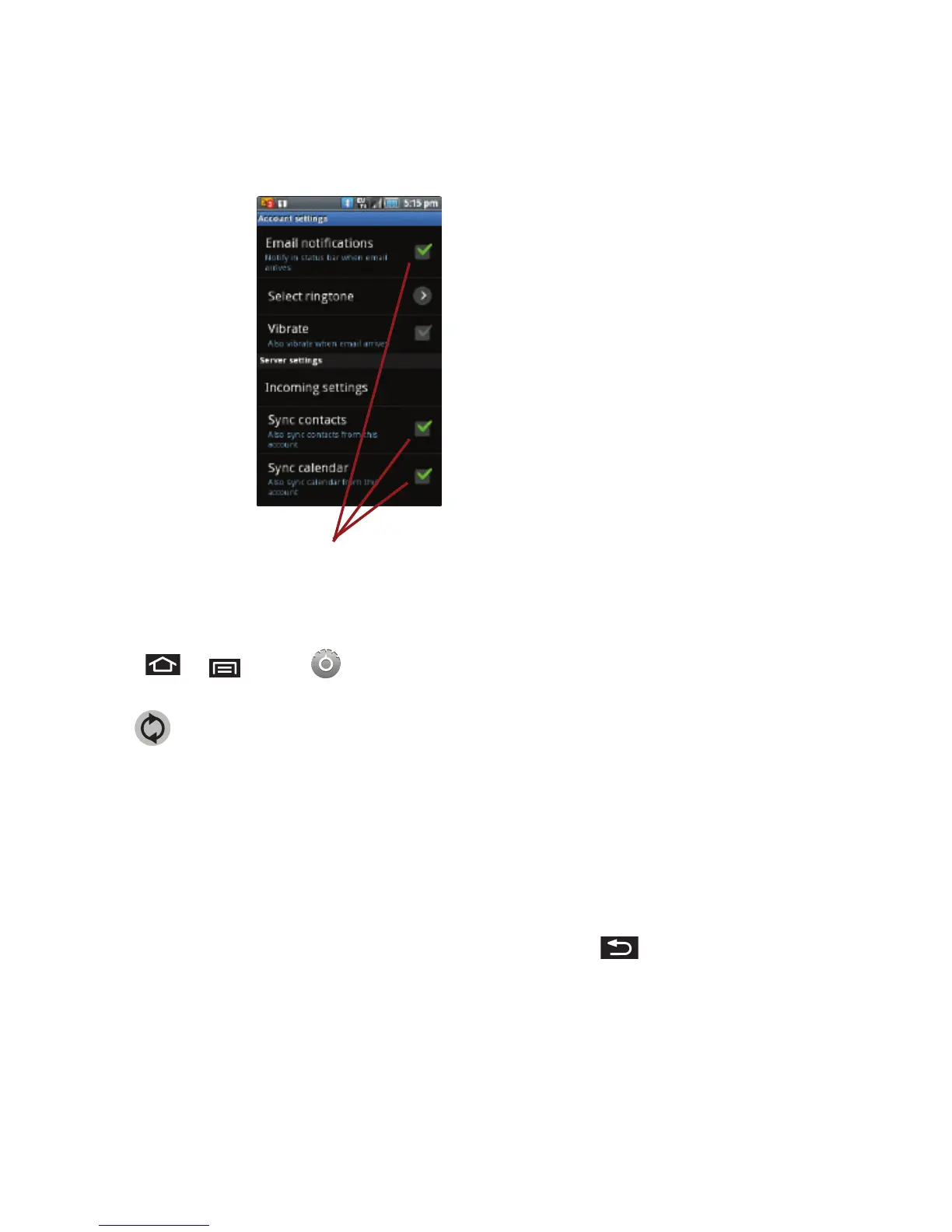
Toggle either the
Sync Contacts
or
Sync Calendar
fields
to force the device
to manually re-sync
either the exchange
Contacts or
Calendar entries.
– or –
Tap
Account settings
and configure any
other email
parameters you
wish to synchronize.
To configure Corporate Email settings:
1. Press ➔ and tap ➔
Accounts
& sync
.
2. Tap within the Corporate account field to
reveal the account’s synchronization settings
screen.
3. Tap the parameters you wish to synchronize.
• Account settings
allows you to configure:
–
Account name
displays the name used by the device to
track the account.
–
Your name
displays the name used in the From field
within your outgoing emails.
–
Email check frequency
configures the frequency
which the device queries the remote server for new email
changes. Choose from: Automatic (Push), Never, Every 5
minutes, Every 10 minutes, Every 15 minutes, Every 30
minutes, or Every hour.
–
Amount to synchronize
to assign the sync range for
your incoming and outgoing emails between your device
and your external exchange server. How many days
worth of emails should the device and server
synchronize. Choose from: One day, Three days, One
week, Two weeks, or One month.
–
Default account
assigns this account as the default
used when sending out new emails.
–
Email notifications
enables the device to display a
status bar icon when new emails have been received.
–
Select ringtone
assigns an audible ringtone when a
new or upcoming event is pending.
–
Vibrate
assigns a vibration when a new or upcoming
event is pending.
–
Incoming settings
provides access to the Domain,
password, and exchange server parameter fields.
–
Sync contacts
synchronizes the contacts between your
device and the remote exchange server. A checkmark
indicates the feature is enabled.
–
Sync calendar
synchronizes your exchange calendar
entries between your device and the remote exchange
server. A checkmark indicates the feature is enabled.
–
Forward with files
causes any outgoing email replay to
include any currently attached files. A checkmark
indicates the feature is enabled.
–
Signature
allows you to create an outgoing email
signature attached to new emails sent from your device.
4. Press to return to the previous screen.













 To Next Page