26
To manually activate the auto-rotate feature:
1. Press
➔
and tap
➔
Sound &
display
.
2. Scroll down and tap
Orientation
. A checkmark
indicates the feature is enabled. See “Changing
the Screen Orientation” on page 25.
•
Clear the
Orientation
checkmark to disable this
automatic orientation adjustment.
Menu Navigation
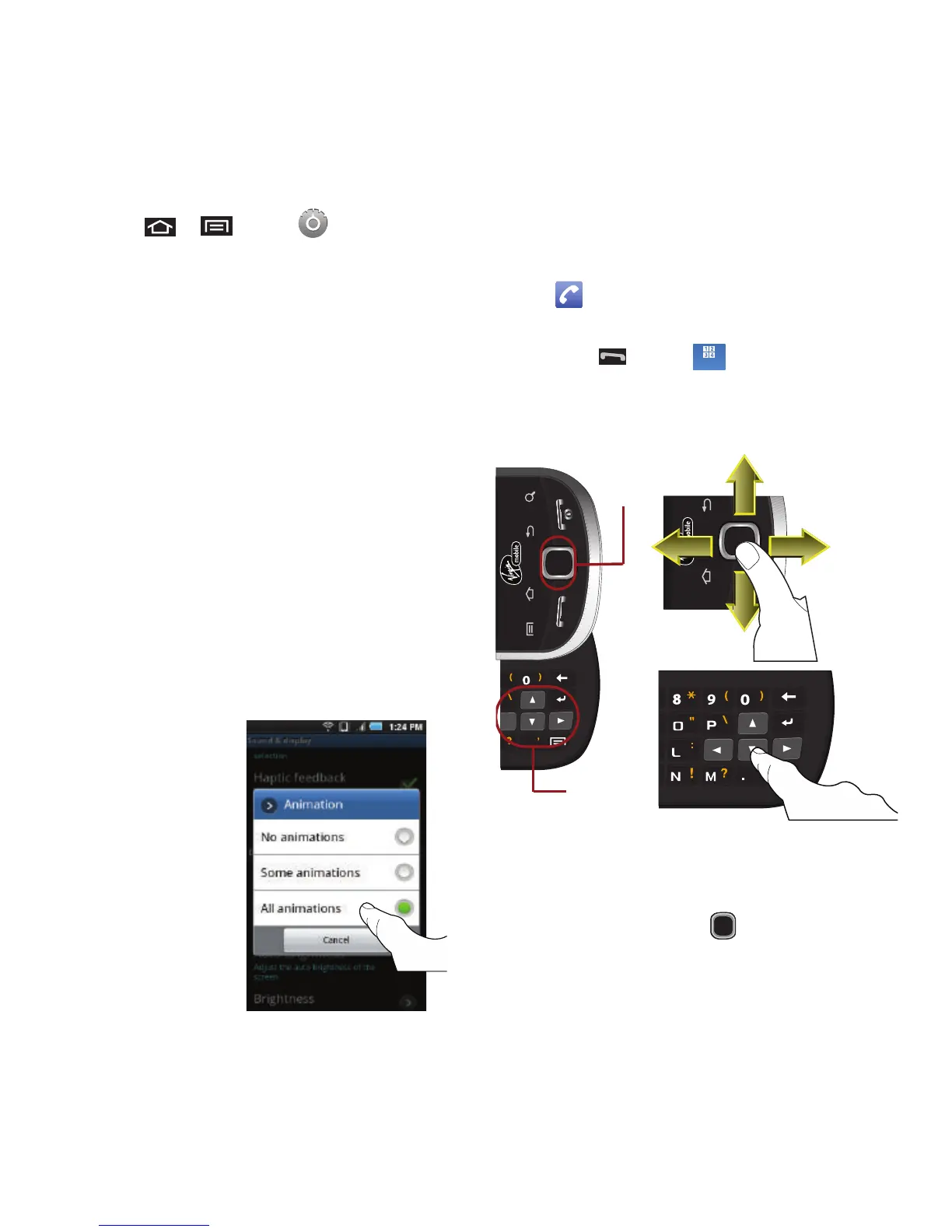
There are three ways to navigate through a menu:
•
Using your finger (page 26)
•
Using the Optical Joystick (page 26)
•
Using the built-in keyboard’s navigation/arrow keys
(page 27)
Selecting Menu Items Using your Fingers
As you navigate through the menu, you activate menu
options by tapping the onscreen entry. Select any
option by tapping it.
1. Tap an onscreen
icon to launch a
menu or feature.
2. Scroll your finger
across the screen
to navigate through
a menu list (bottom
up or top down).
3. Tap a menu item to make a selection or
activate a field.
To launch the Keypad using your fingers:
䊳
Tap from the Home screen.
– or –
Press and tap .
Selecting Menu Items Using the Optical Joystick
The Optical Joystick acts as a dual touch-sensitive
mouse and OK/Enter key. As you navigate through a
menu, options are highlighted. Select any option by
highlighting it and pressing .
The direction of your onscreen movements while
using the Optical Joystick is determined by the
current orientation of your device.













 To Next Page