Understanding Your Phone 19
–
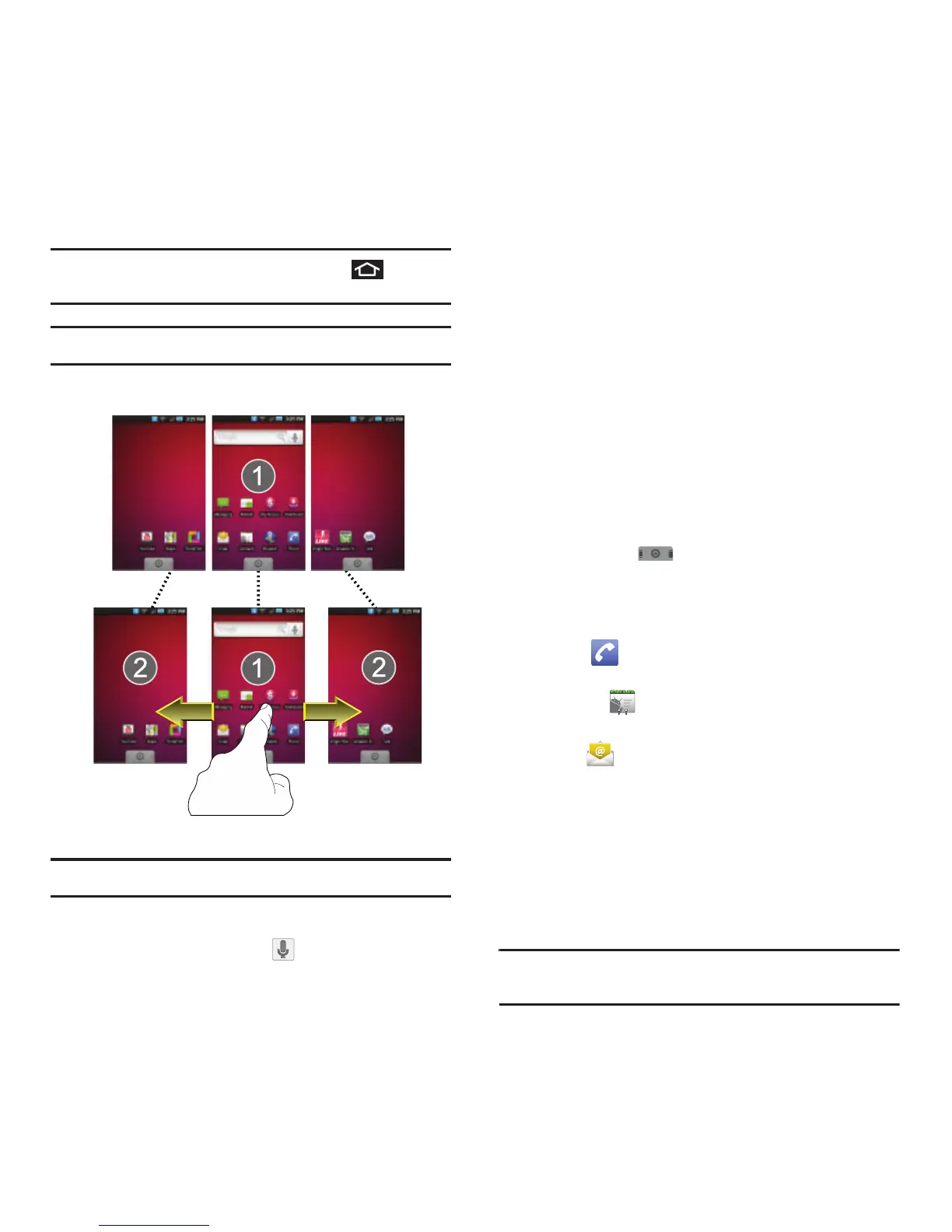
Think of it as having a desktop so wide that your screen
can only display a portion at a time.
Tip:
While on an extended Home screen, press to return
to the main Home screen.
Note:
The Status bar is visible across all Home screens.
Note:
Screen #1 is the Home screen.
•
Google search
: an onscreen Internet search engine
powered by Google™. Touch to access the Voice
Search feature where you can verbally enter a search
term and initiate an online search.
•
Widgets
: are self-contained onscreen applications (not
shortcuts). These can be placed onto any of the available
screens (Home or Extended). See “Adding and Removing
Widgets” on page 23.
•
Shortcuts
: are icons that launch available device
applications such as Voicemail, Contacts, Phone, Email,
Alarm Clock, etc. These function the same as shortcuts
on your computer.
–
Although some are already found on the Extended Home
screens, the majority can also be found within the
Applications tab.
–
Shortcuts can be pulled out from this tab or pulled into it
(removed from an Extended Home screen). See “Creating
Shortcuts” on page 22.
•
Application tab
( ): houses all of your available
applications. Some of these applications also exist as
Widgets that can be actively placed onto an available
screen. Some sample shortcuts are:
–
Phone
( ) launches the phone-related screen
functions (Keypad, Call Log, and Favorites.
–
Contacts
( ) launches the Contacts-related screens
(Contacts, Groups, History, and Activities).
–
Email
( ) launches the email application that
manages both Internet-based and Corporate email
accounts.
Using the Applications Tab
All of your device’s applications are located within the
Applications tab. This tab houses shortcuts to your
currently available applications.
Note:
This tab houses all default and downloaded applications
(installed from Android Market or from the Web).













 To Next Page