84
2.
From the Bluetooth settings page, touch and
hold the name of the previously paired device
(from the bottom of the page). This opens the
connected device’s menu options.
3. Tap
Disconnect & unpair
to confirm deletion.
To access a paired device’s settings:
1. Verify your Bluetooth is active.
2. From the Bluetooth settings page, touch and
hold the name of the previously paired device.
3. Tap
Options
and configure the desired options.
4. Press to return to the previous page.
Sending Contacts via Bluetooth
Depending on your paired devices’ settings and
capabilities, you may be able to send pictures,
Contacts information, or other items using a Bluetooth
connection.
Note:
Prior to using this feature, enable Bluetooth and the
recipient’s device must be visible.
Only a Contact’s information can be sent via Bluetooth. No
other file type (video, image, or audio) can be sent using
Bluetooth.
1. If no devices are detected, tap
Scan devices
to
begin a new search.
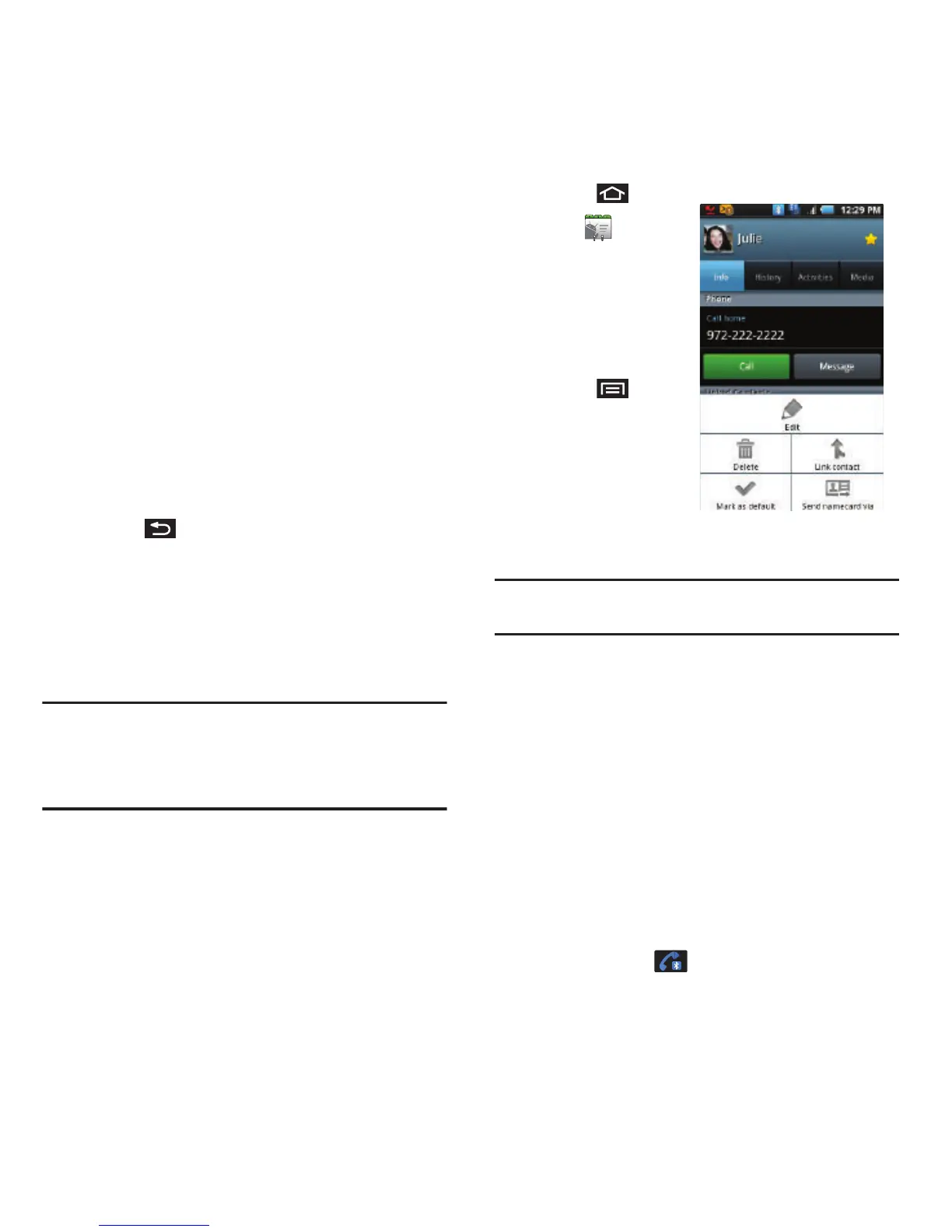
2. Press and
tap .
3. Touch an entry
to open its
details page
(page 48).
4. Press and
tap
Send
namecard via
➔
Bluetooth
.
5. Tap a new or
paired device.
Note:
The external Bluetooth device must be visible and
communicating for the pairing to be successful.
Disconnecting Bluetooth Connection
During an Active Call
䊳
During an active call, where the audio is being
routed through a connected Bluetooth device
(headset or hands-free connection), tap Bluetooth
to route the device’s audio through the connected
Bluetooth headset (On) or through the speaker (Off).
When the call is routed to a Bluetooth headset:
•
The current call area is surrounded by a blue box, the
Bluetooth button indicates it’s on, and shows the
Bluetooth call icon ( ).













 To Next Page