38
2.
Tap an entry from the list and then tap:
•
Call
to dial the selected number and call the recipient.
•
Send message
to send the selected number a text
message.
•
Send email
to send the selected an email message.
Requires the entry to have an available email address.
•
Create contact
to add the new number to your
Contacts. (See “Saving a Phone Number” on
page 38.)
•
Update existing
to add the current number to an
existing Contacts.
– or –
Tap an entry from the Call log list, and then
press and tap
View contact
,
Delete
, or
Edit
number before call
.
Note:
The End-of-Call options are not displayed for calls
identified as No ID, Restricted, or Unknown.
Saving a Phone Number
The number of Contacts entries you can store in your
device is limited only by available memory space.
Your device automatically sorts the Contacts entries
alphabetically. Each entry’s name can contain an
unlimited number of characters. (For more
information, refer to “Contacts” on page 44.)
To save a new number from the Home screen:
1. Tap
➔
and enter a number.
2. Press and tap
Add to Contacts
.
– or –
Tap
Add to Contacts
(located above the dialpad).
3. Tap
Create contact
.
Note:
The Number you previously entered displays as the
contact’s Mobile phone number by default.
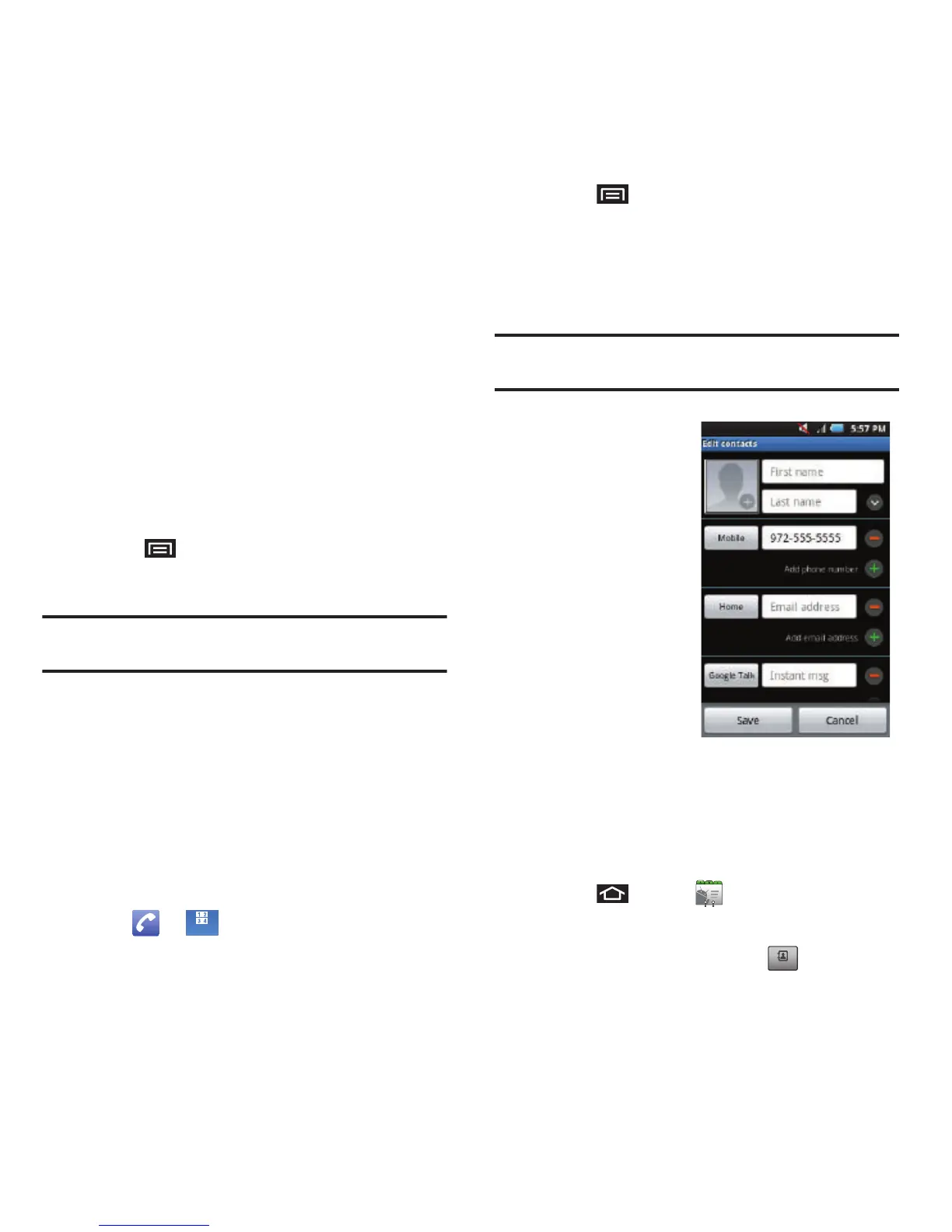
4. Touch the
First
name
field.
5. Use the onscreen
or QWERTY
keyboard to enter
the new contact
name and any
additional
information that
you want
associated with
this contact.
6. Touch
Save
to store and update the new entry.
Finding a Phone Number
You can search Contacts for entries by name.
1. Press and tap .
– or –
From the Keypad screen, tap .













 To Next Page