Settings 113
Security Settings
Accessing the Security Menu
All of your device’s security settings are available
through the Security menu. You can secure your data
and limit phone access by requiring a screen unlock
pattern every time your device is turned on or every
time it wakes up from sleep mode (where the screen
turns off).
䊳
Press
➔
and tap
➔
Location &
security
.
Your Device’s Lock Feature
Locking Your Device
When your device is locked, you can only receive
incoming calls or make calls to 911.
䊳
Press . Locking the screen prevents accidental
screen touches from activating phone functions.
Unlocking Your Device
1. Press to awaken the device.
2. Touch and drag the screen up or slide the
QWERTY keyboard out.
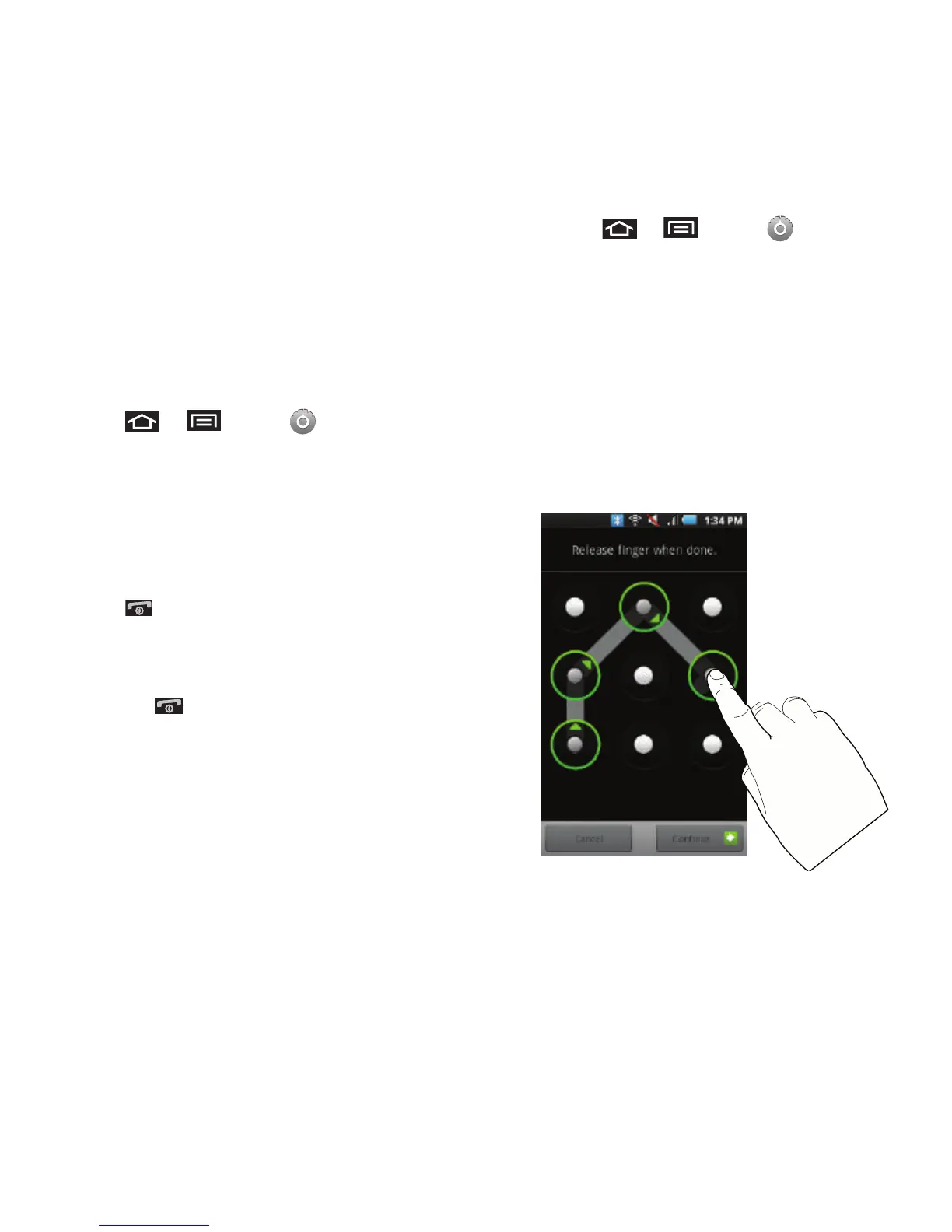
Your Device’s Unlock Pattern Feature
You can increase your device’s security by creating a
screen unlock pattern (disabled by default). When
enabled, you must draw the correct unlock pattern on
the screen to unlock and regain access to the device.
Creating an Unlock Pattern
1. Press
➔
and tap
➔
Location &
security
.
2. Scroll down to the menu list and tap
Set unlock
pattern
.
3. Read the information on the screen, then tap
Next
.
4. Review the onscreen tutorial on pattern
creation, then tap
Next
.













 To Next Page