46
8.
Tap
Save
to complete and store the new entry.
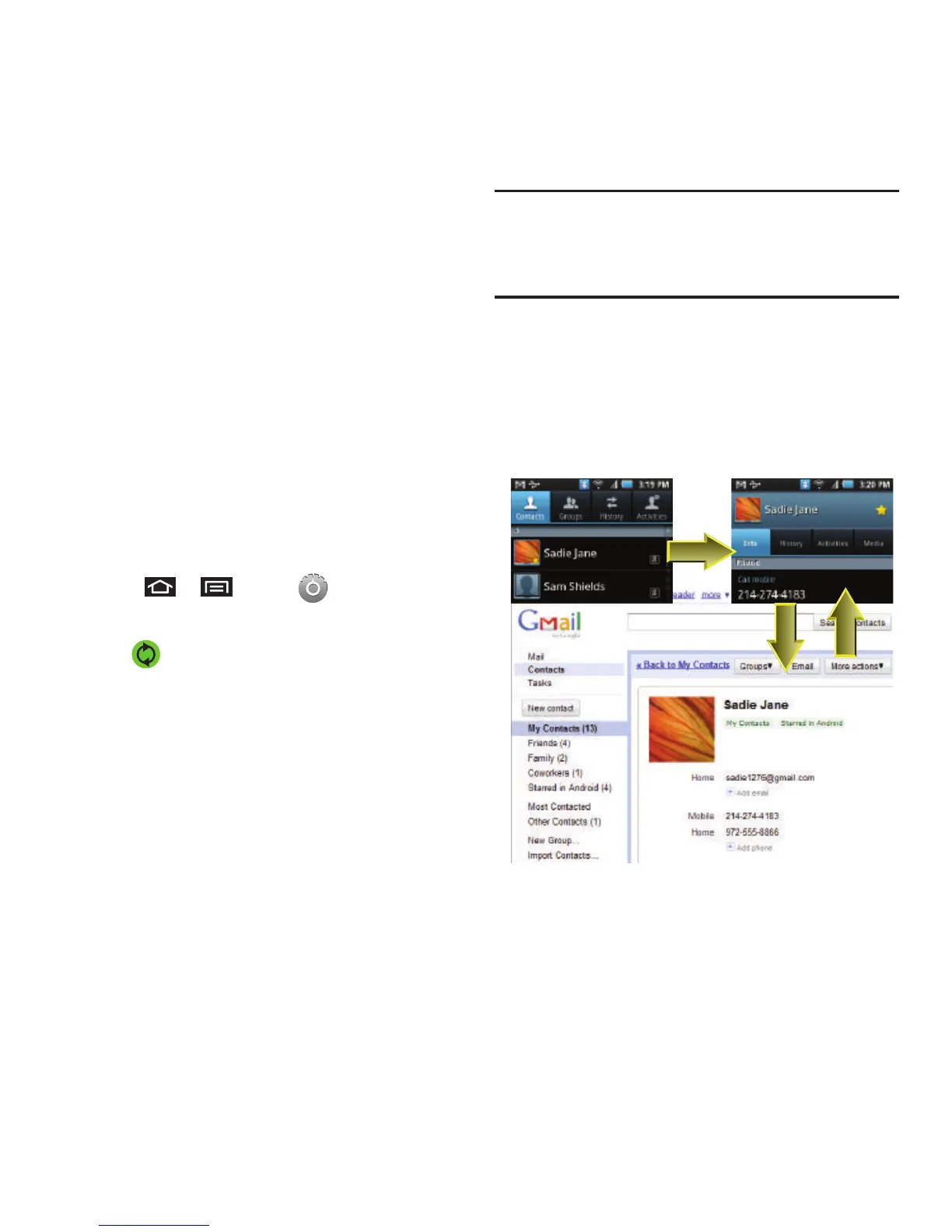
Confirming Contact Synchronization
Syncing data from your managed accounts allows you
to add and manage a new or existing contact from
your online or remote accounts to your device. Prior to
syncing, you need an active Google or Corporate
account with current Contact entries. You are also
required to login to your accounts via the device.
With syncing, any Contacts entries (with phone
numbers, email addresses, pictures, etc.) are updated
and synced with your Samsung Intercept™.
For more information about syncing existing managed
accounts, see “Synchronizing Accounts” on
page 107.
1. Press
➔
and tap
➔
Accounts &
sync
.
2. Tap within the desired account field to
reveal the account’s synchronization settings
screen.
3. To synchronize Gmail Contacts, tap
Sync
Contacts
. A checkmark indicates the feature is
enabled.
– or –
To synchronize Corporate Contacts, tap
Sync
Contacts
. A checkmark indicates the feature is
enabled.
Note:
Any change on either side (Device, Gmail, or Corporate/
Exchange Contacts), is reflected on the other side after a
sync process.The process of updating your Contacts tab
can take several minutes. If after 10-20 minutes, your list
has not been updated, repeat steps 2-3.
4. Your
Contacts
tab then reflects any updated
Contact information.
•
This update process works both ways. For example,
any changes on the device are updated to your Gmail
Contacts list after sync.













 To Next Page