Call Functions 37
–
When the call is routed to a Bluetooth headset, the
current call area shows the
Bluetooth
call icon ( ).
Note:
The Headset button is activated to show the current call
is routed to the connected Bluetooth headset.
•
To route the current call back to the device, tap
Headset to temporarily use the device. Tap it again to
route the call back to the connected Bluetooth
headset.
–
When turned off, the call is routed through either the
earpiece or speaker and shows ( ).
Touch
Keypad
( ) to use the onscreen dialpad to
enter additional numbers, for example, an extension
or access code.
–
For example: When you call your bank’s 800 number, use
your dialpad to enter your account number and PIN.
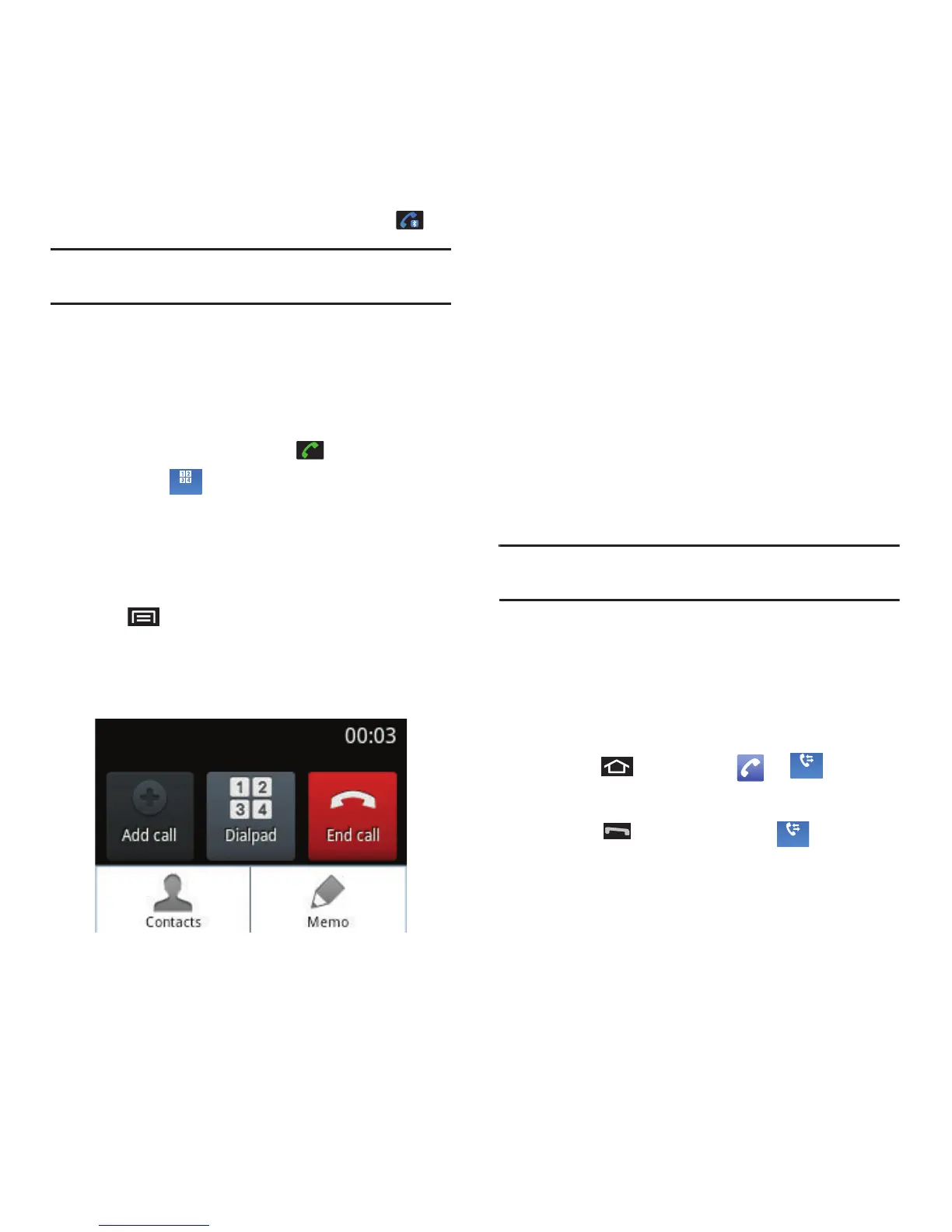
Pressing during a call displays a list of available
in-call features. To select an option, tap the
corresponding option.
•
Contacts
to toggle the appearance of the onscreen
dialpad.
•
Memo
to create a new memo while remaining on the call.
End-of-Call Options
After you receive a call from or make a call to a
phone number that is not in your Contacts, the device
displays the following options:
•
Add to Contacts
to add the current new number to your
Contacts. (See “Creating a New Contacts Entry” on
page 44.)
•
Update existing
to add the current number to an existing
Contacts entry. (See “Adding a Number to a Contacts
Entry” on page 49.)
•
Call
to redial the selected number and call back the
recipient.
•
Message
to send the selected number a text message.
Note:
The End-of-Call options are not displayed for calls
identified as No ID, Restricted, or Unknown.
Additional Calling Options
To obtain additional options such as phone number
and the duration of the call, you must access the Call
Log screen. See “Missed Call Notification” on
page 35.
1. Press and then tap
➔
.
– or –
Press and touch
Call log
( ).













 To Next Page