ENGLISH
ESPAÑOL
2020
Preparation Preparación
Using the QUICK MENU
✤ QUICK MENU is used to access Camcorder functions by using the
[QUICK MENU] button.
✤ QUICK MENU provides easier access to frequently used menus without
using the [MENU] button.
✤ Functions available using the QUICK MENU are as below:
Camera Mode
■
Setting the Digital Image Stabilizer (DIS) ➥page 55
■
Programed Automatic Exposure Modes (Program AE)
➥page 49
■
Setting the 16:9 Wide ➥page 54
■
Setting the White Balance (White Balance) ➥page 51
■
Setting the Shutter Speed (Shutter)- Only can be
operated by using the QUICK MENU ➥page 47
■
Setting the Exposure (Exposure)- Only can be operated
by using the QUICK MENU ➥page 47
■
Setting the Back Light Compensation (BLC) ➥page 41
M.Cam Mode
■
Setting the Memory Type (Memory Type) ➥page 70
■
Setting the White Balance (White Balance) ➥page 51
■
Setting the Photo Quality (Photo Quality) ➥page 71
■
Setting the Exposure (Exposure)- Only can be operated
by using the QUICK MENU ➥page 47
■
Setting the Back Light Compensation (BLC) ➥page 41
M.Player Mode
■
Setting the Memory Type (Memory Type) ➥page 70
■
Playing the Moving Images (MPEG) on the Memory Card
(M. Play Select) ➥page 79
■
Deleting Photo Images and Moving Images (Delete)
➥page 76
■
Protection from accidental Erasure (Protect) ➥page 75
■
Marking Images for Printing (Print Mark) ➥page 84
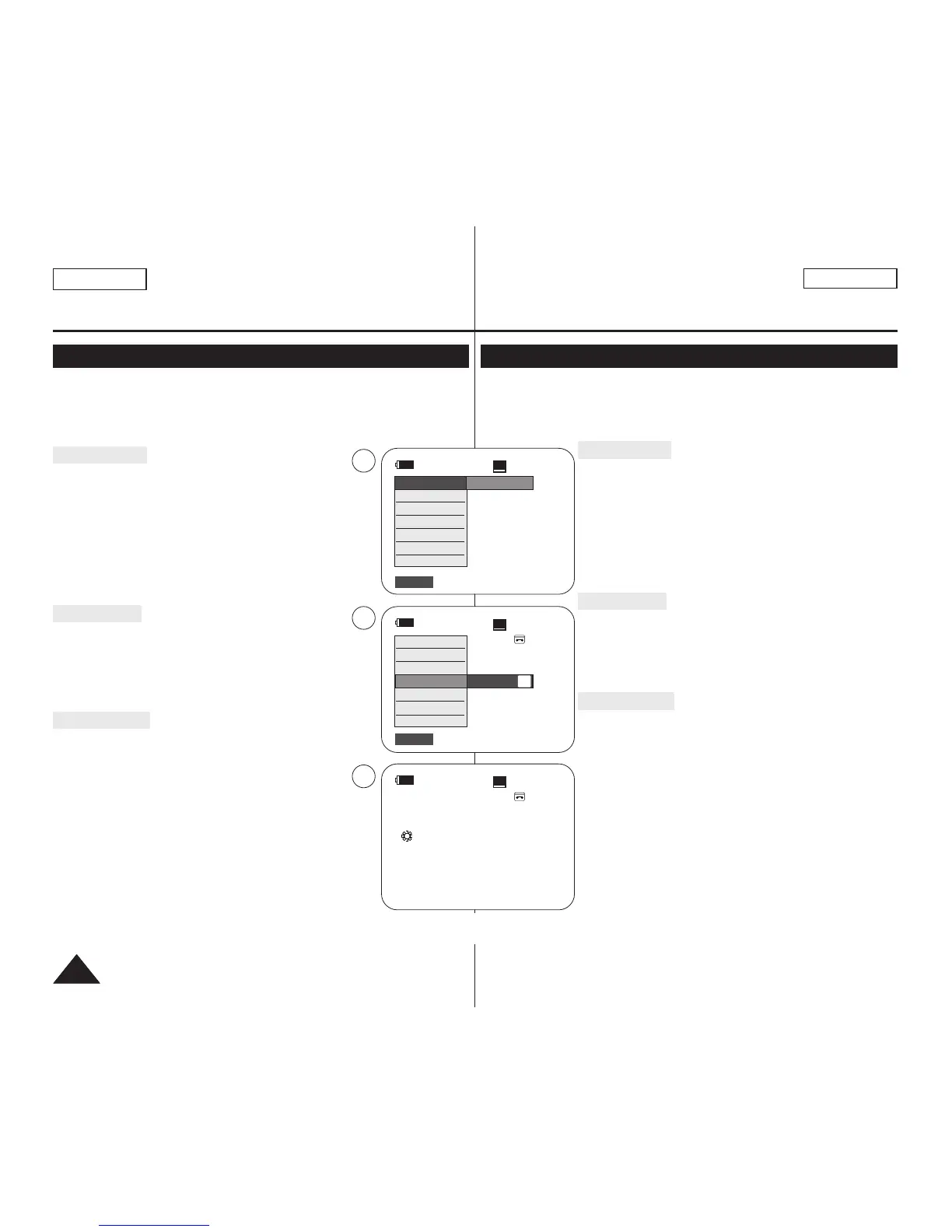
For example: Setting the White Balance
1. Press the [QUICK MENU] button.
The quick menu list will appear.
2. Move the [Zoom] lever to the up or down to select
<White Balance>, then press the [OK] button.
3. Move the [Zoom] lever to the up or down to select
desired mode (Auto, Indoor, Outdoor or Custom WB),
then press the [OK] button.
4. To exit, press the [QUICK MENU] button.
Uso de QUICK MENU
✤ El menú rápido se utiliza para acceder a las funciones de la videocámara
utilizando el botón [QUICK MENU].
✤ QUICK MENU proporciona un acceso más sencillo a los menús de uso
más frecuente sin tener que utilizar el botón [MENU].
✤ Las funciones disponibles utilizando el menú rápido son las siguientes:
Modo Camera
■
Ajuste del estabilizador digital de imágenes (DIS) ➥pág. 55
■
Modos de exposición automática programada Program AE
➥pág. 49
■
Ajuste de 16:9 Wide ➥pág. 54
■
Ajuste de White Balance ➥pág. 51
■
Ajuste de Velocidad de obturador : sólo se puede utilizar
con el MENÚ RÁPIDO ➥pág. 47
■
Ajuste de Exposure : sólo se puede utilizar con el MENÚ
RÁPIDO ➥pág. 47
■
Ajuste de BLC ➥pág. 41
Modo M.Cam
■
Ajuste de Memory Type
➥
pág. 70
■
Ajuste de White Balance ➥pág. 51
■
Ajuste de Photo Quality
➥
pág. 71
■
Ajuste de Exposure: sólo se puede utilizar con el MENÚ
RÁPIDO ➥pág. 47
■
Ajuste de BLC ➥pág. 41
Modo M.Player
■
Ajuste de Memory Type
➥
pág. 70
■
Reproducción de secuencias de video (MPEG) en la
tarjeta de memoria M. Play Select ➥pág. 79
■
Eliminación de imágenes fotográficas e secuencias de
video Delete
➥
pág. 76
■
Protección frente a borrado accidental Protect
➥
pág. 75
■
Marcación de imágenes para impresión Print Mark
➥
pág. 84
Por ejemplo: ajuste del balance de blancos
1. Presione el botón [QUICK MENU].
Aparecerá lista del menú rápido.
2. Mueva la palanca [Zoom] arriba o abajo para
seleccionar <White Balance> y presione el botón
[OK].
3. Mueva la palanca [Zoom] arriba o abajo para
seleccionar el modo que desea (Auto, Indoor,
Outdoor o Custom WB) y presione el botón [OK].
4. Para salir, presione el botón [QUICK MENU].
60min
0:00:10
SP
STBY
DIS
Program AE
16:9 Wide
White Balance
Shutter
Exposure
BLC
…
†
Auto
60min
0:00:10
SP
STBY
Exit
Q.MENU
Exit
Q.MENU
Off
A
1
2
4
60min
0:00:10
SP
STBY
œ
<When the Outdoor option was selected>
DIS
Program AE
16:9 Wide
White Balance
Shutter
Exposure
BLC


 To Next Page