ENGLISH
ESPAÑOL
5858
Playback Reproducción
Playing Back a Tape You have recorded on the LCD Screen Reproducción en la pantalla LCD de una cinta grabada
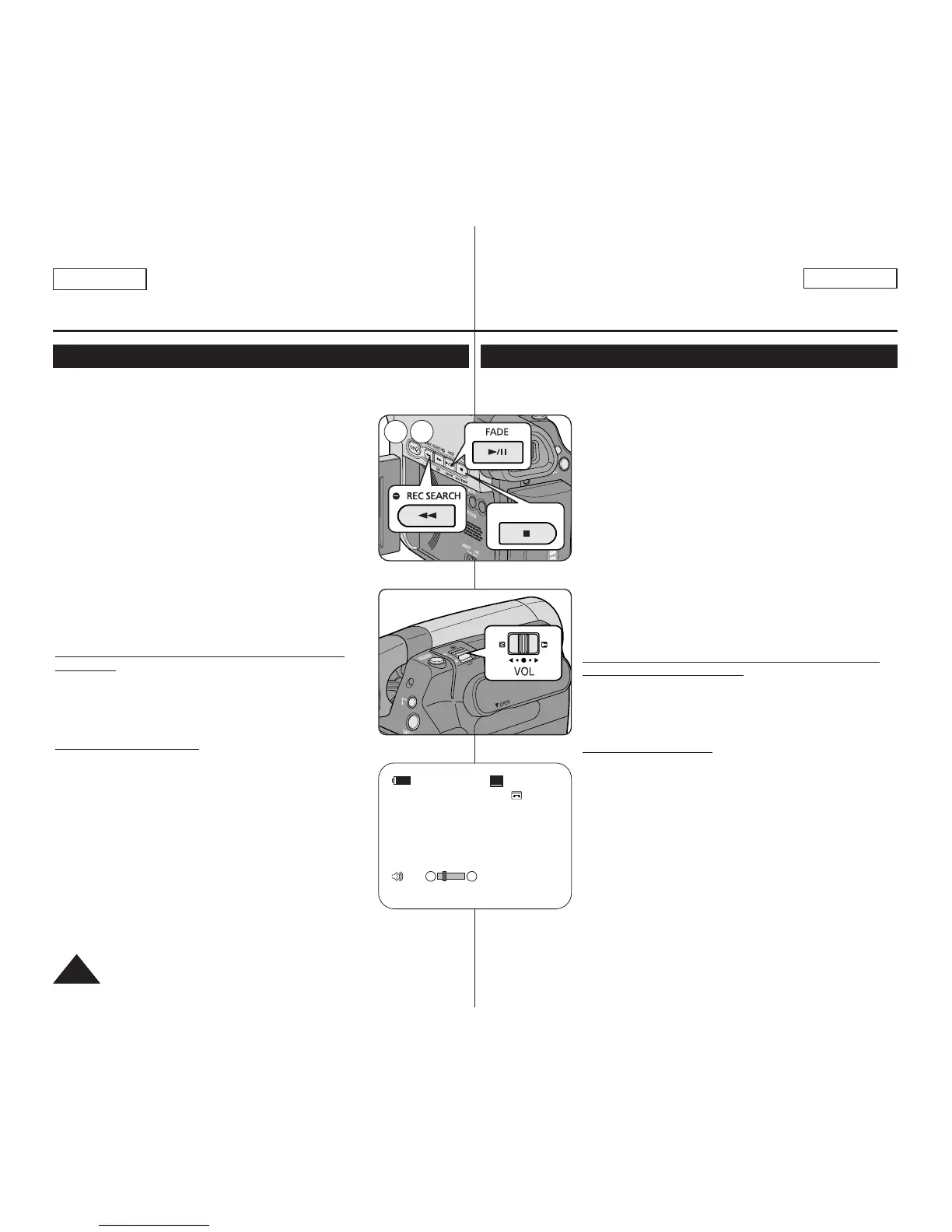
✤ The Playback function and speaker works only in <Player> mode. ➥page 19
✤ You can monitor the playback picture on the LCD Screen.
1. Set the [Power] switch to [PLAYER].
2. Set the [Mode] switch to [TAPE].
(SC-D363/D364/D365/D366 only)
3. Insert the tape you wish to view. ➥page 32
4. Open the LCD Screen.
■
Adjust the angle of the LCD Screen and set the
brightness or color if necessary.
5. Press the [
œœœœ
(REW)] button to rewind the tape to the
starting point.
■
To stop rewinding, press the [■ (STOP)] button.
■
The Camcorder stops automatically after rewinding is
complete.
6. Press the [
√√
/❙❙ (PLAY/STILL)] button to start playback.
■
You can view the picture you recorded on the LCD
Screen.
■
To stop the play operation, press the [■ (STOP)]
button.
Adjusting the LCD Bright/LCD Color during
Playback
✤ You can adjust the LCD Bright/LCD Color during
playback.
✤ The adjustment method is the same procedure as used in
<Camera> mode. ➥page 29
Adjusting the Volume
✤ When you use the LCD Screen for playback, you can
hear recorded sound from the built-in Speaker.
-Take the following steps to lower the volume or mute
the sound while playing a tape on the Camcorder.
✤ When you hear sounds once the tape is in play, use the
[Zoom] lever to adjust the volume.
■
Avolume level display will appear on the LCD Screen.
■
Levels may be adjusted from anywhere between
<00> to <19>.
■
If you close the LCD Screen while playing, you will not
hear sound from the speaker.
✤ When the AV cable is connected to the Camcorder, you
cannot hear sound from the Built-In Speaker and cannot
adjust the volume.
✤ Volume control is disabled while PB Zoom is in use.
✤ La función de reproducción sólo está disponible en modo <Player>. ➥pág. 19
✤ Puede supervisar la imagen reproducida en la pantalla LCD.
1. Coloque el interruptor [Power] en [PLAYER].
2. Coloque el interruptor [Mode] en [TAPE].
(Sólo SC-D363/D364/D365/D366.)
3. Inserte la cinta que desee ver. ➥pág. 32
4. Abra la pantalla LCD.
■
Ajuste el ángulo de la pantalla LCD y fije el brillo y
color según precise.
5. Presione el botón [
œœœœ
(REW)] para rebobinar la cinta al
punto inicial.
■
Para detener el rebobinado, presione el botón
[■ (STOP)].
■
La videocámara se detiene automáticamente tras
completar el rebobinado.
6. Presione el botón [
√√
/
❙❙ (PLAY/STILL)] para iniciar la
grabación.
■
Puede ver la imagen grabada en la pantalla LCD.
■
Para detener la reproducción, presione el botón
[■ (STOP)].
Ajuste del brillo y el color de la pantalla LCD
durante la reproducción
✤ Puede ajustar el brillo y el color de la pantalla LCD
durante la reproducción.
✤ El método de ajuste es el mismo procedimiento que el
utilizado en el modo <Camera>. ➥pág. 29
Ajuste del volumen
✤ Cuando utilice la pantalla LCD para la reproducción,
puede escuchar el sonido grabado a través del parlante
incorporado.
-Siga los pasos que se indican a continuación para
disminuir el volumen o eliminar el sonido al reproducir
una cinta en la videocámara.
✤ Cuando escuche sonido una vez que la cinta empiece a
reproducirse, utilice la palanca de [Zoom] para ajustar el
volumen.
■
En la pantalla LCD aparecerá el nivel de volumen.
■
Los niveles se pueden ajustar entre <00> y <19>.
■
Si cierra la pantalla LCD mientras reproduce, no
escuchará ningún sonido en el parlante.
✤ Cuando se conecte el cable de AV a la videocámara, no podrá oír nada en el
parlante incorporado y no podrá ajustar el volumen.
✤ El control de volumen se desactiva cuando se esté utilizando PB Zoom.


 To Next Page