Sapido Technology Inc. www.sapido.com.tw
88
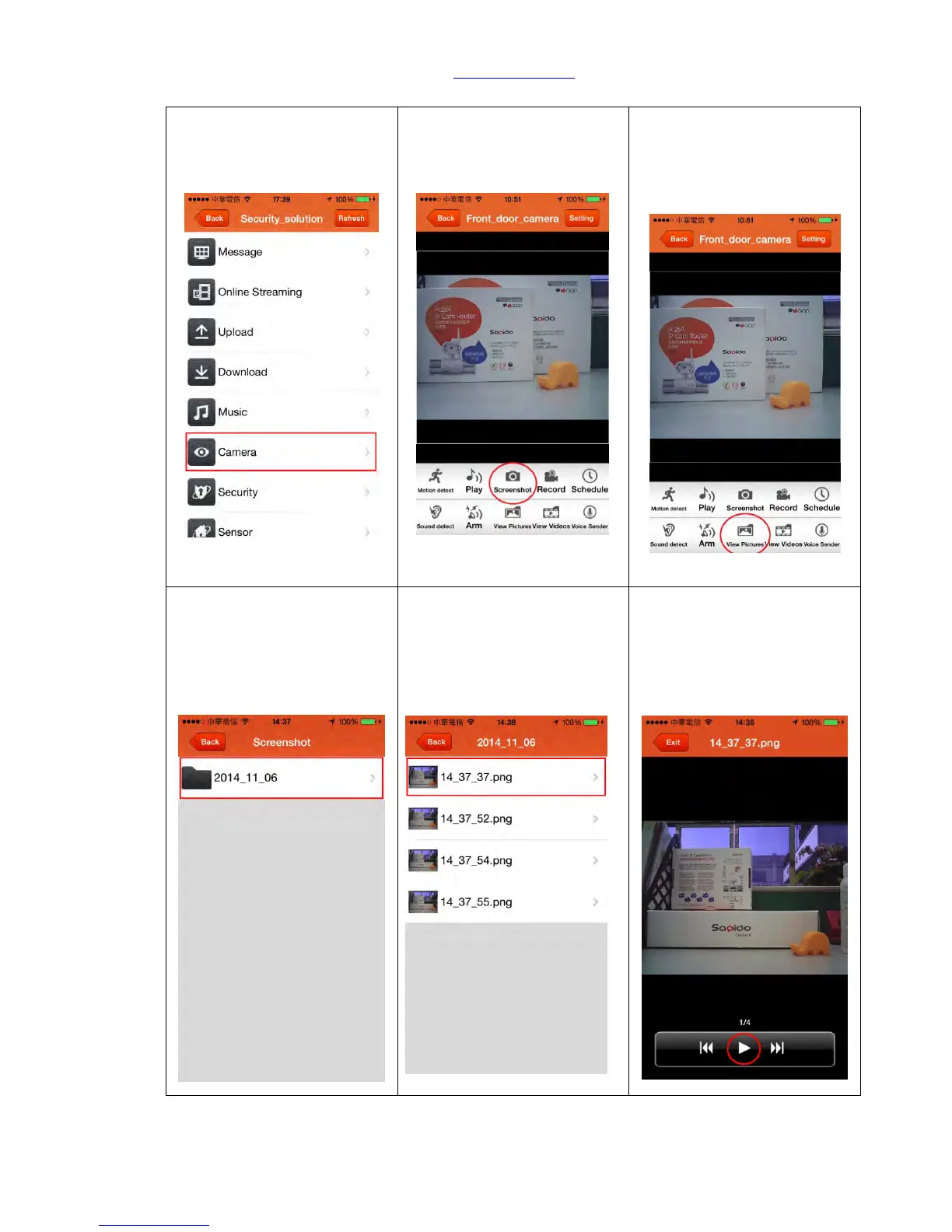
6.2. Real-Time Screenshot and Browse
Step 2. Click “Screenshot” in
below to immediate save the
image in your smartphone
Step 3. Click “View Picture”
to review the screenshot
image.
Step 4. The images will be
sorted by date; please direct
select the date you want to
view.
Step 5. Image checklist will
be listed in order by time
sequence. See left side to
directly preview the image,
and click the image for full
screen review.
Step 6. Click below Play icon
to review all images in turn
when browsing full screen
image



 To Next Page