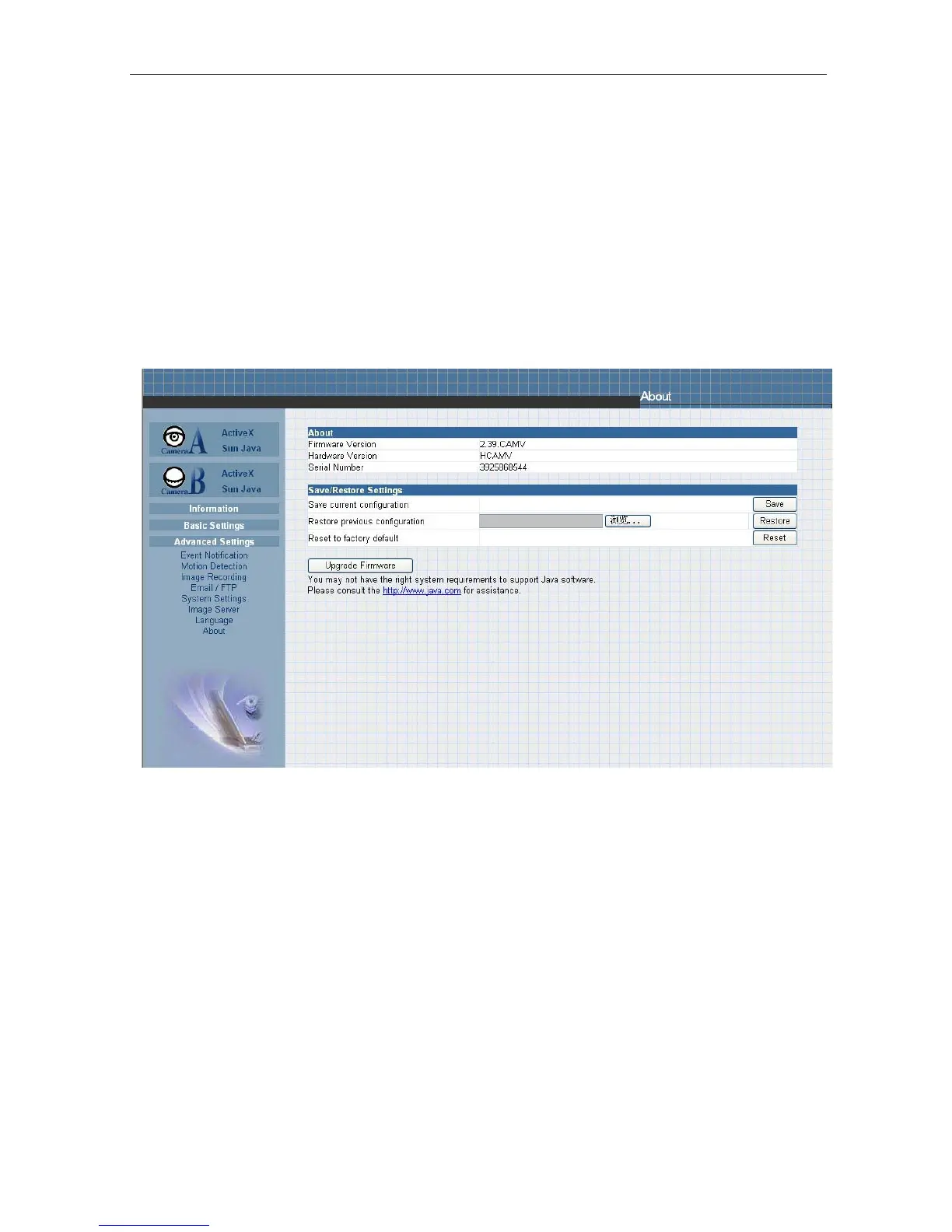
ii. Save / Restore Settings
“Save current Configuration”
Click “Save” to save the current settings and
configuration to your PC.
The text
file will have a default format of YYYY_MMDD_####.cfg.
The administrator can
change this if necessary.
“Restore previous configuration”
This function is
only available if a setting has been saved initially.
Browse to the
location where the file is
saved and click “Restore”
“Reset to factory default”
This function will reset all settings to
its default value.
Fig.44 IP Camera About Page
Chapter 6: iMultiView
iMultiView is a program used to manage
multiple
IP Cameras in a network. It is able to
detect the
IP’s
of
all
the
IP Cameras
installed,
and
display
them
in
a
list
format
for
easy management.
Section 1. Installing iMultiView
Click on setup.exe and follow the installation wizard
After installation, there will be a
iMultiView group in the Windows Start group
Click “iMultiView”
“iMultiView for Windows” to start using iMultiView.



 To Next Page