“Login Password”
Enter your password
2.3.3 Account Settings
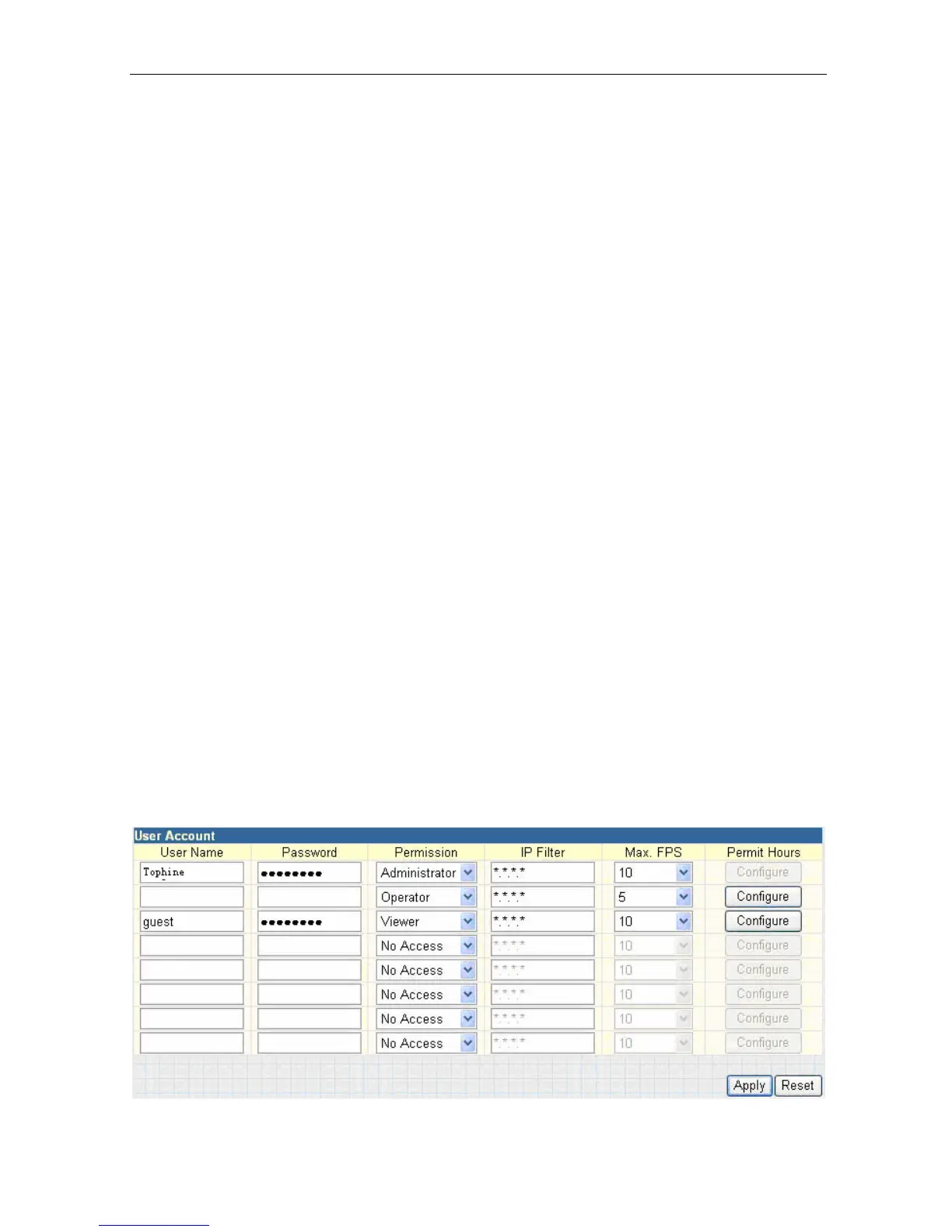
This section allows you to set up to
eight (8) user account
with different permissions for
the IP Camera.
i. User Account
“User Name” : Determine the username of visitors who can log in. The
administrator can set up to 32 case sensitive character names.
“Password” : Set a password for the visitor’s account. The
administrator can set up to 32 case sensitive passwords.
“Permission” : Set the permission level to one of “Administrator”,
“Operator”, “Viewer” or “No Access”
Administrator:
This permission level allows
you
full
access
including
write permission to all the sections.
Operator:
This
permission
level
allows
you
access
to
IP
Camera menus,
but not
the
permission
to
amend
them.
The administrator can also
set “Permit Hours” here for
viewing the camera.
Viewer:
This permission level allows you to access the IP Camera at
specific time as set in “Permit Hours” for viewing the camera. A
“Viewer” does not have write permission and can only access the
“Web Cam” and “Information” section.
No
Access:
This is to revoke either
of the above two permission
levels given
to a user and make the user account disabled.
WARNING: You must setup an Administrator account in the Setup Wizard
BEFORE setting either “Operator”, “Viewer” or “No Access”. Failure
to do so will result in your being locked out of the IP Camera Web Manager!
“IP Filter”
A visitor can only login with the IP address specified here
for security consideration. You can restrict a user’s access only from
192.168.1.0/24 by setting up “192.168.1.*”. Otherwise, leave it as
“*.*.*.*” to allow yourself to login from any place.
Fig.27 IP Camera User Account Settings
IP Camera Manual 26


 To Next Page