This section allows you to determine IP address configuration
for the IP Camera.
Select the
IP Camera on the right display screen, and then
click “IP Configuration”. This
will bring up
the IP Address Configuration window. There are two tabs;
• IP Address
• Advanced (for port setting configuration)
2.3.1 IP Address
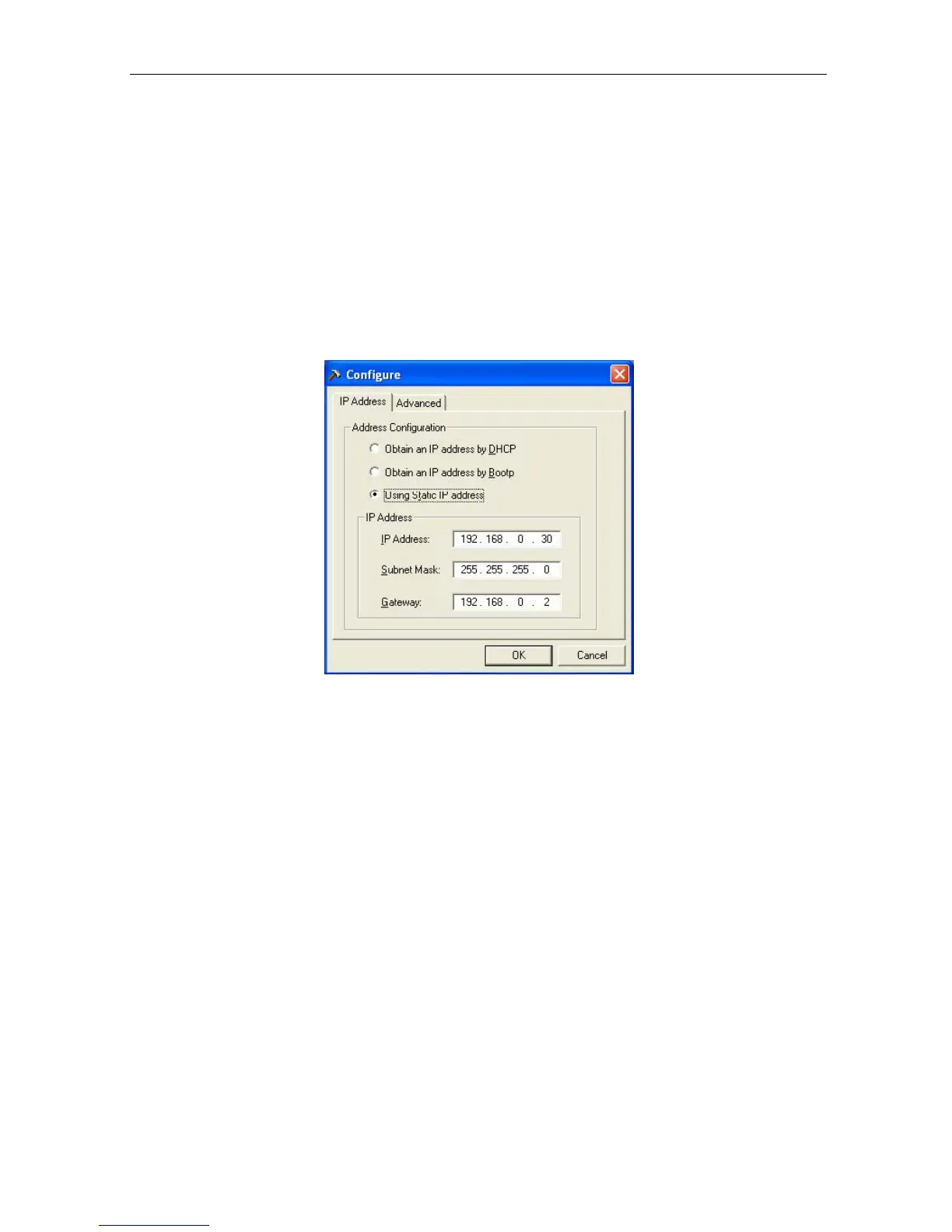
Use this section to set the IP Address of IP Camera.
When using your IP Camera for the first
time, it is advisable to
choose the
“Using
Static IP Address” option.
For this option, you will have to enter an IP Address,
Subnet Mask and Gateway (refer to Appendix C for IP address explanation).
Fig.10 IP Configuration: Set an IP Address for IP Camera
Once the IP Address
is set, you
will
be able to connect to t h e IP Camera
webpage by entering this IP Address into a standard browser.
“Obtain an IP address by DHCP or
BOOTP”
The
IP
address,
Subnet
Mask
and
Gateway
is
acquired
directly
and
assigned automatically by the system.
2.3.2 Advanced
This
section
sets
security
password
against
unauthorized
access
to
devices
thru IP Camera Utility.
IP Camera Manual 15



 To Next Page