(1) Use “Download Firmware” function under Netility to update it
Method 2:
Through IP Camera Web Page
(1) Enter the IP Camera
Web Page
(2) Go to “About”, click “update software” and you will be automatically linked for update.
Method 3:
Using FTP
Windows FTP is another way to upload the latest firmware into
your
IP Camera. You
can also use other FTP client software to do this. In the following example, the IP
Camera IP address is 192.168.50.179
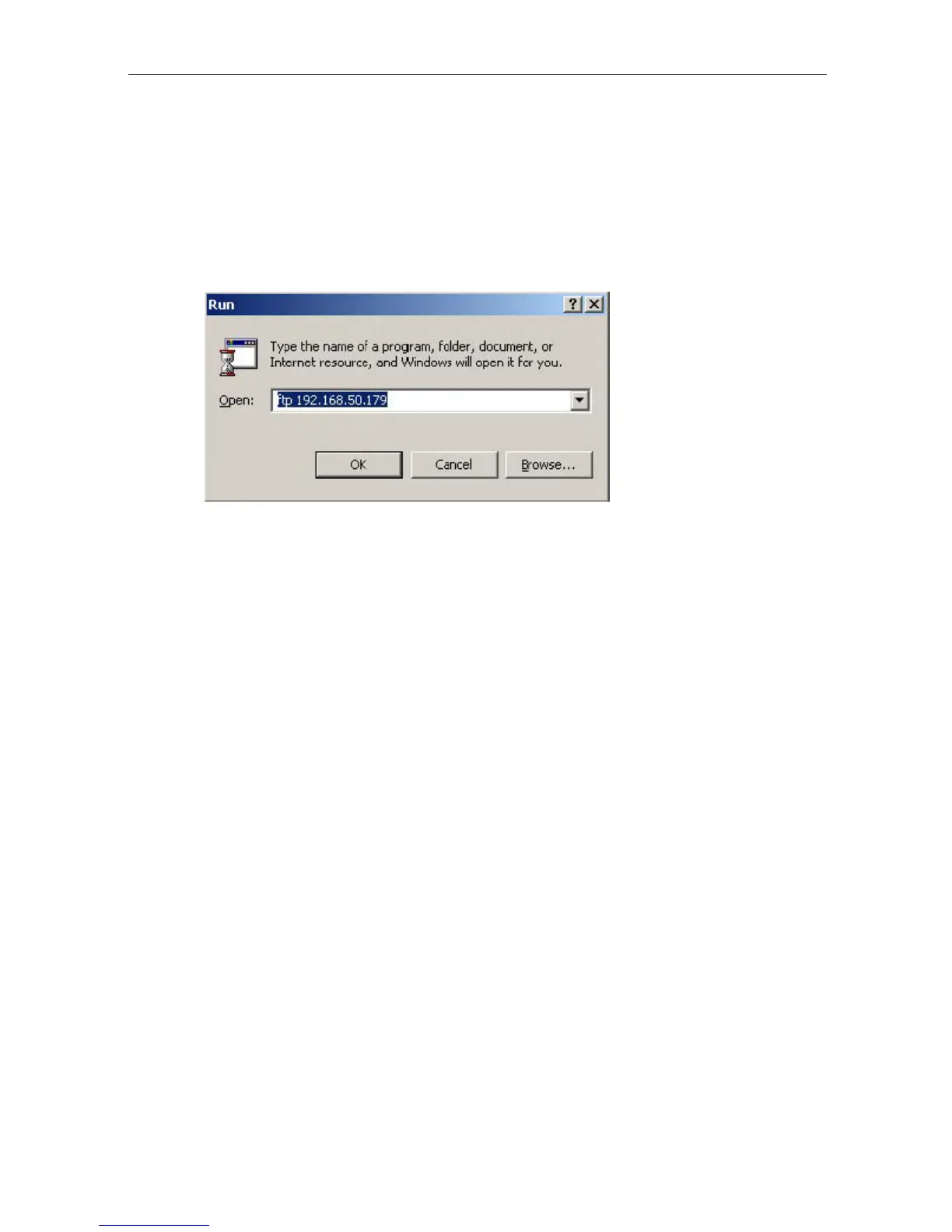
(1) Click “Start” on Windows taskbar, then “Run..”, type in “ ftp 192.168.50.179 ”
(2) Click “OK”
(3) The
systems will requests for
your User Name and Password. Enter “admin”
for
User
Name
and
press
“Enter”.
The
password
is
“Device
Password”
of Netility.
Once the User Name and Password is verified, the server will respond with
“230 OK” to
indicate that Login was
successful.
If you enter the wrong
Username or Password, the server will respond with
“530 Not Logged in”.
(4) FTP commands:
ls : This command
requests the server to list all files and sub-files in the
current menu.
put <client’s file route>
: This command ask the client to
copy its specific file
route
to
the
Server
point.
Use this command to
upload
the
latest
firmware
to
your IP Camera.
quit : This
command allows you to logout and close the
FTP connection.
The illustration below shows the latest IP Camera firmware file uploaded from the
local computer located in (c:\work\netagent\prjs\nag\2.32.DK520.bin) to the IP
Camera with an IP address 192.168.50.179
IP Camera Manual 59



 To Next Page