EasyManua.ls Logo

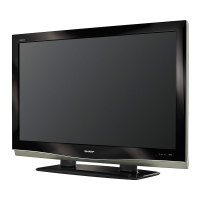
Sharp Aquos LC-46D82U - User Manual

Sharp Aquos LC-46D82U
65 pages
Print Icon
To Next Page IconTo Next Page
Loading...
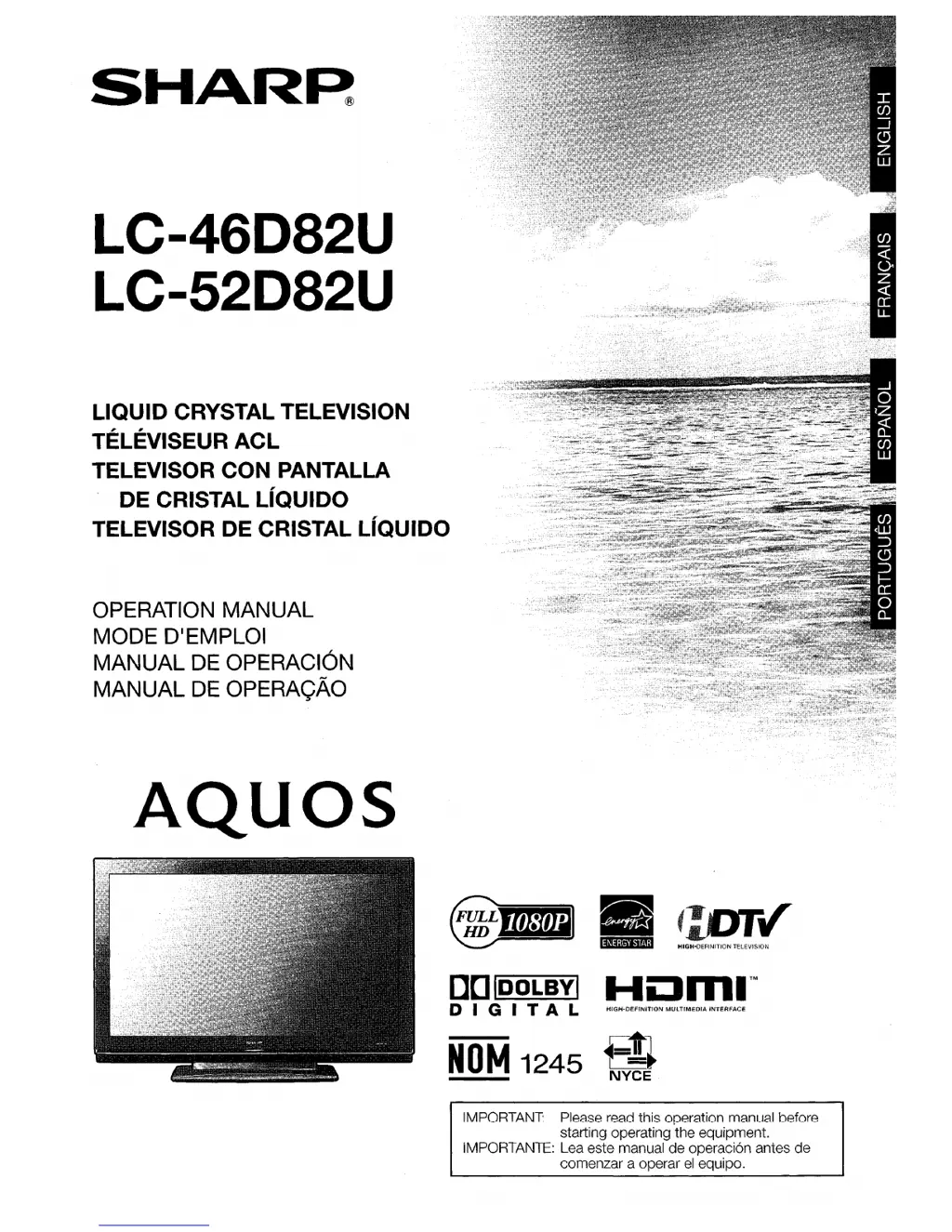
SHAR~
LC-46D82U
LC-52D82U
LIQUID
CRYSTAL TELEVISION
TELEVISEUR
ACL
TELEVISOR
CON
PANTALLA
DE
CRISTAL
LIQUIDO
TELEVISOR
DE
CRISTAL
LIQUIDO
OPERATION MANUAL
MODE D'EMPLOI
MANUAL DE OPERACION
MANUALDEOPERAQAO
AQuas
[][]
IDOLBYI
DIGITAL
NOM
1245
~,
~
:~
( V
l.fi§;14it'!;l
HIGH-DEFINITION
TELEVISION
HIGH-DEFINITION
MULTIMEDIA
INTERFACE
c-A.l
1-!~
NYCE
IMPORTANT: Please read this operation manual before
starting operating the equipment.
IMPORTANTE: Lea este manual
de
operaci6n antes de
comenzar a operar
el
equipo.

Questions and Answers

  • G
    ggreerAug 13, 2025
    How to troubleshoot no power on my Sharp Aquos LC-46D82U LCD TV?
    • M
      Miranda JonesAug 13, 2025
      First, ensure that you have pressed the TV POWER button on the remote. If the indicator on the TV doesn't illuminate, try pressing the POWER button directly on the TV. Also, verify that the AC cord is properly connected. Finally, ensure that the power is turned on.
  • B
    Brett LoveAug 16, 2025
    Why does my Sharp Aquos LC-46D82U LCD TV power off suddenly?
    • M
      Mrs. Michelle DavisAug 16, 2025
      If your Sharp LCD TV suddenly turns off, it might be due to several reasons. Check if the sleep timer is enabled. Also, examine the power control settings. Another possibility is that the unit's internal temperature has increased; in this case, remove any obstructions blocking the vents or clean the vents to improve airflow.
  • G
    gmillerAug 20, 2025
    What to do if there is no sound on my Sharp Aquos LC-46D82U LCD TV?
    • L
      lisa54Aug 20, 2025
      If there is no sound on your Sharp LCD TV, check these things: First, make sure the volume isn't too low. Second, verify that “Variable” is selected in “Output Select”. Third, check if you've accidentally pressed the MUTE button on the remote control.
  • O
    oreidAug 25, 2025
    Why is my Sharp LCD TV remote control not working?
    • C
      Cynthia PayneAug 25, 2025
      If the remote control isn't working with your Sharp LCD TV, try these steps: First, make sure the FUNCTION is set to the TV position. Second, check that the batteries are inserted correctly, aligning the polarity (e, f). Third, replace the batteries with new ones if they are worn out. Also, avoid using the remote under strong or fluorescent lighting, and ensure no fluorescent lights are near the remote control sensor.
  • D
    David RiggsAug 27, 2025
    What to do if there is no picture on my Sharp LCD TV?
    • H
      hmckinneyAug 27, 2025
      If there's no picture on your Sharp LCD TV, first ensure that all connections to other components are correct. Then, verify that the correct input signal source is selected after making the connections and that the correct input is selected. Also, check the picture adjustments to ensure they are properly configured. Confirm that “On” is not selected in “Audio Only”. Finally, check if a non-compatible signal is being input.
  • P
    Patrick DavisAug 31, 2025
    What to do if my Sharp LCD TV unit cannot be operated?
    • M
      Michael WilliamsAug 31, 2025
      If your Sharp LCD TV unit cannot be operated, it may be due to external influences such as lightning or static electricity. Try turning the TV off and then on again, or unplug the AC cord and plug it back in after 1 or 2 minutes.
  • K
    Katherine SteinSep 4, 2025
    How to fix a cut off picture on my Sharp LCD TV?
    • H
      Hayley MaysSep 4, 2025
      If the picture on your Sharp LCD TV is cut off or has a sidebar screen, ensure that the image position is correct and that screen mode adjustments, such as picture size, are made correctly.
  • J
    James PalmerSep 8, 2025
    Why does my Sharp LCD TV have strange colors?
    • Q
      qthomasSep 8, 2025
      If you are experiencing strange color, light color, or color misalignment on your Sharp LCD TV, try the following: First, adjust the picture tone. Second, consider if the room is too bright, as this can affect the picture's appearance. Finally, check the input signal setting.

Summary

IMPORTANT INFORMATION AND SAFETY

IMPORTANT SAFETY INSTRUCTIONS

Essential safety guidelines for operating the television.

IMPORTANT INFORMATION

DECLARATION OF CONFORMITY

Compliance statement for FCC regulations and device specifications.

Trademarks

Lists registered trademarks associated with the product.

IMPORTANT SAFETY INSTRUCTIONS

General Safety Precautions

Covers placement, ventilation, water exposure, and handling.

Electrical Safety and Handling

Addresses grounding, fire prevention, cleaning, and static display.

Supplied Accessories

QUICK REFERENCE

Provides a quick overview of basic setup and operation.

Ventilation & Cleaning Tips

Guidance on maintaining optimal ventilation and cleaning the screen.

QUICK INSTALLATION TIPS

Steps for initial setup, including antenna and power connection.

Remote Control Battery Replacement

Instructions on how to replace batteries in the remote control unit.

Part Names

TV (Front)

Identifies components visible on the front of the television.

TV (Rear)

Identifies ports and connectors on the back of the television.

Remote Control Unit

Details the buttons and functions of the remote control.

Preparation

Using the Remote Control Unit

Guidance on operating the remote control effectively.

Cautions regarding the remote control unit

Warnings for proper handling and care of the remote control.

Antennas

Information on connecting external antennas for signal reception.

Connecting External Audio;Video Equipment

Steps for connecting Blu-ray, DVD, and TV STB devices.

Connecting a VCR, Game Console, or Camcorder

Instructions for connecting older AV equipment.

Connecting HDMI Equipment

Steps for connecting devices via HDMI for high-definition output.

Connecting a PC

Guide for connecting a computer to the TV via HDMI.

PC Compatibility Chart

Details supported PC resolutions and frequencies.

Watching TV

Turning on the Power

Procedure for powering the TV on and understanding indicators.

Turning off the Power

Procedure for powering the TV off and standby modes.

Initial Setup

Guides through the first-time setup process including language and channel search.

Changing Channels

Explains various methods for selecting TV channels.

Changing Volume;Sound

Instructions for adjusting volume, muting, and using surround sound.

MTS;SAP Stereo Mode

How to select stereo or secondary audio broadcast modes.

Digital Broadcasting Audio Mode

Options for selecting audio modes for digital broadcasts.

Basic Adjustment Settings

Menu Operation Buttons

Identifies buttons used for navigating TV menus.

On-Screen Display

Explains the visual elements and indicators on the TV screen.

Menu Items for TV;INPUT 1;2;3

Lists available picture, audio, and setup options for analog inputs.

Menu Items for HDMI

Lists available picture, audio, and setup options for HDMI inputs.

EZ Setup

Step-by-step guide for initial television setup.

Channel Setup

Manual process for memorizing available channels.

Channel Memory Setting

How to manage stored channels and signal strength.

Antenna Setup - DIGITAL

Configuring antenna settings for digital broadcast reception.

Favorite Channel Setting

Programming and managing favorite channels for quick access.

Picture Adjustments

Adjusting visual settings like brightness, contrast, and color.

OPC Setting

Automatic adjustment of screen brightness based on ambient light.

Advanced Picture Adjustments

Fine-tuning picture quality with advanced settings.

3 D-Y;C

Reduces video noise for clearer analog broadcasts.

Sound Adjustment

Customizing audio settings like treble, bass, and balance.

Surround

Enabling surround sound effects for an immersive experience.

Power Control

Settings for energy saving and automatic power shutoff.

Digital Setup

Optimizing settings for digital broadcasting.

Using External Equipment

Displaying an External Equipment Image

Selecting and viewing sources from connected devices.

Input Select

Adjusting signal type for optimal image display from external sources.

Displaying an Image from HDMI Equipment

Connecting and viewing content from HDMI-compatible devices.

Input Skip

Option to skip specific HDMI inputs during selection.

Useful Adjustment Settings

Language Setting

Selecting the on-screen display language.

Blue Illumination Setting

Controls the front blue LED illumination.

Image Position

Adjusting the horizontal and vertical placement of the picture.

Reset

Restoring settings to factory defaults.

Input Label

Customizing names for input sources.

Sleep Timer

Setting a timer for automatic TV standby.

View Mode for 4:3 Programs

Adjusting screen aspect ratios for 4:3 content.

View Mode for HD Programs

Selecting screen sizes for high-definition content.

View Mode for PC Input Mode

Adjusting screen sizes for PC input signals.

Advanced Option Settings

Accessing various advanced display and audio settings.

AV MODE

Selecting predefined picture and sound modes.

Input Signal (for PC input mode)

Manually setting PC signal resolutions for proper display.

Closed Captions and Digital Closed Captions

Information and settings for subtitle display.

Caption Setup

Customizing the appearance of closed captions.

Secret Number Setting for Parental Control

Setting a PIN for parental control features.

Setting Parental Control Status

Enabling or disabling parental control features.

Changing the Secret Number

Procedure to modify the existing secret number.

Clearing the Secret Number

Procedure to reset or remove the secret number.

Parental Control (Setting V-CHIP Level)

Configuring V-CHIP ratings to block content.

Voluntary Movie Rating System (MPAA)

Information on movie rating systems for parental control.

TV Parental Guidelines (TV Guidelines)

Information on TV content rating systems for parental control.

Canadian Rating Systems

Details on Canadian TV rating systems for parental control.

How to Temporarily Release the V-CHIP BLOCK

Steps to temporarily disable content blocking.

Reactivating the Temporarily Released V-CHIP BLOCK

Procedures to re-enable content blocking.

Other Viewing Options

Freezing Images

Capturing and holding a still image from the screen.

Presetting Remote Control Function

Programming the remote to control other AV devices.

Manufacturer Codes

Lists codes for programming the remote to control various brands.

Cable Control Buttons

Operating connected cable TV converters.

SAT Control Buttons

Operating connected satellite TV receivers.

VCR Control Buttons

Controlling VCR functions via the remote.

DVD Control Buttons

Controlling DVD player functions via the remote.

Appendix

Troubleshooting

Solutions for common operational problems and error messages.

Troubleshooting-Digital Broadcasting

Specific troubleshooting for digital broadcast reception issues.

Cautions Regarding Use in High and Low Temperature Environments

Guidelines for operating the TV in different temperature conditions.

Specifications

Technical details and dimensions of the TV models.

Calling for Service

Information on how to contact Sharp for support and service.

LIMITED WARRANTY

Details of the consumer limited warranty terms and conditions.

Dimensional Drawings

LC-46 D82 U Dimensions

Visual representation of the TV's physical dimensions.

LC-52 D82 U Dimensions

Visual representation of the TV's physical dimensions.

Sharp Aquos LC-46D82U Specifications

General IconGeneral
Screen Size46 inches
Resolution1920 x 1080
Display TypeLCD
Aspect Ratio16:9
HDMI Ports3
Brightness450 cd/m²
Response Time6 ms
Component Video Inputs1
Composite Video Inputs1
Audio Output10W x 2
Backlight TypeCCFL
Speakers2
Viewing Angle176 degrees
Input PortsHDMI, Component, Composite, VGA

Related product manuals