Shure Incorporated
17/86
1.
2.
1.
2.
3.
•
1.
2.
3.
•
1.
2.
How to Lock the Welcome Screen
You can lock conference units to stay on the welcome screen for units set to the delegate, dual-delegate, or listener roles. This
will prevent participants from changing settings on the units, and it will disable the view of speak and request lists. Voting con
trols are accessible when a voting session is initiated.
Open the access point web application and click the wrench icon.
Go to Global device settings > Screen content > Welcome screen lock to lock or unlock the welcome
screen.
Conference Unit Buttons
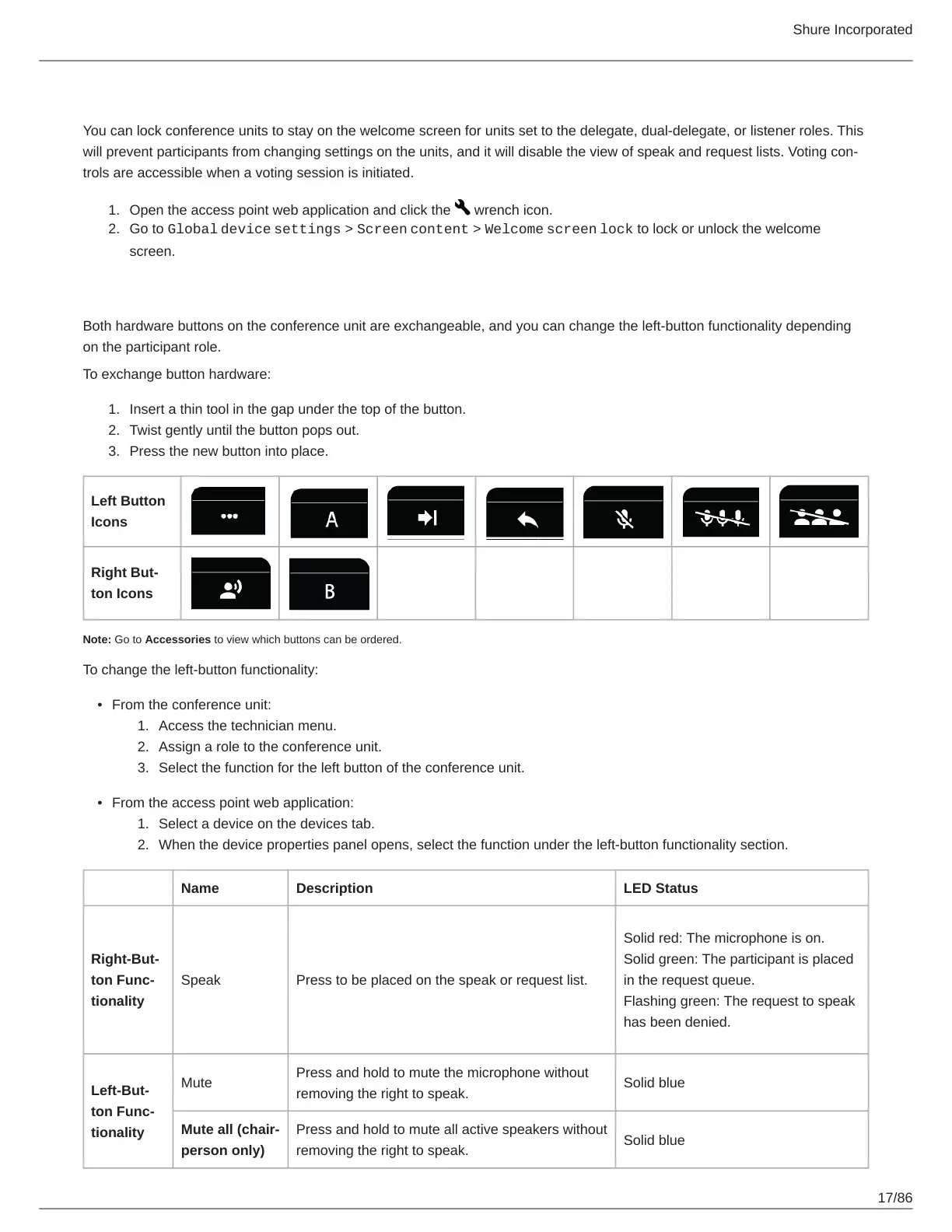
Both hardware buttons on the conference unit are exchangeable, and you can change the left-button functionality depending
on the participant role.
To exchange button hardware:
Insert a thin tool in the gap under the top of the button.
Twist gently until the button pops out.
Press the new button into place.
Left Button
Icons
Right But
ton Icons
Note: Go to Accessories to view which buttons can be ordered.
To change the left-button functionality:
From the conference unit:
Access the technician menu.
Assign a role to the conference unit.
Select the function for the left button of the conference unit.
From the access point web application:
Select a device on the devices tab.
When the device properties panel opens, select the function under the left-button functionality section.
Name Description LED Status
RightBut
ton Func
tionality
Speak Press to be placed on the speak or request list.
Solid red: The microphone is on.
Solid green: The participant is placed
in the request queue.
Flashing green: The request to speak
has been denied.
LeftBut
ton Func
tionality
Mute
Press and hold to mute the microphone without
removing the right to speak.
Solid blue
Mute all (chair
person only)
Press and hold to mute all active speakers without
removing the right to speak.
Solid blue




 To Next Page