Shure Incorporated
39/86
1.
2.
3.
•
•
•
1.
2.
3.
4.
Role Brief description Details
unassigned microphone slots, and remains on the speak list
during the event.
Dual Delegate
Two delegates share one conference
unit
Both the left and right buttons are configured as speak but
tons, one for each participant. The speaker list shows both
delegates as individual speakers, but only one uplink channel
is being used by the shared microphone. Both delegates can
cast votes.
Configuring Conference Units for Remote Callers
Change a conference unit to the remote caller role in the technician menu or web application.
Call the remote participant on a mobile device.
Connect the mobile device to the TRRS jack on the back of the conference unit.
To allow conference units to automatically change to the remote caller role when connecting a mobile device, go to Meeting
Controls > Basic and select Auto-sense remote caller role cable.
Speak Priority for Remote Callers
When a mobile device is connected to the conference unit, the remote caller will hear 1 of 3 tones that indicate their connection
and speak priority:
3 short ascending tones: Connected to the event and remains on the speak list.
3 short descending tones: Connected and listening to the event, but no speaking permissions
2 short repeating tones: Conference unit lost connectivity to the access point
Note: If the conference unit loses power, no tones are sent to the remote caller.
When a microphone slot becomes available, a remote caller can be added to the speak list by unplugging the cable from the
conference unit and plugging it in again.
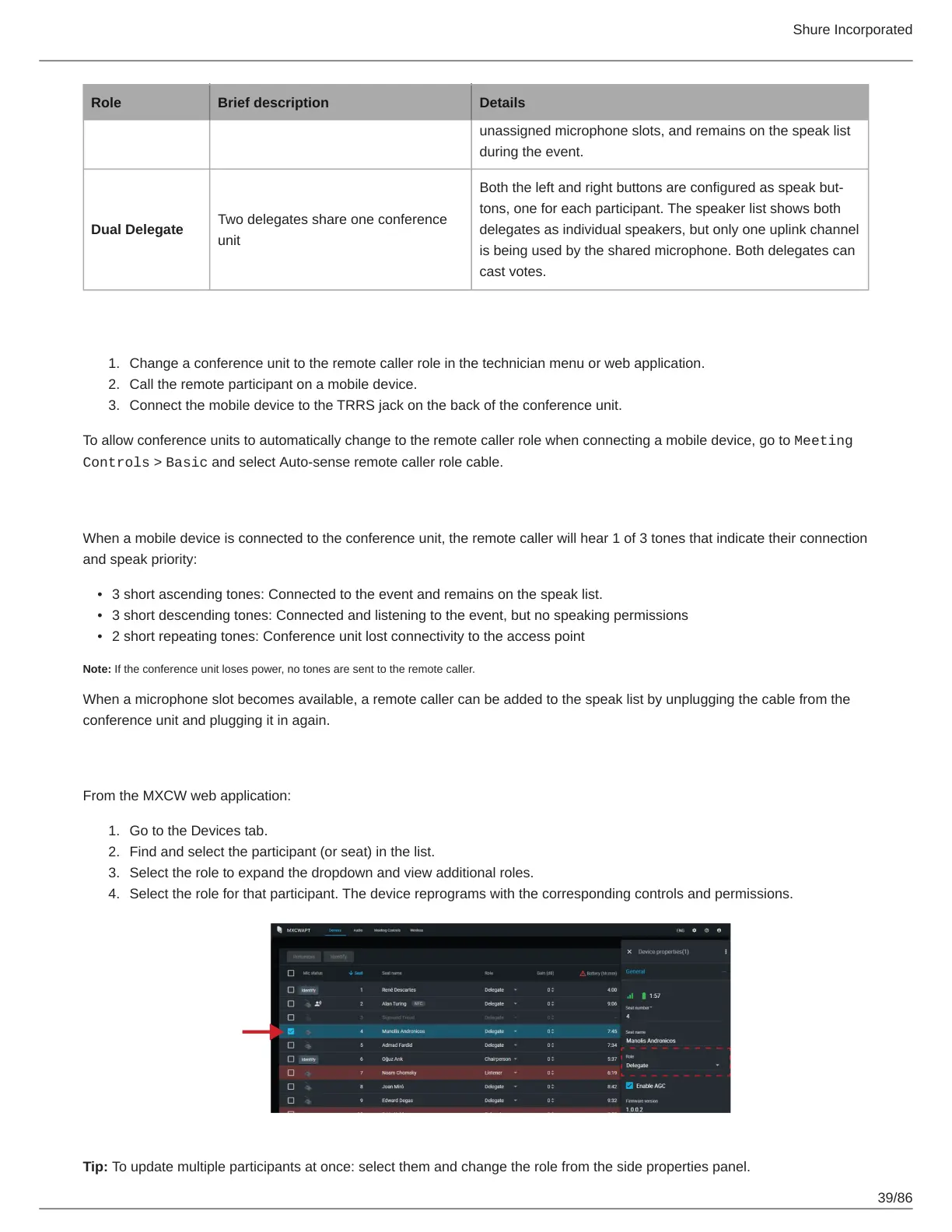
Changing the Participant Role
From the MXCW web application:
Go to the Devices tab.
Find and select the participant (or seat) in the list.
Select the role to expand the dropdown and view additional roles.
Select the role for that participant. The device reprograms with the corresponding controls and permissions.
Tip: To update multiple participants at once: select them and change the role from the side properties panel.





 To Next Page