Shure Incorporated
61/86
•
•
•
1.
2.
3.
4.
Voting
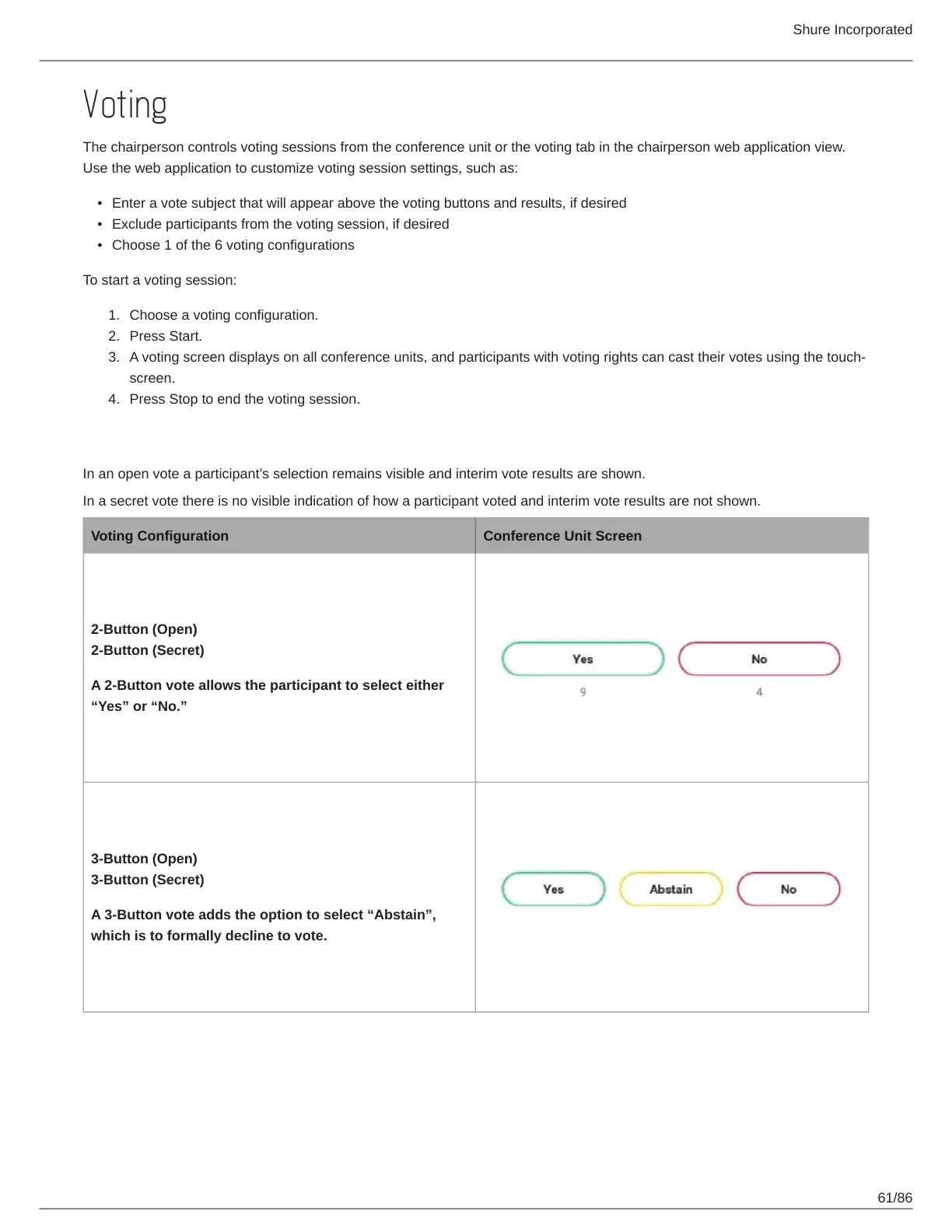
The chairperson controls voting sessions from the conference unit or the voting tab in the chairperson web application view.
Use the web application to customize voting session settings, such as:
Enter a vote subject that will appear above the voting buttons and results, if desired
Exclude participants from the voting session, if desired
Choose 1 of the 6 voting configurations
To start a voting session:
Choose a voting configuration.
Press Start.
A voting screen displays on all conference units, and participants with voting rights can cast their votes using the touch
screen.
Press Stop to end the voting session.
Voting Configurations
In an open vote a participant’s selection remains visible and interim vote results are shown.
In a secret vote there is no visible indication of how a participant voted and interim vote results are not shown.
Voting Configuration Conference Unit Screen
2-Button (Open)
2-Button (Secret)
A 2-Button vote allows the participant to select either
“Yes” or “No.”
3-Button (Open)
3-Button (Secret)
A 3Button vote adds the option to select “Abstain”,
which is to formally decline to vote.








 To Next Page