EasyManua.ls Logo

SICK MRS1000 - User Manual

SICK MRS1000
64 pages
Print Icon
To Next Page IconTo Next Page
Loading...
O P E R A T I N G I N S T R U C T I O N S
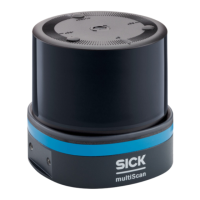
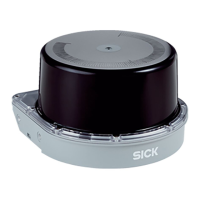
MRS1000
3D LiDAR sensors

Table of Contents

Other manuals for SICK MRS1000

Questions and Answers

  • A
    Allison RogersAug 15, 2025
    Why do counts deviate from real data on my SICK Accessories?
    • M
      Megan WilliamsAug 15, 2025
      If the counts from your SICK Accessories device deviate from the real data because people are not being detected correctly, check the mounting position and the configuration. In small rooms with a large person entry and exit area, large absolute deviations can occur despite high counting accuracy percentages. If utilization is low, perform manual counting and/or use the Daily Reset function.
  • A
    Anthony LopezAug 18, 2025
    How to fix inaccurate measurement results from SICK MRS1000 Accessories?
    • K
      kingmaryAug 18, 2025
      Inaccurate measurement results from your SICK Accessories device can occur if the optics cover is contaminated. Clean the cover to resolve this. Also, ensure that the detection area is correctly configured by checking the mounting position of the device and the configured area in SOPASair.
  • D
    dianamillerAug 21, 2025
    What to do if a slave is not displayed in the Counter menu of the master in SICK MRS1000 Accessories?
    • C
      Charles ThomasAug 21, 2025
      If a slave is not displayed in the Counter menu of the master in your SICK Accessories setup, check the inputs to ensure the IPs are correctly configured. Also, verify the network settings to ensure that the sensors are not located in different sub-networks and that the UDP port is not locked.
  • J
    Joel HamptonAug 25, 2025
    What to do if SOPASair user interface is not loaded for SICK Accessories?
    • D
      Darryl PatelAug 25, 2025
      If the SOPASair user interface fails to load when calling up the sensor via a web browser and the SOPASair loading screen is permanently displayed, try connecting again. If this does not work, restart the sensor.
  • Q
    qjohnstonAug 27, 2025
    What to do if measurement data show anomalies for SICK Accessories?
    • R
      Rhonda WilliamsAug 27, 2025
      If the measurement data from your SICK Accessories device shows anomalies, it might be due to a contaminated optics cover. Clean the cover to resolve this issue.
  • S
    steelesandraAug 30, 2025
    Why do both LEDs flash red on my SICK MRS1000 Accessories?
    • O
      oevansAug 30, 2025
      If both LEDs on your SICK Accessories are flashing red, this indicates a device fault. You should read out the fault code via the PC software SOPAS ET and then remedy the cause of the fault.
  • G
    Gloria DoughertySep 2, 2025
    Why are the counts different from real values on my SICK Cash Counter?
    • T
      teresa09Sep 2, 2025
      The counts may differ from the actual values because people are not being detected correctly. To resolve this, check the mounting position. Also, larger absolute deviations can occur despite high percentage counting accuracy. If the occupancy is low, perform a manual count and correction, or use the Daily Reset and Counting correction functions.
  • C
    Carlos JohnsonSep 5, 2025
    Why are measurement results inaccurate on my SICK Cash Counter?
    • N
      Nathan PatelSep 5, 2025
      Inaccurate measurement results may occur if the optics cover is contaminated; in this case, clean the cover. Also, the detection area may not be correct. To resolve this, check the device's mounting position and the configured area in SOPASair.
  • M
    matthewwoodsSep 8, 2025
    What to do if a guest is not displayed in the Counter menu of the host on SICK Cash Counter?
    • M
      Megan MyersSep 8, 2025
      If a guest is not displayed in the Counter menu of the host, it might be due to incorrectly configured IPs. In this case, check inputs. It could also be that the sensors are located in different sub-networks, so check your network settings. Another possibility is a blocked UDP port, so check network settings. Finally, incompatible firmware versions could be the reason; update all devices to the latest firmware version.
  • J
    Jamie SmithSep 12, 2025
    What to do if SOPASair user interface is not loaded when calling up the sensor via a web browser on SICK Cash Counter?
    • D
      Duane JamesSep 12, 2025
      Try connecting again. If this does not work: Restart sensor.

Summary

Safety Information

Intended Use

Describes the MRS1000 3D LIDAR sensor's designed applications and suitable uses.

Improper Use

Defines incorrect usage and warns about potential dangers.

Operational Safety and Hazards

Highlights specific safety notes, laser class 1 warnings, electrical hazards, and grounding risks.

Product Description

Mounting

Electrical Installation

Wiring Instructions

Provides essential notes for safe and trouble-free electrical installation and wiring.

Safe Operation Prerequisites

Details warnings and remedial measures for electrical hazards and equipotential bonding.

Connecting the Device Electrically

Provides steps for electrically connecting the device, referencing wiring and safety prerequisites.

Operation

Operation with SOPAS ET

Guides on using SOPAS ET software for device parameterization, service, and diagnostics.

Maintenance

Troubleshooting

General Faults, Warnings, and Errors

Lists common errors, status indications, and their corresponding remedial actions.

Technical Data

Features

Lists key technical features of the MRS1000 sensor, including measurement principle and laser class.

SICK MRS1000 Specifications

General IconGeneral
Accessory TypeLaser scanner
Angular resolution0.25°
Scanning frequency25 Hz
Protection classIP67
Power supply10 V to 30 V DC

Related product manuals