7 Operation
7.1 PLOC2D user interface
7.1.1 Accessing the user interface
PLOC2D uses a web based user interface. To access the interface, follow the steps
below:
1. Open a web browser window.
2. Type the preset IP address: 192.168.0.1.
NOTE
Make sure that the network communication settings on the computer are correctly set
up:
•
The computer must be on the same network as the PLOC2D.
•
The computer must not use the same IP address as the PLOC2D.
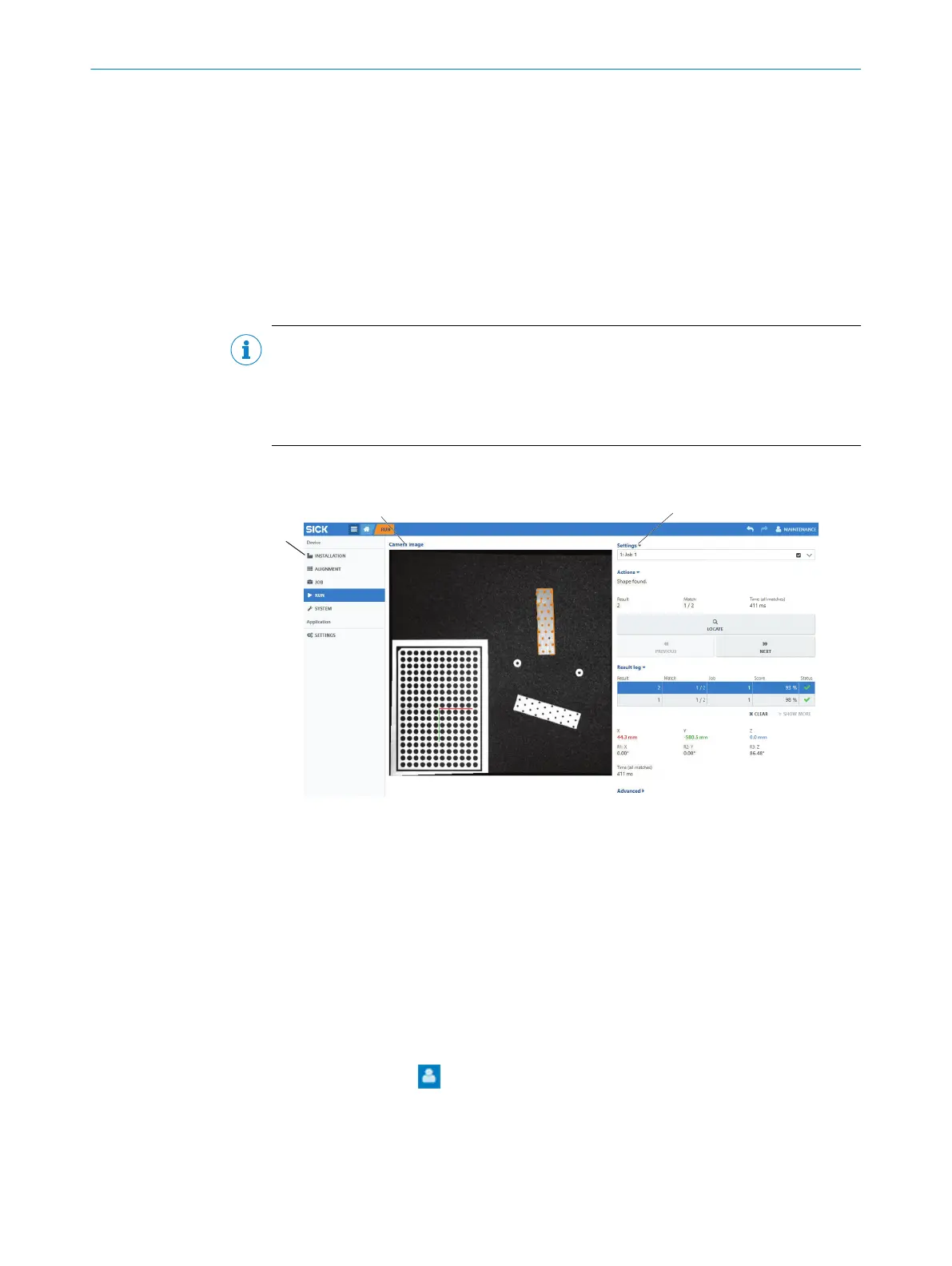
7.1.2 Overview of the user interface
1
Page selection panel
2
Camera image viewer
3
Settings panel
The PLOC2D user interface consists of the following parts:
•
The Page selection panel, which contains workflow steps and system settings.
•
The camera image viewer, where images are displayed.
•
The Settings panel, which displays settings for the currently selected workflow
step.
7.1.3 User levels
At the first use of the interface, the user is automatically logged in with user level Run.
Click the user symbol in the upper right part of the user interface to log in with a
different user level.
The following user levels are available:
OPERATION 7
8020736/1K3Z/2023-06 | SICK O P E R A T I N G I N S T R U C T I O N S | PLOC2D 4.1
37
Subject to change without notice



 To Next Page