PLxManager
In the PLxManager tool you can find features and instructions on how to create a
support ticket, create a backup and restore a backup of the device, and how to replace
a device.
Get started with PLxManager
1. Go to supportportal.sick.com and log in.
°
You must register a user account to access SICK Support Portal.
2. Go to the Downloads section by the menu options:
Systems/Robot Guidance/PLOC/Downloads
3. Download and open the latest version of PLxManager.
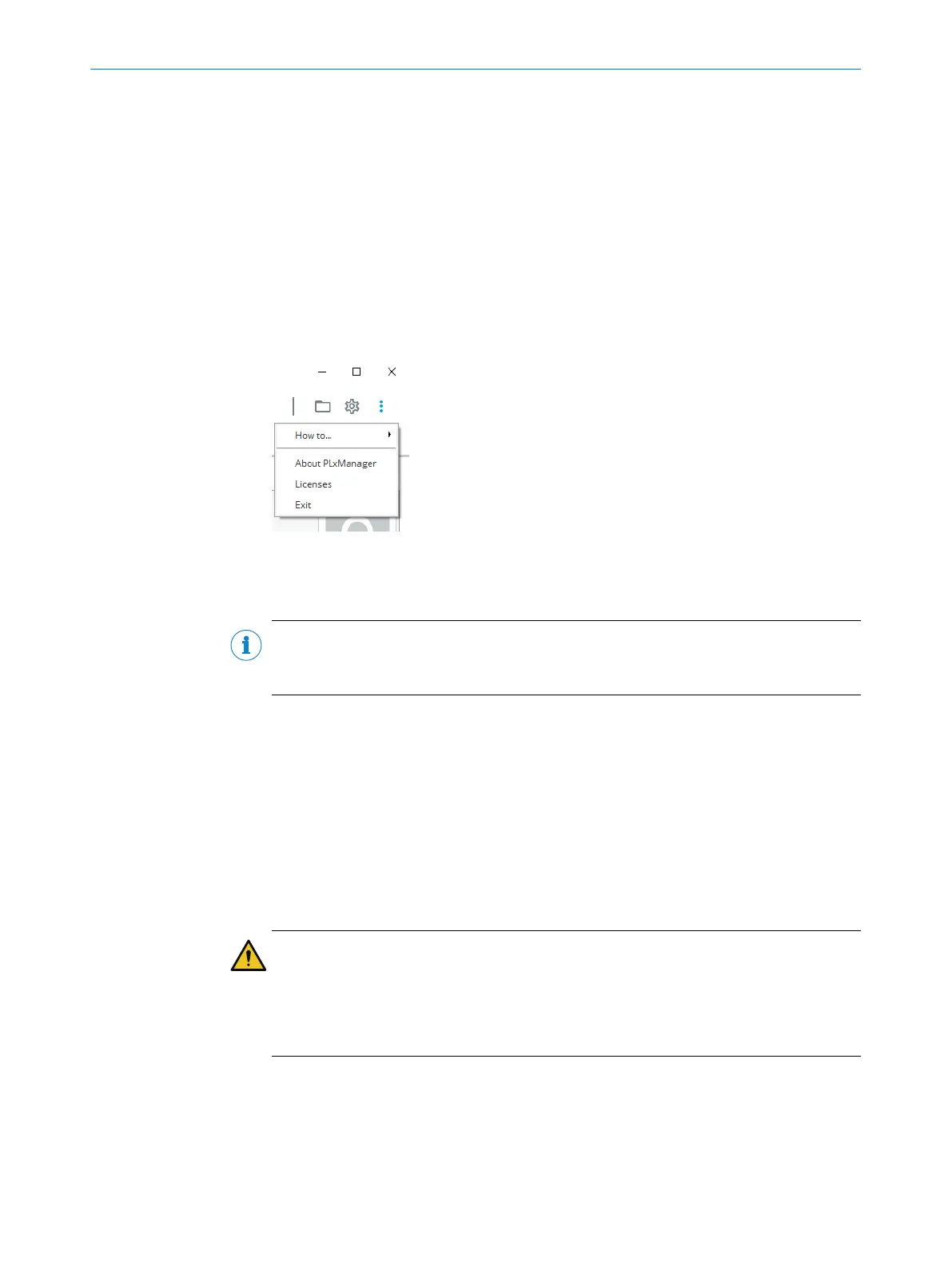
4. Click on the More options button in the top right corner, see figure 32.
5. Choose the desired instruction in the menu option How to....
Figure 32: PLxManager user interface menu
9.4
Replace device
NOTE
We recommend to re-align the PLOC2D workplanes when replacing the sensor, or if the
mounting position of the PLOC2D changes. See "Hand-eye alignment", page 42.
Use the PLxManager tool when replacing a device.
Please see "PLxManager", page 70 on how to download PLxManager and find instruc‐
tions on how to replace a device.
9.5 Repairs
Repairs on the product may only be carried out by the manufacturer. Any interruption or
modification of the product will invalidate the manufacturer warranty.
9.6 Disposal
CAUTION
Risk of injury due to hot device surface!
The surface of the device can become hot during operation.
►
Before commencing disassembly, switch off the device and allow it to cool down
as necessary.
Any device which can no longer be used at the end of the product life cycle must be
disposed of in an environmentally friendly manner in accordance with the respective
applicable country-specific waste disposal regulations. As they are categorized as elec‐
tronic waste, the device must never be disposed of with household waste.
9 TROUBLESHOOTING
70
O P E R A T I N G I N S T R U C T I O N S | PLOC2D 4.1 8020736/1K3Z/2023-06 | SICK
Subject to change without notice



 To Next Page