EasyManua.ls Logo

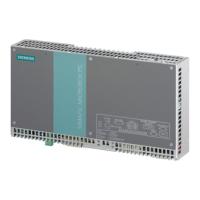
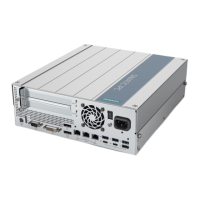
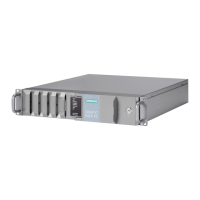
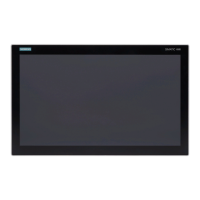
Siemens SIMATIC IPC377G - User Manual

Siemens SIMATIC IPC377G
113 pages
Print Icon
To Next Page IconTo Next Page
Loading...
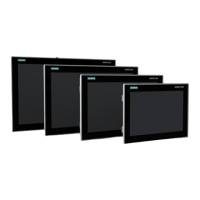
SIMATIC IPC377G
SIMATIC
Industrial PC
SIMATIC IPC377G
Operating Instructions
07/2022
A5E51366314
-AB
Preface
Overview
1
Safety instructions
2
Installing and connecting
the device
3
Commissioning the device
and device functions
4
Operating the device
5
Expanding and assigning
parameters to the device
6
Maintaining and repairing
the device
7
Technical specifications
8
Technical support
A
Markings and symbols
B
List of abbreviations
C

Table of Contents

Questions and Answers

  • W
    Wendy PatrickAug 19, 2025
    What to do if the time and data are still wrong on Siemens SIMATIC IPC377G Industrial PC even though BIOS setting is OK?
    • A
      Anthony PayneAug 19, 2025
      If the time and date are still incorrect on your Siemens Industrial PC despite the BIOS settings being correct, the backup battery is likely dead. Replace the backup battery to resolve this issue.
  • L
    Lisa HobbsAug 21, 2025
    Why are the time and date still wrong on my Siemens Industrial PC even after setting the BIOS?
    • M
      mmoralesAug 21, 2025
      If the time and date are still wrong on your Siemens Industrial PC even after setting them in the BIOS, the backup battery is likely dead. Replace the backup battery.
  • J
    Julie SmithAug 25, 2025
    What to do if Siemens SIMATIC IPC377G device is not operational?
    • M
      Michael HernandezAug 25, 2025
      If your Siemens Industrial PC is not operational, check the power supply, power cord, and power plug to ensure they are correctly connected. Also, verify that the On/Off switch is in the correct position. If the device has been transported in cold weather, allow approximately 12 hours before switching it on. Ensure that the device is operating within the specified ambient conditions.
  • R
    Ryan CarrAug 26, 2025
    What to do if USB device does not respond on Siemens Industrial PC?
    • K
      Kimberly JacksonAug 27, 2025
      If a USB device is not responding on your Siemens Industrial PC, enable USB Legacy Support in the BIOS settings for the mouse and keyboard. For other devices, ensure that you have installed the correct USB device drivers for your operating system.
  • Z
    zmorrisAug 28, 2025
    What to do if mouse pointer does not appear on the screen of Siemens Industrial PC?
    • S
      Stephanie FieldsAug 28, 2025
      If the mouse pointer does not appear on the screen of your Siemens Industrial PC, verify that the mouse driver is properly installed and available when you start the user program. Also, check whether the mouse cord is correctly connected to the system unit. If you are using an adapter or extension for the mouse cable, check these connectors as well.
  • R
    rebeccaharrisAug 30, 2025
    What to do if the pop-up message "Windows boot manager failed" shows when I install the operating system in the M.2 NVMe/SATA SSD card and boot to OS on Siemens Industrial PC?
    • S
      Sarah BenitezAug 30, 2025
      If you encounter the "Windows boot manager failed" message when installing the operating system on the M.2 NVMe/SATA SSD card of your Siemens Industrial PC: if the M.2 NVMe/SATA SSD card is changed to another boot device, press Enter to continue the boot. If the M.2 NVMe/SATA SSD card lost the boot image or is broken, reinstall the operating system or change to another M.2 NVMe/SATA SSD card.
  • M
    Mary McdonaldSep 2, 2025
    What to do if Siemens SIMATIC IPC377G is not operational?
    • H
      huntteresaSep 2, 2025
      If your Siemens Industrial PC is not operational, first check the power supply, power cord, and plug to ensure they are properly connected. Also, verify that the On/Off switch is in the correct position. If the issue persists, the device might be operating outside specified ambient conditions. Ensure the ambient conditions are within the correct range. If the device was transported in cold weather, wait approximately 12 hours before switching it on.
  • K
    Karen Fisher MDSep 4, 2025
    Why does the monitor remain dark on my Siemens SIMATIC IPC377G Industrial PC?
    • E
      estradaalyssaSep 4, 2025
      If the monitor of your Siemens Industrial PC remains dark, ensure the monitor is switched on. If it's in 'power save' mode, press any key on the keyboard. Check the brightness button and increase the brightness if it's set too low. Also, verify that the power cord and monitor cable are properly connected to both the monitor and the system unit or grounded outlet.
  • J
    Julia RodriguezSep 6, 2025
    How to fix a mouse pointer that doesn't appear on the screen of Siemens SIMATIC IPC377G Industrial PC?
    • C
      Christopher CareySep 6, 2025
      If the mouse pointer does not appear on the screen of your Siemens Industrial PC, check whether the mouse cord is properly connected to the system unit and whether the mouse driver is properly installed and available when you start the user program. If you are using an adapter or extension for the mouse cable, check these connectors as well.
  • S
    Sara CurrySep 8, 2025
    Why is my USB device not responding on my Siemens SIMATIC IPC377G?
    • S
      Samantha JohnsonSep 8, 2025
      If a USB device does not respond on your Siemens Industrial PC, you may need to install the USB device drivers for the required operating system, because the USB ports are not correctly supported.

Siemens SIMATIC IPC377G Specifications

General IconGeneral
TypeIndustrial PC
Ethernet2 x Gigabit Ethernet
USB Ports4 x USB 3.0
Power Supply24 V DC
CoolingFanless
Protection ClassIP20
ProcessorIntel Core i7 / i5 / i3
StorageSSD or HDD options
Operating SystemWindows 10
Serial Ports2 x RS232/RS485/RS422
Video Output1 x DisplayPort
Operating Temperature0 °C to 50 °C
DisplayOptional TFT display

Related product manuals