EasyManua.ls Logo

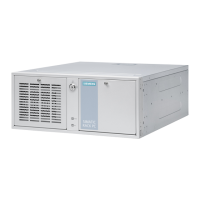
Siemens SIMATIC IPC347G - User Manual

Siemens SIMATIC IPC347G
126 pages
Print Icon
To Next Page IconTo Next Page
Loading...
SIMATIC
Industrial PC
SIMATIC IPC347G
Operating Instructions
10/2020
A5E50059993
-AA
Preface
Product description
1
Safety instructions
2
Installing and connecting
the device
3
Commissioning the device
4
Operating the device
5
Expanding and assigning
parameters to the device
6
Device maintenance and
repair
7
Technical specifications
8
Dimension drawings
9
Standards and approvals
10
BIOS description
11
Hardware description
A
Technical support
B
Markings and symbols
C
List of abbreviations
D

Table of Contents

Other manuals for Siemens SIMATIC IPC347G

Questions and Answers

  • C
    Craig OlsonAug 12, 2025
    How to troubleshoot a Siemens Industrial PC that is not operational?
    • A
      Amanda RodriguezAug 12, 2025
      If your Siemens Industrial PC isn't working, start by checking the power supply, power cable, and power plug to ensure they are properly connected. Also, verify that the on-off switch is in the correct position. If the issue persists, consider whether the device is being used within the specified ambient conditions. If the PC was transported in cold weather, allow it to sit for about 12 hours before turning it on.
  • V
    Victoria HendersonAug 19, 2025
    What to do if the monitor of my Siemens SIMATIC IPC347G remains dark?
    • B
      Brian MontesSep 12, 2025
      If the monitor of your Siemens Industrial PC remains dark, first ensure the monitor is switched on. If it's on, check if it's in "power save" mode and press any key on the keyboard. Also, verify the brightness setting; increase it if it's set too low. Finally, check the power cord and monitor cable to ensure they are properly connected to both the monitor and the system unit or grounded outlet.
  • M
    Michelle HowardAug 27, 2025
    Why does the mouse pointer not appear on the screen of my Siemens Industrial PC?
    • D
      Deborah ZunigaAug 27, 2025
      If the mouse pointer is missing on your Siemens Industrial PC, verify that the mouse cable is securely connected to the system unit. If you're using an adapter or extension cable, check those connections as well. Also, ensure that the mouse driver is properly installed and available when you start the user program.
  • M
    Michael LopezSep 3, 2025
    How to correct the time and date on a Siemens SIMATIC IPC347G Industrial PC?
    • T
      toniosborneSep 3, 2025
      To correct the time and/or date on your Siemens Industrial PC, follow these steps: 1. Open the firmware configuration menu by pressing the key or key during the boot operation. 2. In the "Main" tab, set the correct date and time.

Siemens SIMATIC IPC347G Specifications

General IconGeneral
TypeIndustrial PC
Power Supply24 V DC
GraphicsIntegrated Intel HD Graphics
ProcessorIntel Core i3/i5/i7
RAMUp to 32 GB
StorageSSD/HDD
Operating SystemWindows 10 IoT Enterprise, Linux
ConnectivityEthernet, USB, Serial ports
Expansion SlotsPCIe
DisplayNo built-in display

Related product manuals