SigTEL Compact Installation and Configuration Manual
SigTEL Approved Document No. DAU0000091 Rev 5 Page 24 of 36
Emergency Voice
Communication System
17 Automatic Configuration
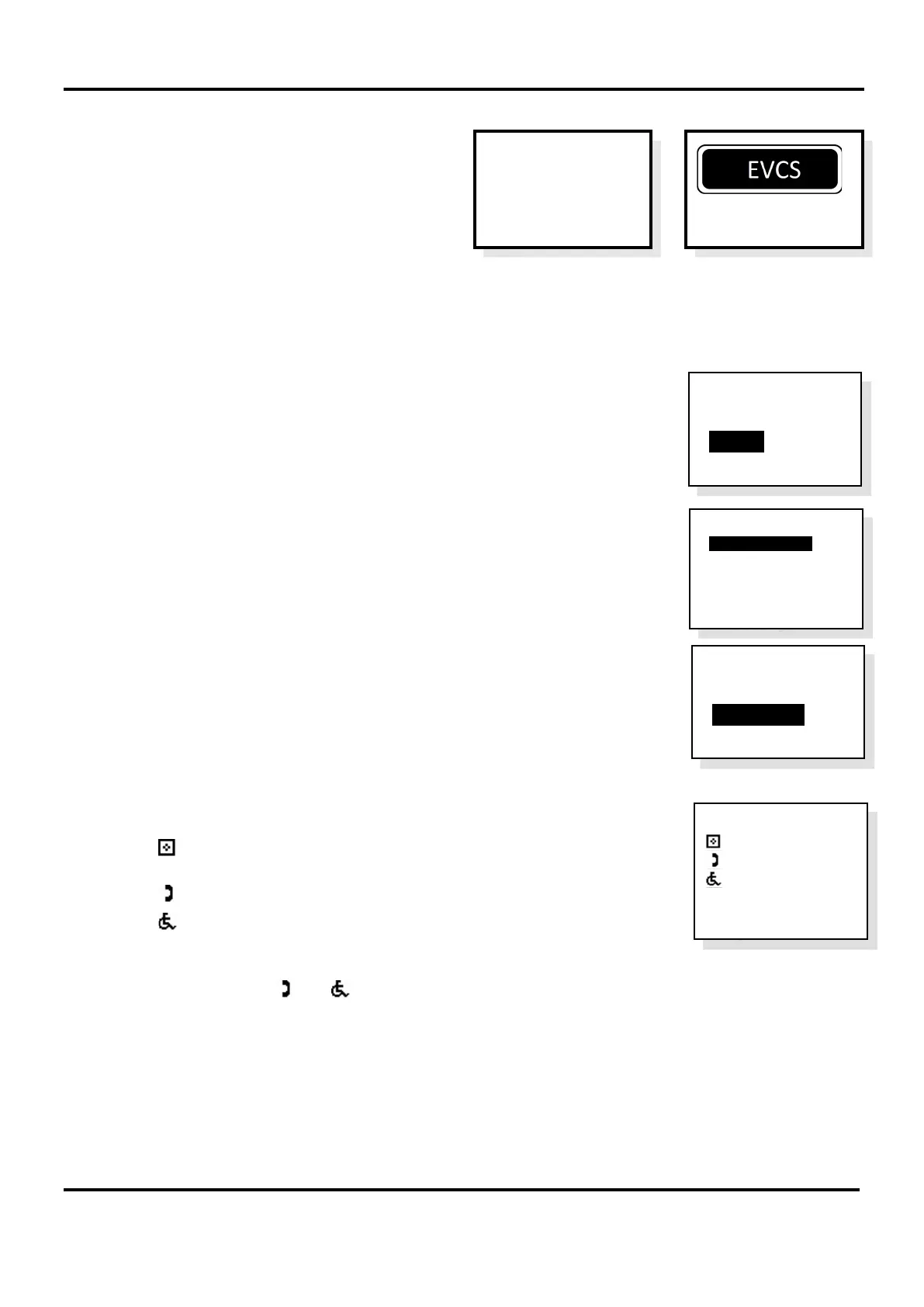
If the fault menu is displayed, press END button to exit
the menu. The backlight will go out and the display will
say ‘System Healthy’ or display the number of faults.
Single, n on-networked MCU configuration
Note: If a networked MCU system is being configured refer to section 17.2.
Before configuring the system, ensure the MCU, all outstations and DPTA interfaces have been installed, connected
and tested. Ensure that all handsets are on-hook and toilet alarms are cleared and reset.
1. Open the MCU lid and press the Engineer Mode button.
The ‘Eng. Opts’ menu is displayed. Press ▼ to highlight the ‘Config’ option and
press CALL/ACCEPT button.
2. The ‘Config’ menu is displayed.
‘System Cfg’ option is highlighted. Press CALL/ACCEPT button.
3. The ‘Sys Cfg’ menu is displayed.
‘Unit Count’ option is highlighted.
Check the unit count is set to 1.
Press ▼ to highlight ‘Auto Learn’ option and press CALL/ACCEPT.
4. The system will automatically perform an Auto Learn and detect the attached
extensions. The Auto Learn system configuration is displayed at the MCU.
The symbol denotes the number of MCU (ECU-16, ECU-8 or ECU-4).
Note: This is limited to one unit for a non-networked system.
The symbol denotes the number of Type A (fire telephone) outstations.
The symbol denotes the number of Type B (disabled refuge) outstations.
The
w
c
symbol denotes the number of DPTA on the system.
Check the number of and and
w
c
match the number of connected extensions.
Note: If at this stage there is a mismatch between the expected and the displayed number of system devices,
press the CALL/ACCEPT button again at the MCU whilst the Auto Learn system configuration is displayed.
This will cause the system to perform another learn of the devices on the system.
5. Press END button multiple times to exit to the system healthy display. The system is now configured and
can be used. Add/edit extension names at this point (see naming extensions – sections 17.5).
Auto Learn
: 1
: 3
: 7
w
c: 2
System Updated
EVCS
2 Faults
Press Accept
To View
System Healthy
Eng. Opts
Edit Phonebook
> C onfig
About...
Config
> System Cfg
Change PIN
System Opts
Harmonise Names
Reset Names
Factory Dfts
Sys Cfg
Unit Count 1
> Auto Learn


 To Next Page