SigTEL Compact Installation and Configuration Manual
SigTEL Approved Document No. DAU0000091 Rev 5 Page 28 of 36
Emergency Voice
Communication System
17.5.1 Interactive naming
This function reduces the chance of errors with outstation locations and their names. It also tests that the audio is
working acceptably. This function has limited use when naming toilet alarms as you cannot make an audio call to
the MCU using the toilet alarm.
With a person at the MCU (or, in the case of a networked system, the master MCU) go to each outstation in turn.
At each outstation, pick up the handset, or press ‘Push to Call or Answer’ button. This automatically selects that
outstation for editing and the channel is opened for speech.
Check the audio quality of the line and tell the Operator at the MCU your position and they can edit the extension
name immediately – see Manual naming, below.
Note: To avoid confusion, select one extension at a time during the naming process. If more than one extension is
selected during this process, the lowest number will be selected for editing.
17.5.2 Manual naming
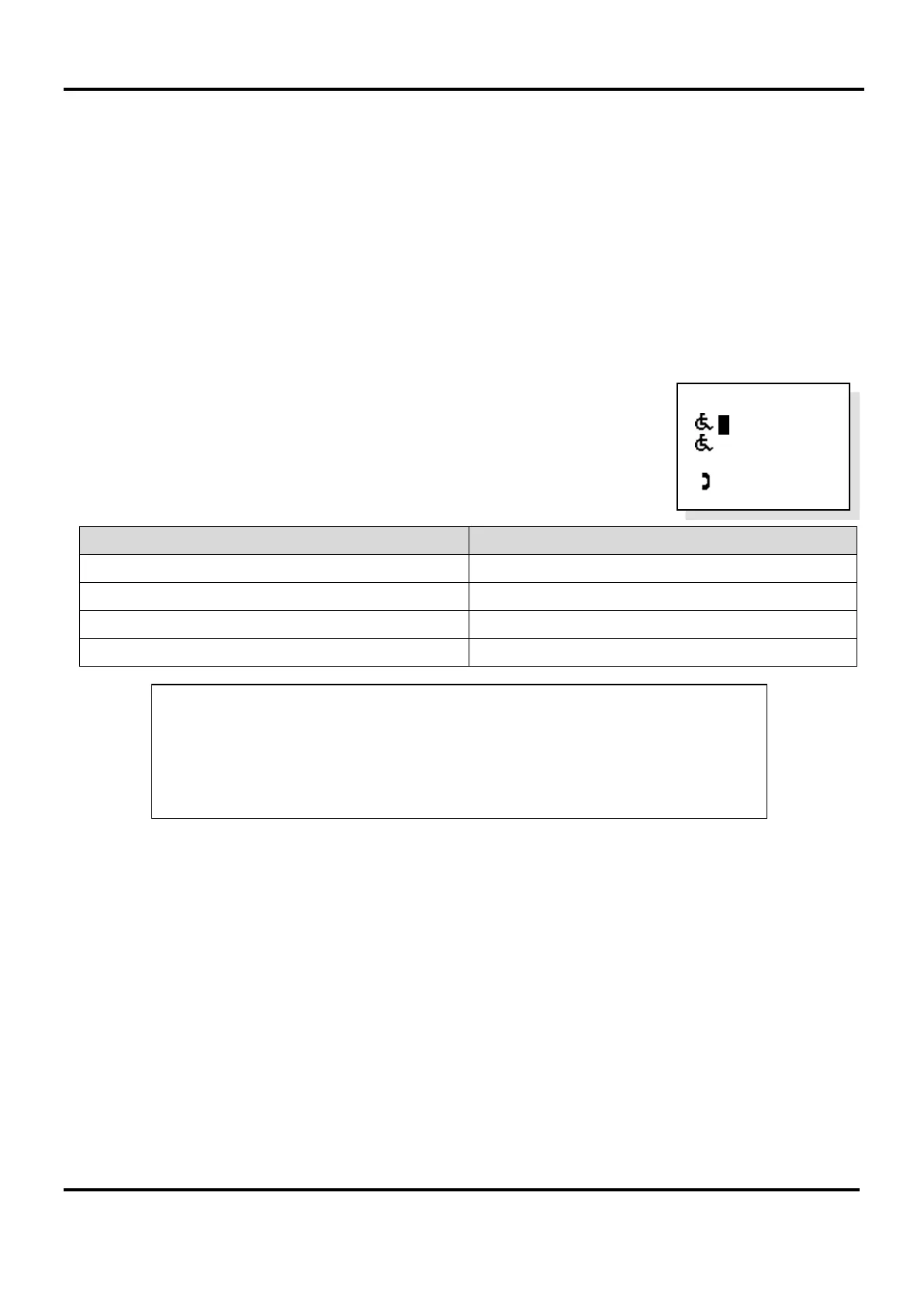
Press ▲ and ▼ to highlight the extension you want to name and then press
CALL/ACCEPT button to select the first letter, as shown right.
Press ▲ and ▼ to change the letter, press CALL/ACCEPT button to accept and move
to the next letter and press END button to move to the previous letter.
Press FUNCTION button to change the character set as follows:
Starting with letter ‘E’ for example Starting with a non-alphabetic character
1st press changes to lower case ‘e’ 1st press changes to characters ‘SPACE’
2nd press changes to characters ‘SPACE’ 2nd press changes to numbers ‘0’
3rd press changes to numbers ‘0’ 3rd press changes to upper case ‘A’
4th press returns to upper case ‘E’ 4th press returns to lower case ‘a’
When you have finished editing an extension, press DIRECTORY button to save the changes and then ▲ and ▼ to
select another extension to name.
When you have finished naming extensions, press END button multiple times to return to the default screen.
If you want to cancel editing an extension name, press button ‘4’ to return to the previously saved description.
17.5.3 EVC Configurator
The EVC423 Configurator, supplied with software and leads, facilitates quick and easy editing of extension names
and also provides limited engineering functions. Features include:
• Graphical representation of the EVCS including controllers and connected extensions
• Quick and easy editing of extensions names
• Set up can be saved to, and from, a PC
• Requires a Configurator (Part No. EVC423) and a PC/Laptop (Windows compatible) loaded with the EVCS
Configurator software.
Contact your supplier for details.
Name List
> Extension 2
Extension 2
w
c
Extension 3
Extension 4
Characters - SPACE ! “ # $ % & ‘ < > * + , - . /
Numbers - 0 1 2 3 4 5 6 7 8 9 : ; < = > ? @
Uppercase - A B C D E F G H I J K L M N O P Q R S T U V W X Y Z [ \ ] ^ _ °
Lower case - a b c d e f g h I j k l m n o p q r s t u v w x y z ® ( )


 To Next Page