StorageSync User’s Guide 41
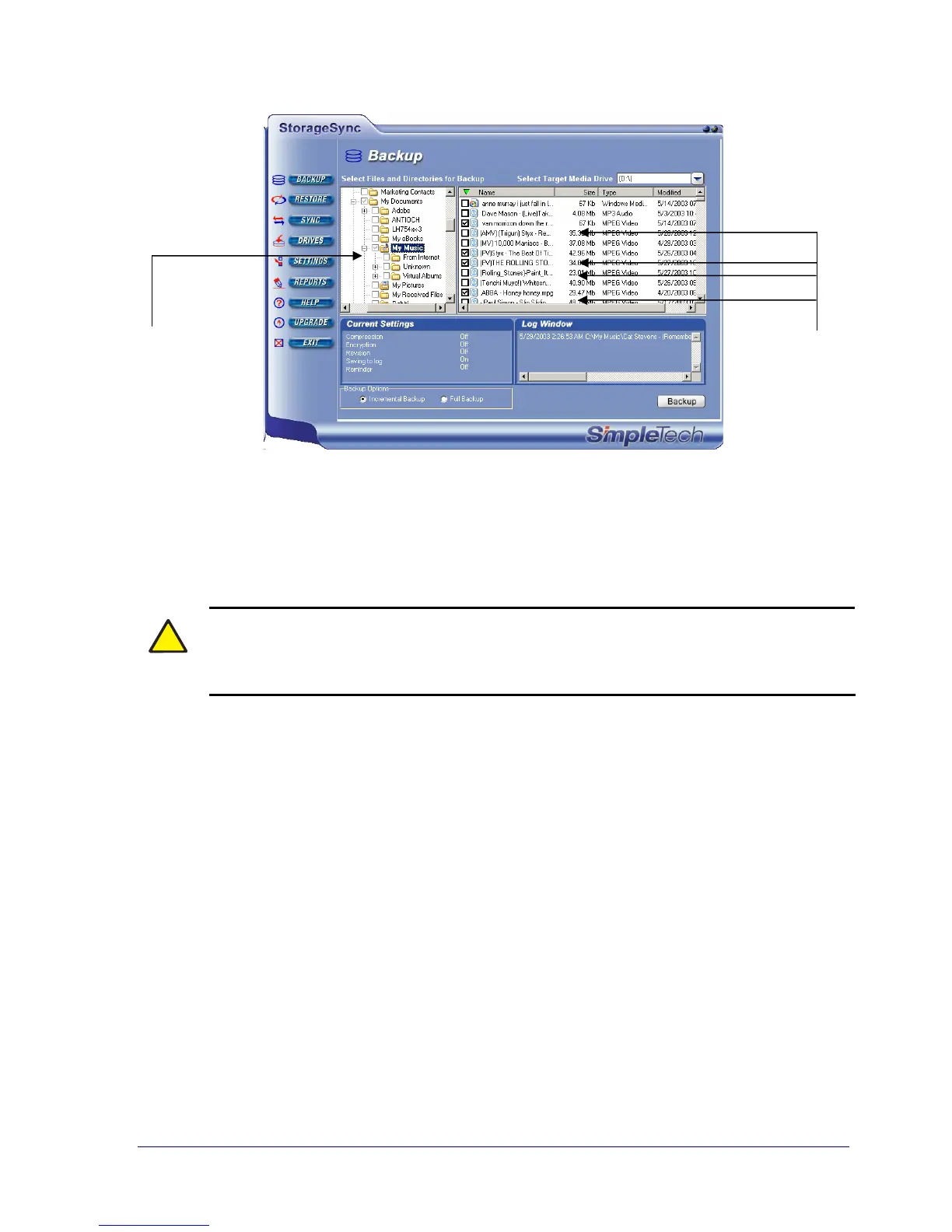
Figure 19. Example of Selecting Files and Folders for Backup
Selecting a Target Media Drive
After you select the files and directories you want to back up, use the Select Target Media
Drive list to select the drive that will hold the backed up data.
!
When StorageSync has been started and AutoLaunch is active, Select Target
Media Drive automatically selects the media drive connected to the computer. For
more information, see Appendix A.
Reviewing Your Current Backup Settings
Before you back up your data, review the settings in the Current Settings area. If necessary,
click the Settings button in the Backup window to change these settings to suit your needs,
then return to the Backup window to resume your backup operation. After you verify settings
and target media, click the Backup button in the lower right corner of the Backup window to
back up the files to the selected target media drive.
Table 4 summarizes the StorageSync backup settings. Some settings are available with the
Standard Edition, while others are available with the Professional Edition. For more
information, see Appendix B.
Checkmarks in the left
list box show directories
selected for back up.
Each file checked here
will be backed up.


 To Next Page