StorageSync User’s Guide 79
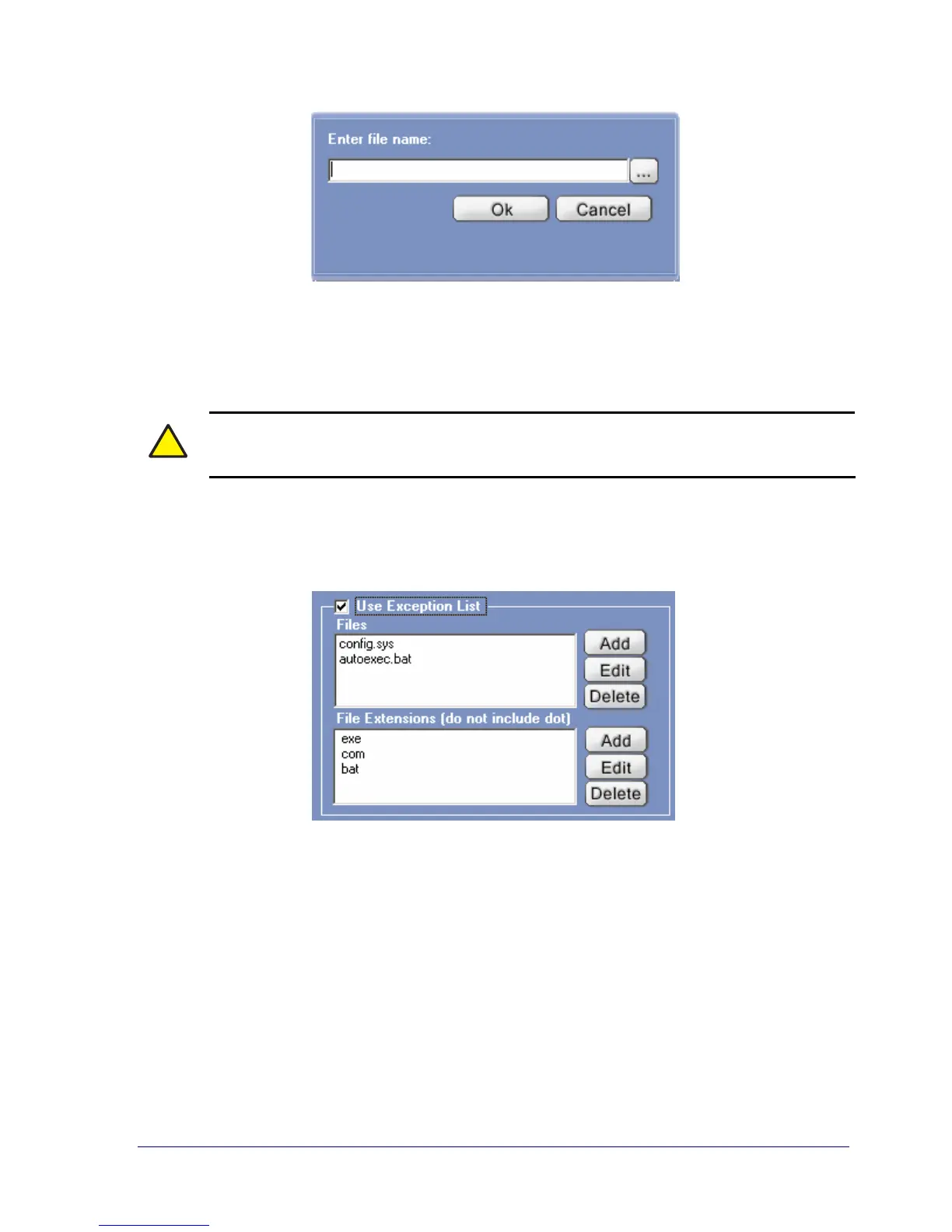
Figure 39. File Name Prompt
3. Type the name of the file or file extension you want to exclude from the backup. For file
names, you can also click the 3-dotted button next to the filename text box and select the
file you want to exclude.
!
When entering file extensions, do not type the period that precedes the 3-letter
extension.
4. Click OK. If you selected a file name, it appears under Files. If you selected a file
extension, it appears under File Extensions. See Figure 40.
5. To add more files and file extensions to the Exception List, repeat steps 2 through 4.
Figure 40. Sample File Names and File Extensions in the Exception List
Editing the Exception List
If you want to change the file or file extension in the Exception List, use the following
procedure to edit the Exception List.
1. If a check mark does not appear next to Use Exception List, check it.
2. Click the file or file extension you want to edit.
3. Click the Edit button for File (if you selected a file) or File Extension (if you selected a
file extension). A screen appears, with the name of the selected file or file extension.


 To Next Page