48 StorageSync User’s Guide
9. When StorageSync restores backed up files, one of two actions occurs:
If Restore to original location is selected, the selected data is restored and a screen
shows the status of the restore. This screen has a Background button you can click to
move the restore operation to the background.
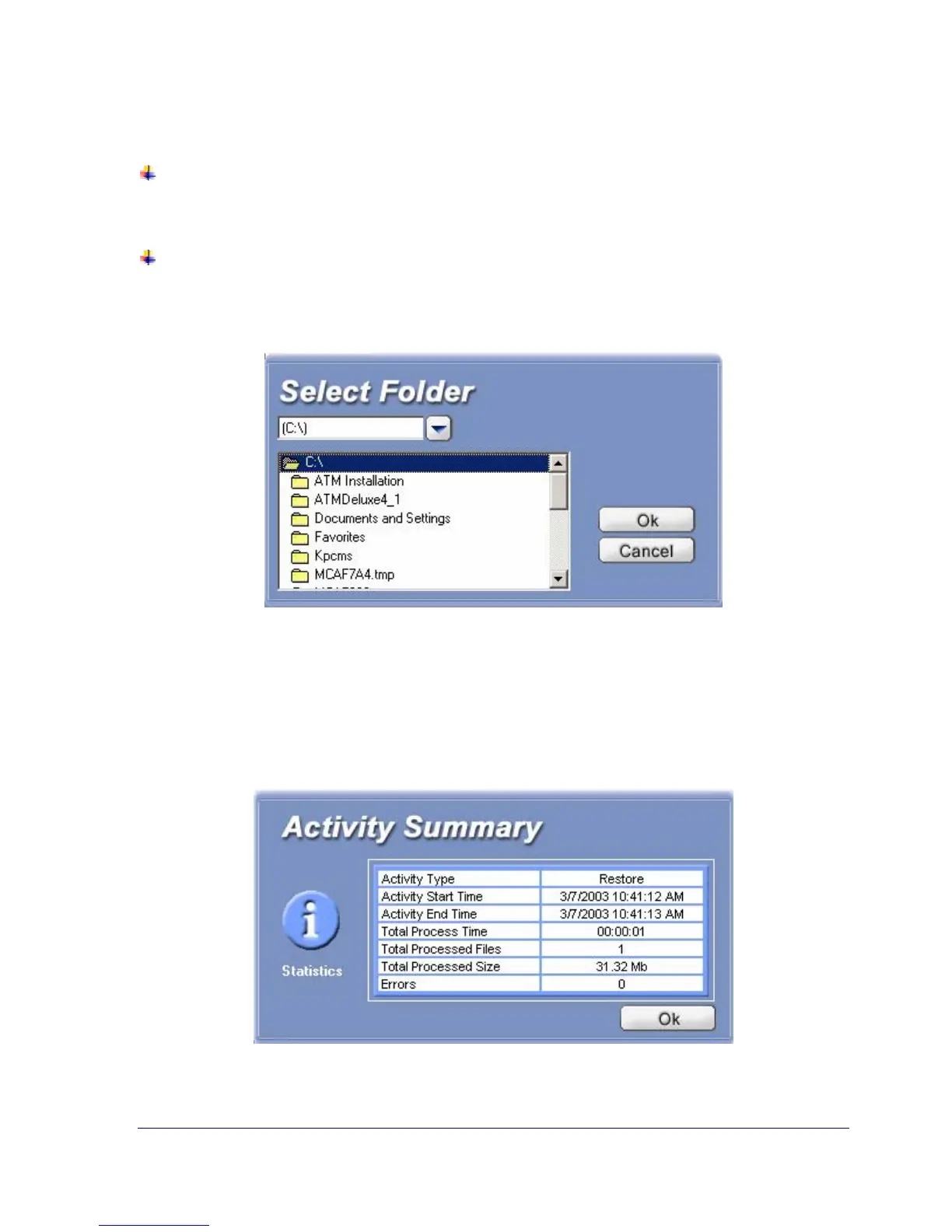
If Restore to selected destination path is selected, the Select Folder dialog box prompts
you to select a location where the backed up data is to be restored (see Figure 21). Select a
location and click OK. A screen shows the status of the restore. This screen has a
Background button you can click to move the restore operation to the background.
Figure 21. Select Folder
9. After the data has been restored, an Active Summary window appears with status
information about the Restore operation (see Figure 22). The Log Window shows
information about the restore operation that was entered into the StorageSync Log.
10. Click OK to remove the Activity Summary window.
Figure 22. Sample Activity Summary Window After a Data Restore Operation


 To Next Page