60 StorageSync User’s Guide
8. Click the Compare button. StorageSync compares the selected files on the media drive
with the corresponding files on your computer’s hard drive. If StorageSync does not find a
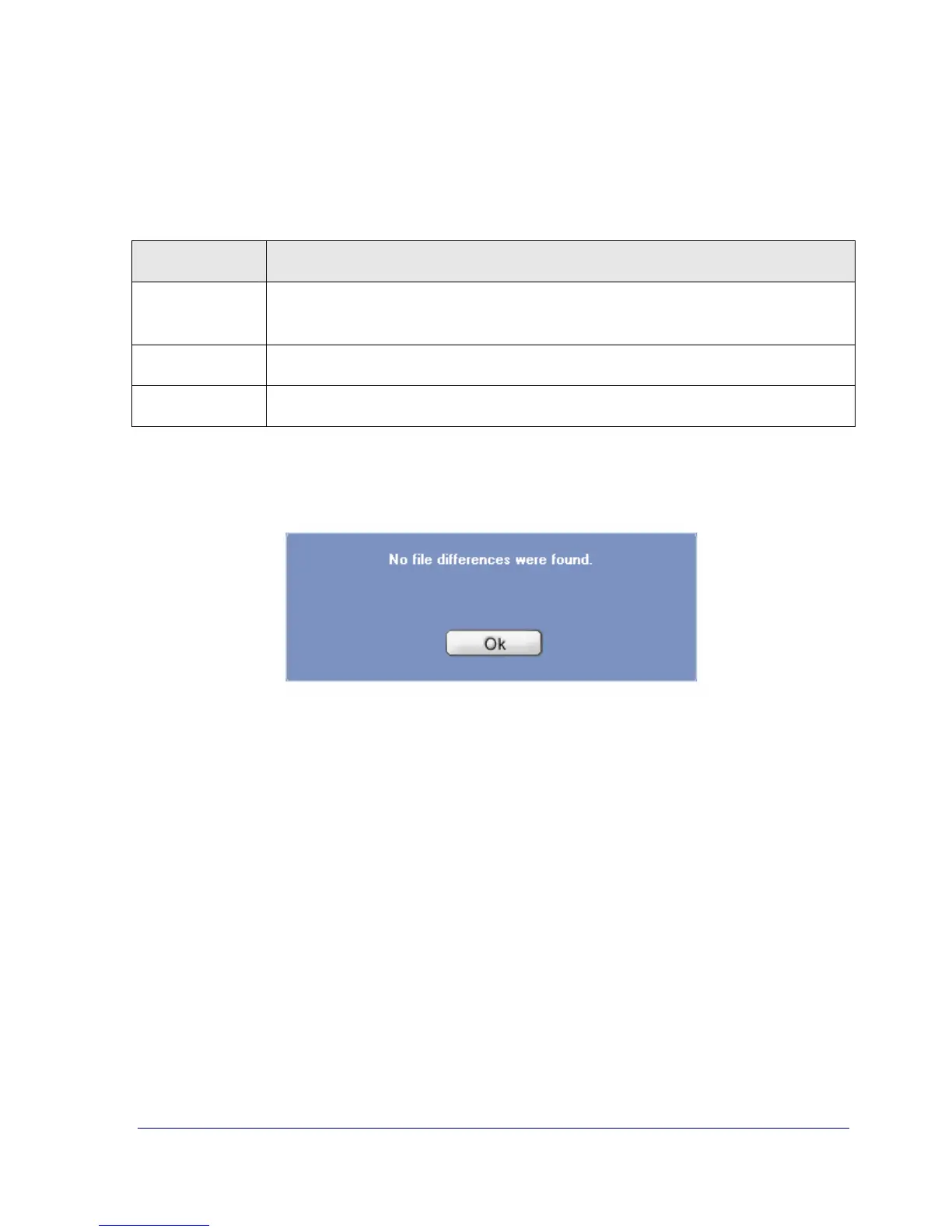
difference between the files, the screen in Figure 29 appears and you can click OK to
remove the screen. Otherwise, a synchronize list similar to the one in Figure 30 appears,
with a color-coded list of the files that are different:
This Color… Means…
Red The file on the media drive has either moved or been deleted from your
computer’s hard drive.
Green A newer version of the file resides on your computer’s hard drive.
Purple A newer version of the file resides on the media drive.
8. Check one or more files in the screen, or click Check All to check them all or Uncheck
All to remove all checkmarks. Change the Synchronization Options, if desired. Then
click Synchronize.
Figure 29. Screen When No Difference is Found Between Files


 To Next Page