38
SEQUENCE SEWING
You can combine stitch patterns & letter stitches into a
sequence.
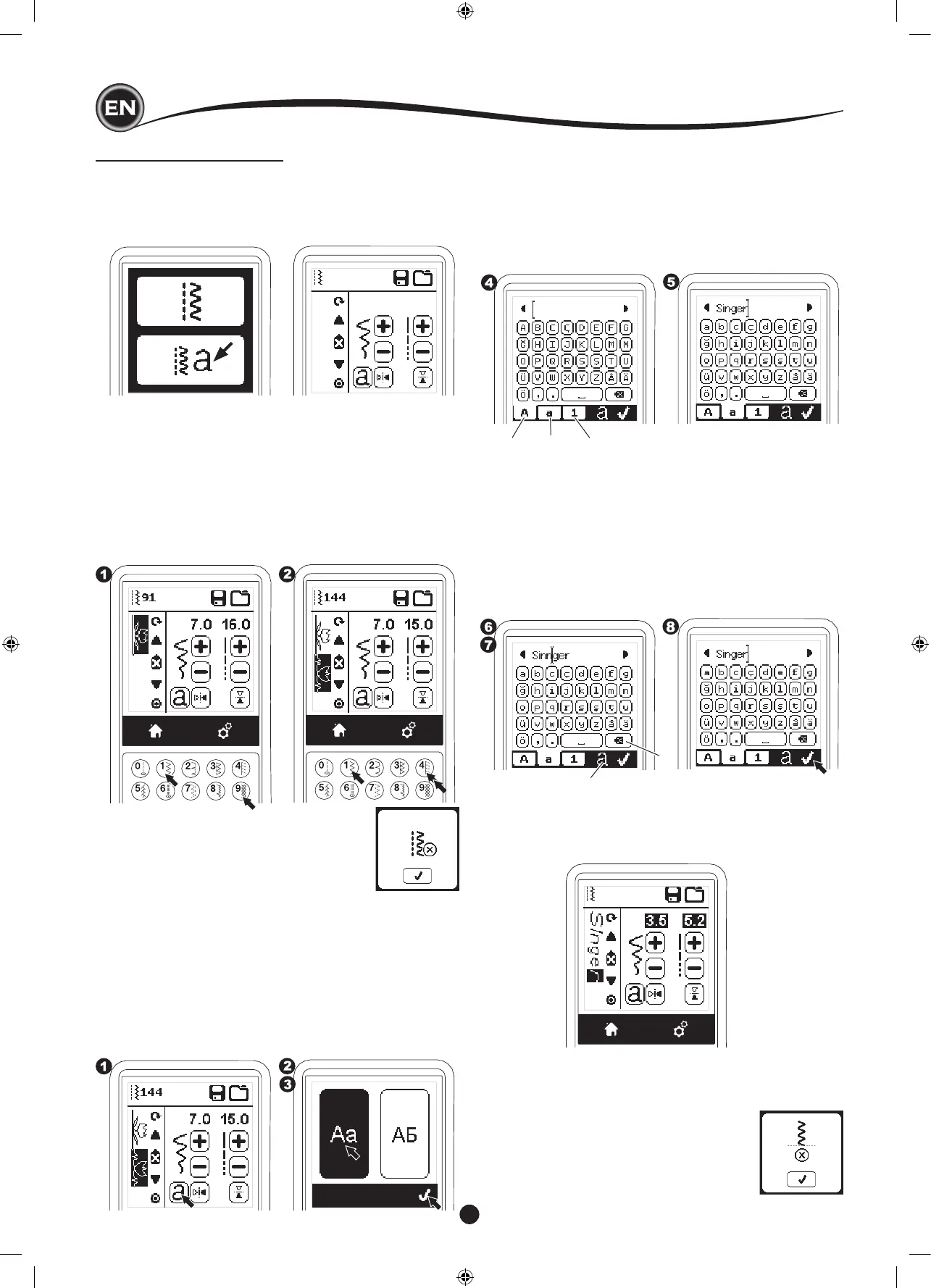
To enter the sequence mode, press the Sequence Button at
the Home Screen.
LCD will show the Sequence Screen.
SeQuencIng
SelectIng StItch patternS
1. Select the desired stitch patterns in the same manner as
that used for normal sewing. (See page 13 for information
on selecting stitches)
The selected patterns will display at the top left side of the
LCD screen.
2. After selecting a stitch, use the same procedure to select
the next stitch pattern. The selected pattern will be added,
and it will display on the left side of the LCD screen below
the previously selected pattern.
NOTE:
Some patterns may not combine into the
sequence. If you select a pattern that cannot be
combined, a message will appear on screen to
alert you of this. Press the “
✓
” button.
4. Press the desired letter directly. Press the Character tabs
(located at the bottom of the LCD screen) to change lower
case, numbers, etc.
a. Uppercase letters
b. Lowercase letters
c. Numeric letters and special letters
5. Selected letters will appear on the top line of the LCD
screen.
6. The arrow buttons on top line will move the cursor.
7. To insert the letter, move the cursor to the inserting point
and select letter.
To delete the letter, move the cursor to the right side of the
letter to be deleted, then press the Delete button (d).
To change the letter style, press the Style button (e).
8. When sequencing of letters is completed, press the “
✓”
mark.
The Sequence Screen will appear again.
a b c
When you return to the Sequence Screen, selected letters will
be shown on the left side of the LCD screen. The cursor may
disappear if the length of letters are over the indicating area.
See next page to shift the cursor.
e
d
NOTE:
1. If a letter is selected, which has a different base line (like “j”
or “g”), the width and length of other letters will be adjusted
to proportion automatically.
2. The sequence can contain a maximum
of 60 patterns and letters. Message will
appear when you reach the limit.
Press the “
✓”
button.
SelectIng letter StItcheS
1. To enter a letter stitch into the sequence, press the Letter
button on the LCD screen, which is indicated by a lower
case ‘a’, as shown below.
The Letter Style Selecting Screen will appear.
2. Press the left button for the Block font, press the right
button for the Cyrillic font. Selected button will be
highlighted.
3. Press the “
✓
” button.
Uppercase letter of selected style will appear.



 To Next Page