Cineloop, Image Storage and Print
9-5
system screen will prompt “Saved Successfully”.
【Note 1】: If in the report screen, the save format can only be bmp or jpg.
【Note 2】: If want to save a cine file, select cine/avi/cts format. The files in avi
format can be played on the PC, but images with M-mode display
cannot be saved in avi format; cts format cine files are created from
compression without loss.
b) Load image: Select Load image and press
Enter key. The cursor jumps to path
Dialog Box. Select the image file to be opened and press
Enter to open that
image file.
c) Rename: select Rename and press
Enter. The cursor jumps to the path dialog
box. Select the image file to be renamed, and then press
Enter. The cursor jumps
to Name input box. Input the file name. Then press
Enter to rename that image
file.
d) Create Dir: Select Create Dir and press
Enter. The cursor jumps to path dialog
box. Select the position for the directory to be created, and then press
Enter. The
cursor jumps to Name input box. Input the file name and press
Enter to create a
directory.
e) Copy: select Copy and press
Enter. The cursor jumps to the path dialog box.
Select the image file to be copied, and then press
Enter. The system will prompt
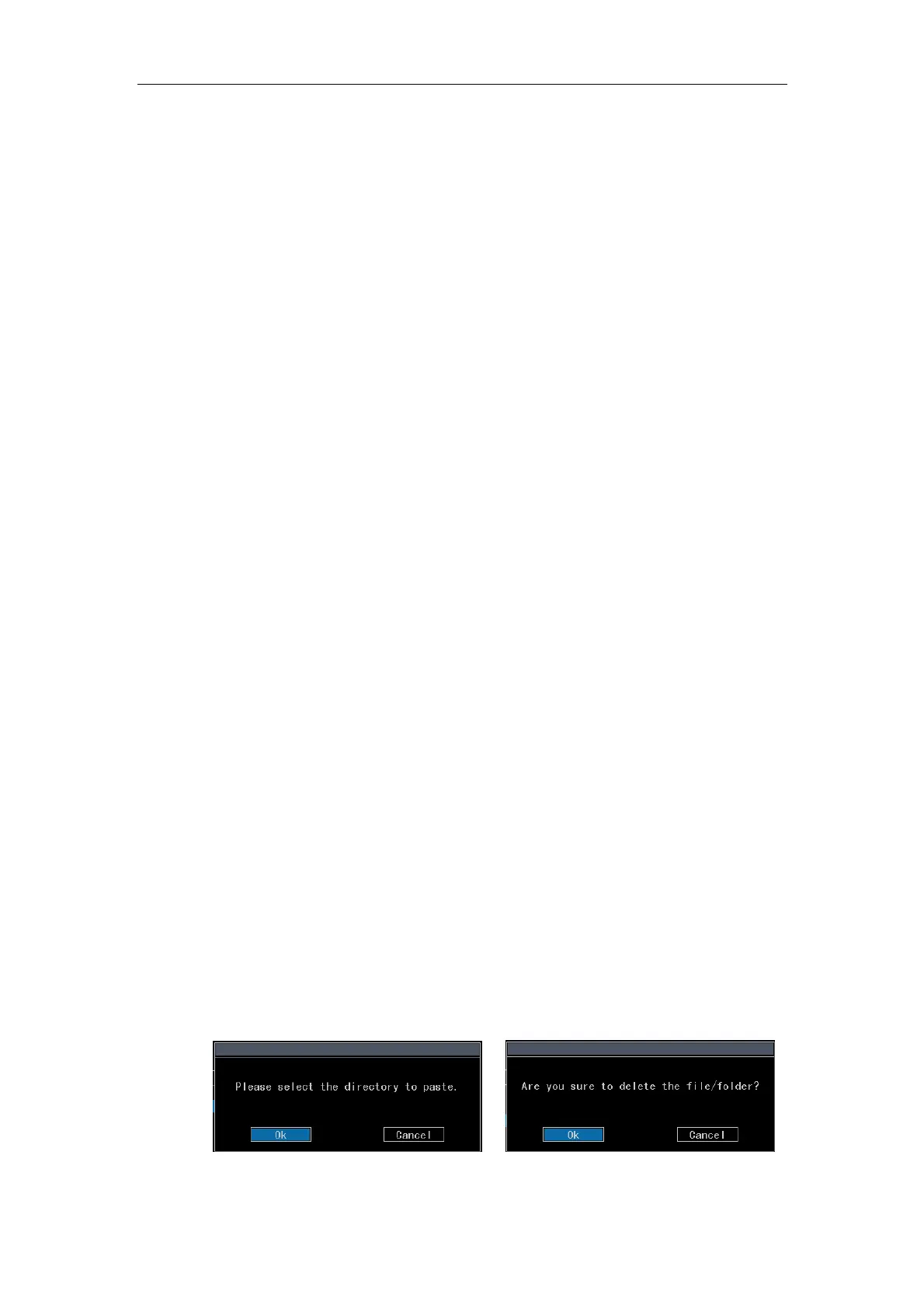
to select a new directory to paste (see Fig. 9-6). The cursor is on Ok. Press
Enter
to go the path dialog box (press
Tab to switch the cursor to Cancel and press
Enter or Esc to quit the Copy operation). Select the folder to paste in the path
dialog box, and then press
Enter to paste the file to that folder. If the location of
the file to be copied is not in the same destination as the file paste location, press
T-Ball to switch the cursor to the destination select box (now Copy in the
operation select box is changed to Paste). After selecting the destination, press
Enter, and the cursor jumps to the operation select box. Select Paste and press
Enter, then select the paste position in the directory and press Enter again.
Fig. 9-6 Prompt Message for Copy Fig. 9-7 Prompt Message for Delete


 To Next Page