Measurement and Calculation
8-16
the display position.
To modify completed Meas result, press
Meas key and then Enter key, and press
Value control key to move the cursor over a certain measurement result to start a new
measurement.
8.2.2 Clear Meas/Calc Result
To clear Meas/Calc result, press
Clear Text key in Meas/Calc state or single-frame
state.
8.3 Operation of Meas/Calc
The units referred to in this section, such as the units of distance, volume, time, height
and weight, as well as the units displayed in the figures, are selectable, which can be set
up in Calc setup menu. For detailed setup method, please refer to Section 5.2.5.
8.3.1 Distance
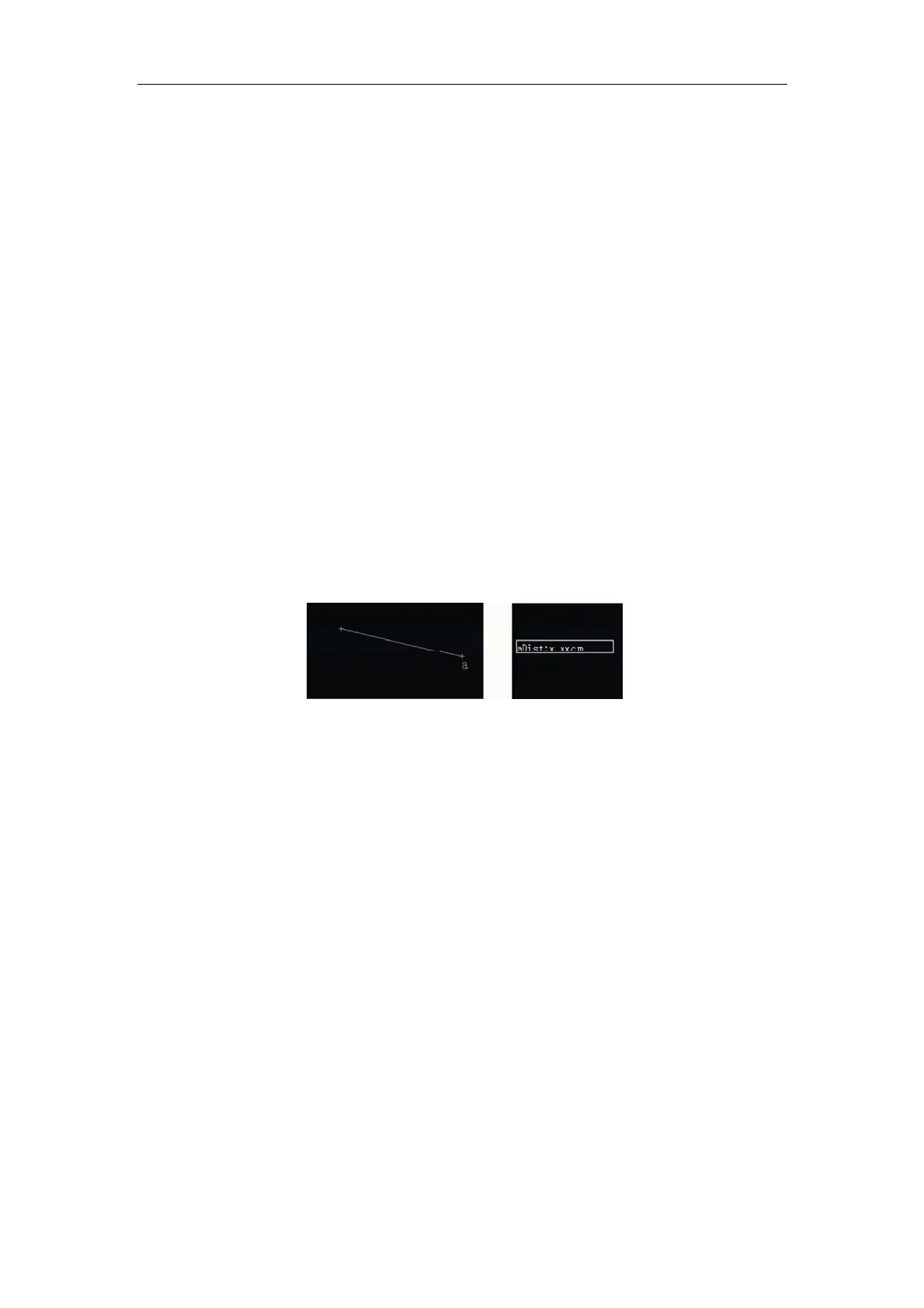
Fig. 8-1 Screen of Distance Measurement and Result
In frozen state of B, 2B, 4B and B/M mode, press
Dis key to measure the distance
between any two points on the image. Enter the distance measurement screen, a +
cursor will appear in the center of the image. Use the touchpad to move the cursor to the
measured start point and press
Enter to fix the first + cursor. The second + cursor shows
on the same point. “aDist: 0.00cm” (it might be bDist or cDist, subject to the current
measurement time) shows in the measurement result area at the same time. Use the
touchpad to move the second + cursor (the distance value in the result area changes in
accordance with the position of the cursor) to the desired end point and press
Enter to
fix it. The first + cursor is movable when the second cursor is fixed. Each press of
Enter
key will toggle the movable and fixed states between the two cursors. Press Esc to
confirm and exit the calculation and measurement.
In M or B/M mode, multi-distance can be measured by pressing
Meas key, in which up
to 9 measurement results can be obtained at one time.


 To Next Page