System Setup
5-7
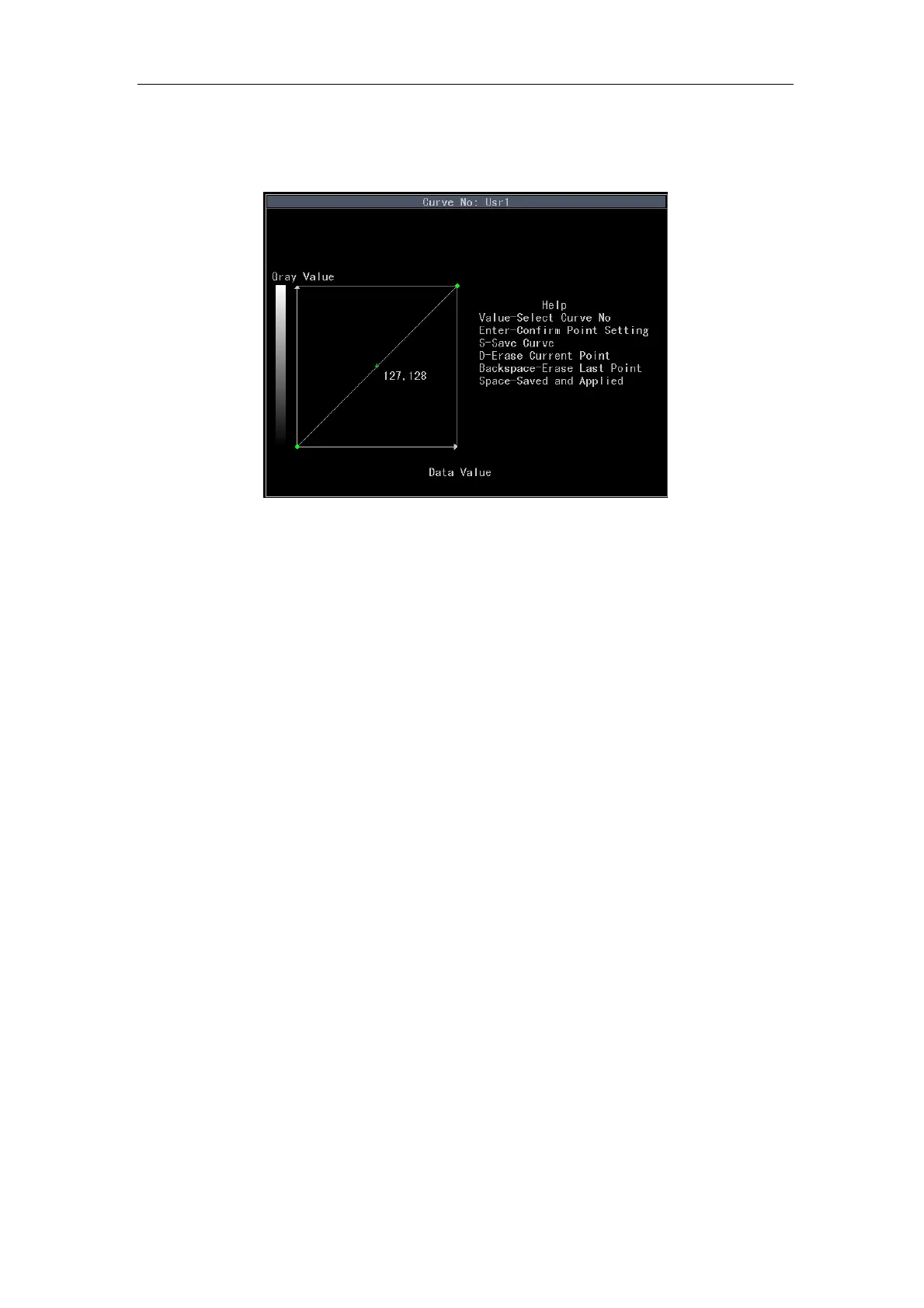
There are two methods available to access the edit interface of User-definded Gray Curve
shown in Fig. 5-3.
Fig. 5-3 Edit Interface of User-definded Gray Curve
a) Method 1: Press
Menu on the keyboard to enter the system menu. Select Image
Setup and press Enter to display the submenu Image Setup. To enter edit
interface of User-definded Gray Curve after select User-definded Gray Curve.
Eight B gray curves are available for edit.
b) Method 2: In unfrozen state, press
T-Ball to display the control window. Move the
cursor over B GSC (item value 16~23 corresponds to user-defined curve number
1~8; only when the item value is between 16~23, the edit window can be opened).
Press
Enter to enter edit interface of User-definded Gray Curve. When the item
value is between 16~23, it will enter user-defined curves of the corresponding
numbers directly.
5.2.3.3.2 To Edit User-definded Gray Curve
After entering the edit window, the current user-defined gray curve number, which is
adjustable by the
Value control key, will be displayed on top of the window. The left side of
the window is curve edit window, and the right is help area. Its detailed content is displayed
in Fig. 5-3.
a) Draw a curve: Use the
Value control key to select desired gray curve for edit, and
then use the touchpad to move + cursor (The coordinate value of the current


 To Next Page