Imaging
6-4
6.2.2.4 Exam Type Menu
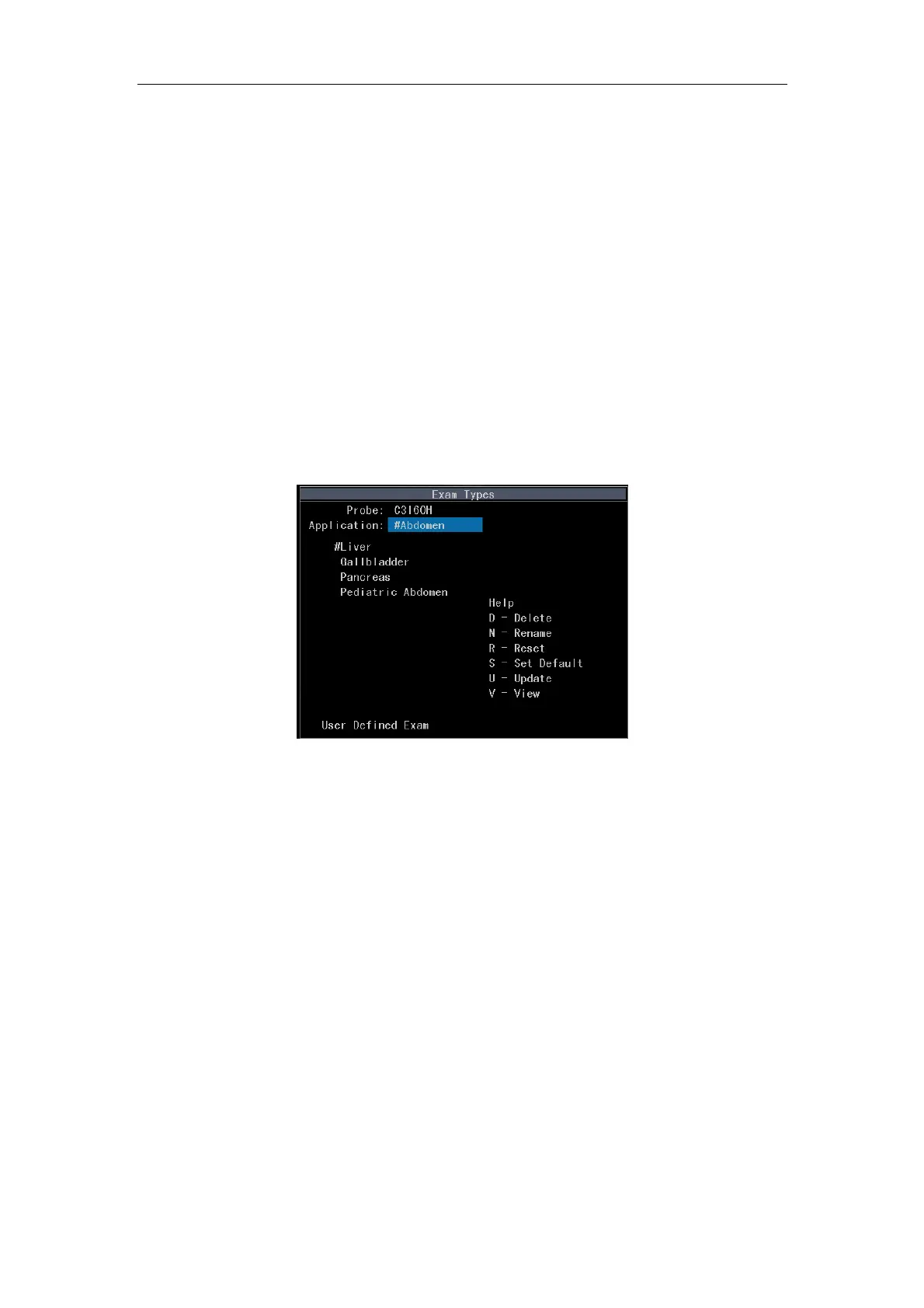
6.2.2.4.1 Composition of Exam Type Menu (Fig. 6-1)
a) Probe model: Probe model is displayed on the first line of the exam type menu.
b) Application type: The current application name is displayed under the probe model;
the cursor will rest on the application type after entering the exam type menu.
c) Exam type: All exam types corresponding with the application type are shown in
this menu.
d) Help area: This menu hotkeys and their corresponding operations are listed in the
Help area. See Fig. 6-1.
Fig. 6-1 Interface of Exam Type Menu
e) Adding new exam type: USER DEFINED FROM ACTIVE is displayed on the last
line at the bottom of the exam type menu. It is used for the user defining new exam
types.
6.2.2.4.2 Use of Exam Type Menu
Press Exam to enter the exam type menu; pressing Exam in the exam type menu can
exit this menu; pressing Esc or other key that change the state can also exit this menu.
Shift the cursor between the application type and the exam type. While the cursor locates
on an application type, the user can use the
Value control key to change the application
type. While the cursor rests on an exam type, pressing
Enter can confirm the exam type
and exit the exam type menu. While the cursor rests on USER DEFINED FROM ACTIVE,
pressing
Enter and a box for user entering a new exam type will appear. Press Enter to


 To Next Page