108
https://snapmaker.com/
Build Plate
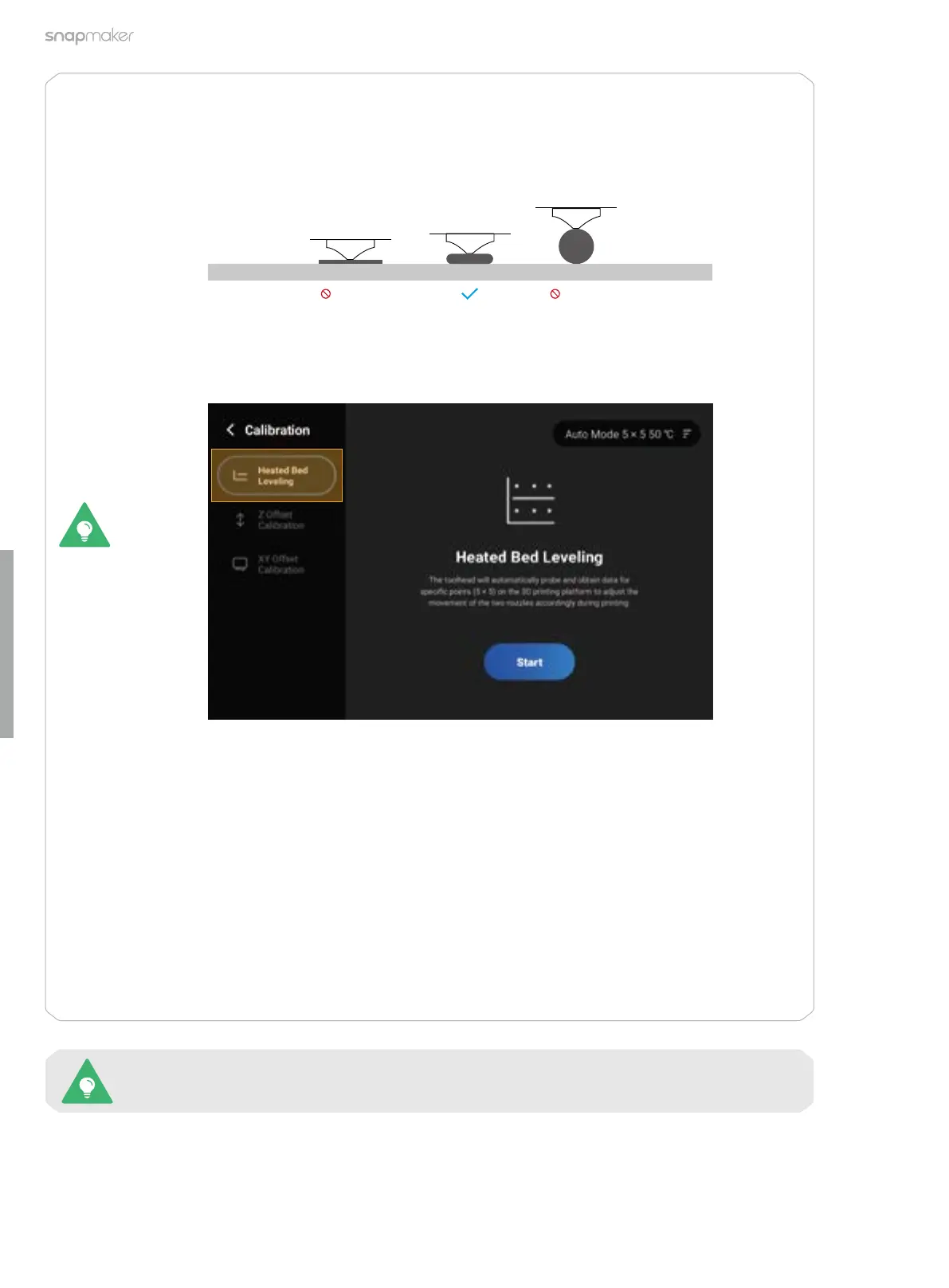
Too Low Too
High
Solution 2: Stop the current printing and remove the print from the glass build plate. Then, tap
Calibration on the Home Screen and redo the Z Offset Calibration and Heated Bed Leveling.
The machine will run the calibration processes in Auto Mode by default.
In case of poor adhesion, you can try the following solutions:
Solution 1: Adjust the Z Offset during printing to slightly reduce the distance between
the nozzle and the build plate. However, please note that the nozzle may fail to extrude
successfully or even damage the build plate and itself if too close to the build plate.
To configure the settings of Enclosure, refer to section 3.2: Enclosure Settings.
If the calibration results remain unsatisfactory, you can try the following operations:
Z Offset Calibration: Tap the top-right corner of the Calibration screen to select a different
mode, and then redo the calibration.
Heated Bed Leveling: Tap the top-right corner of the Calibration screen to select Manual Mode,
increase the calibration points or the bed temperature, and then redo the calibration.
For more detailed introductions to the 3D printing calibrations, refer to our online User Manual:
On the navigation bar of the Snapmaker official website, click Support > Product Support >
Snapmaker Artisan > User Manual.
Solution 3: Apply an even layer of water-washable adhesive (like PVP glue sticks) on the
printing area to improve the first layer adhesion. After the printing you can wet the cloth with
water to wipe off the residual adhesive on the glass build plate.



 To Next Page