User Guide 14
BASIC SETUP
Set Up Your Notifications
Tagg notications tell you if your pet leaves the Tagg zone, and give you updates about your pet's
location, the tracker's battery life, and important software upgrades. You'll always see notications on
the Tagg website, and you can also opt-in to receive them by email and/or text message.
Note: Please add noreply@tagg.com to your email address book to be sure your Tagg notications pass
through your spam lter. If you opt-in for text message notications, please add Tagg (52366) to your
cell phone contacts when you receive your welcome text.
You can keep your friends, family, or neighbors informed about your pet's whereabouts by sharing your
notications with them. Just add their email addresses to the Contacts section while activating.
NoticationTypes
Alerts Updates Notices
Critical information, such as
when your pet has left the Tagg
zone.
Non-critical information, such
as when the Tagg tracker is fully
charged.
Information about software
upgrades. When you receive a
software upgrade notice, dock
your tracker on the docking
station as soon as possible to
receive the upgrade.
You must opt-in to receive alerts and updates by text message, and to text the Track or Locate commands
from your mobile phone.
See page 30
of this guide for text message commands. Standard text message and data
charges from your mobile carrier may apply. This cost is not included in your Tagg service. Please check with
your carrier if you have questions about your plan and pricing.
Completing Activation
Now that you've set up your Tagg zone and notications, complete the last few steps to activate your
tracker. Your activation will be complete when you see the Activation Successful screen. This may take a
few minutes.
IMPORTANT: After activation, you may need to upgrade the software on your tracker.
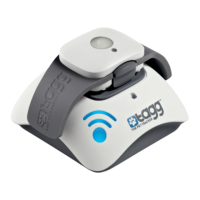
To upgrade your software, place your tracker on the docking station to charge. The upgrade will
begin when your tracker has reached a sufcient battery level, which may take anywhere from a few
minutes, up to 30 minutes.
The upgrade indicator on the docking station will turn on when the upgrade begins. Please do not
remove your Tagg tracker from the docking station until the indicator turns off.


 To Next Page