MedDream VideoStation v4.00 User Manual 14
• To start recording - press start button and button becomes red , and will blink , indicating that
recording started.
• To stop recording - press recording button and button becomes :
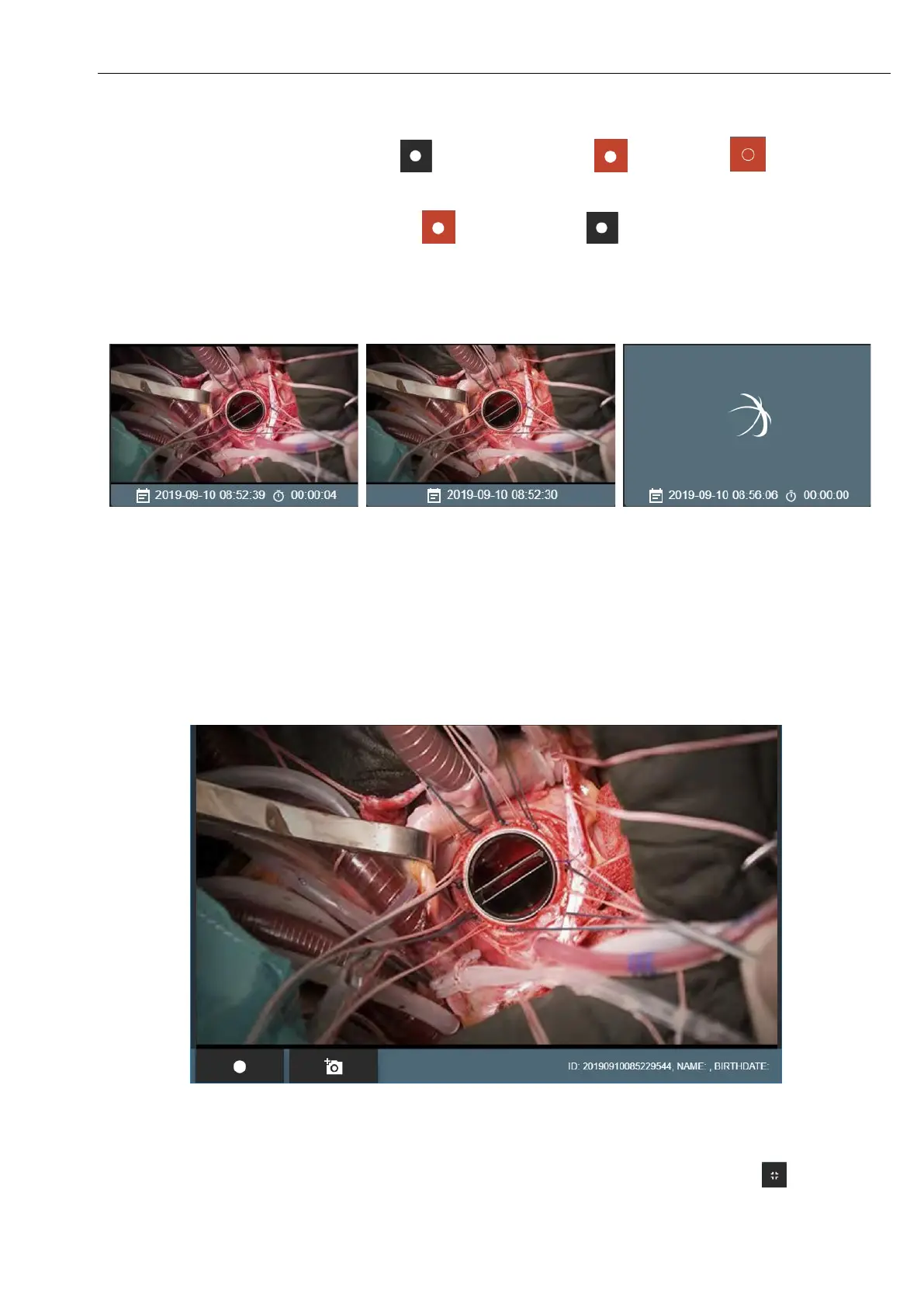
Images thumbnails can be seen after snapshot is done and displays just date and time under thumbnail (Picture 19). Video
thumbnail can be seen just after video is done and adds video duration under thumbnail (Picture 18).
Picture 18. Recorded video.
Picture 19. Recorded image.
Picture 20. Recording video.
To record multiple signal inputs with pedals, do not forget to change source profile ENABLE RECORDING
KEYS option in 7.2. Recording settings. To setup pedals keys – see 7.1.1. General settings.
During recording, user can expand input signal streaming window by pressing on the window. To minimize – press again on
the window.
Picture 21. Maximized recording window.
To expand video or image - press on the recorded video or image thumbnail. To minimize – press on button in the bottom
right corner.



 To Next Page