MedDream VideoStation v4.00 User Manual 19
4. Trim video
This function is to cut good video parts and combine into new shorter video file. For example, if video recording started
before patient comes into operating room or finished when operating room starts cleaning after surgery – user can remove
these video parts. Can edit completed video and return to original as many times as you like. If video trim completed and
saved - will override original video.
Main idea is to select desired scenes/video chunks of times (make time list) and combine into one video.
To trim video, follow steps bellow:
• Press on selected video thumbnail and open video.
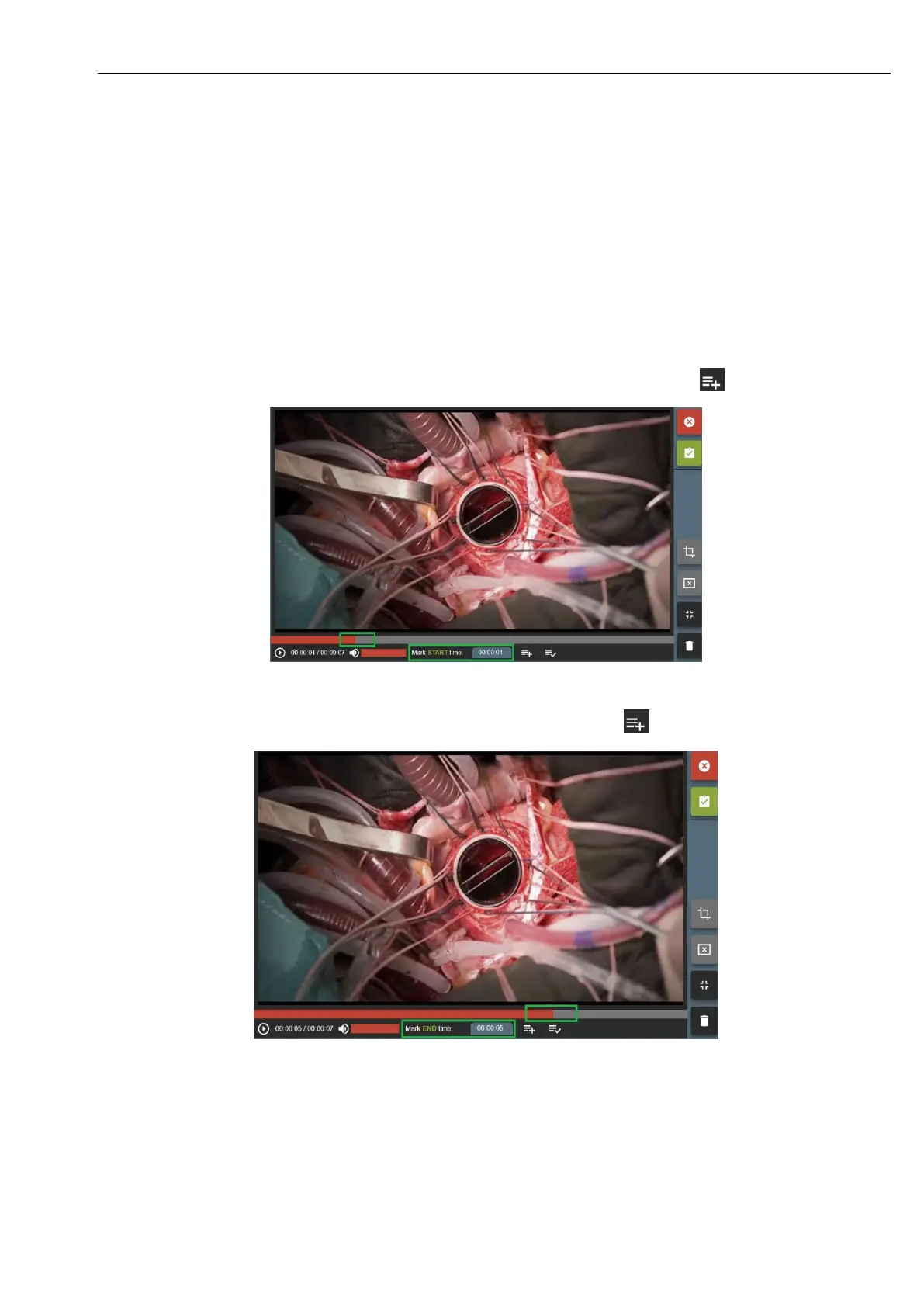
• Manually select in the progress bar or write the start time of the video and press button :
Picture 30. Trim start time.
• Then select in the progress bar or write the end time of the video and press :
Picture 31. Trim end time.
• Will display times of video from where start and where to end video cut in the right upper corner:



 To Next Page