SonicWall SonicWave Deployment Guide
Troubleshooting
85
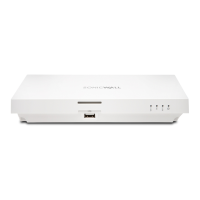
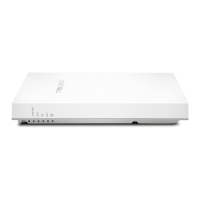
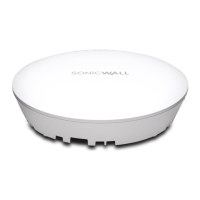
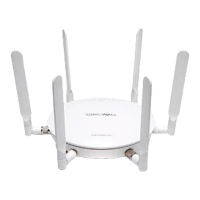
SonicWave 400 Series Troubleshooting
When the 400 series wireless access point is connected to a SonicWall network security appliance, the two units
perform an encrypted exchange, and an entry for the 400 series wireless access point is automatically created in
the SonicPoint/SonicWave Objects table. In the MANAGE view, navigate to the Connectivity | Access Points >
Base Settings page in SonicOS.
If the entry does not appear in the table within five minutes of connecting the 400 series wireless access point:
• Make sure the 400 series wireless access point is connected to an interface that is configured as part of a
wireless zone. Either the default WLAN zone or a custom zone with type set to “wireless” is required.
• Ensure that the 400 series wirelss access point is properly connected by Ethernet cable to an 802.3at
compliant PoE device or to the supplied power adaptor.
• If an 802.3at compliant PoE injector is being used, verify that the 400 series wireless access point is
connected to the PoE port labeled Data & Power Out.
If the 400 series wireless access point has an entry in the table, but reboots frequently or seems non-functional:
• Verify that your PoE switch/injector is 802.3at compliant and rated to deliver sufficient power to each
PoE port. 802.3af compliant PoE devices do not provide sufficient power to properly run current
generation 802.11 devices. A multi-gigabit 802.3at compliant PoE injector or switch is required to power
the 400 series wireless access point over Ethernet.
• Click Synchronize Access Points on the Connectivity | Access Points > Base Settings page in MANAGE
view to force SonicOS to download a new SonicWave firmware image from the SonicWall back-end
server.



 To Next Page