SonicWall SonicWave Deployment Guide
Configuring SonicOS for Wireless Access
71
Configuring the Network Interface
Each SonicWave or group of SonicWaves must be connected to a physical network interface that is configured in
a wireless zone. SonicOS provides a standard wireless zone (WLAN) which can be applied to any available
interface.
To configure the network interface in SonicOS:
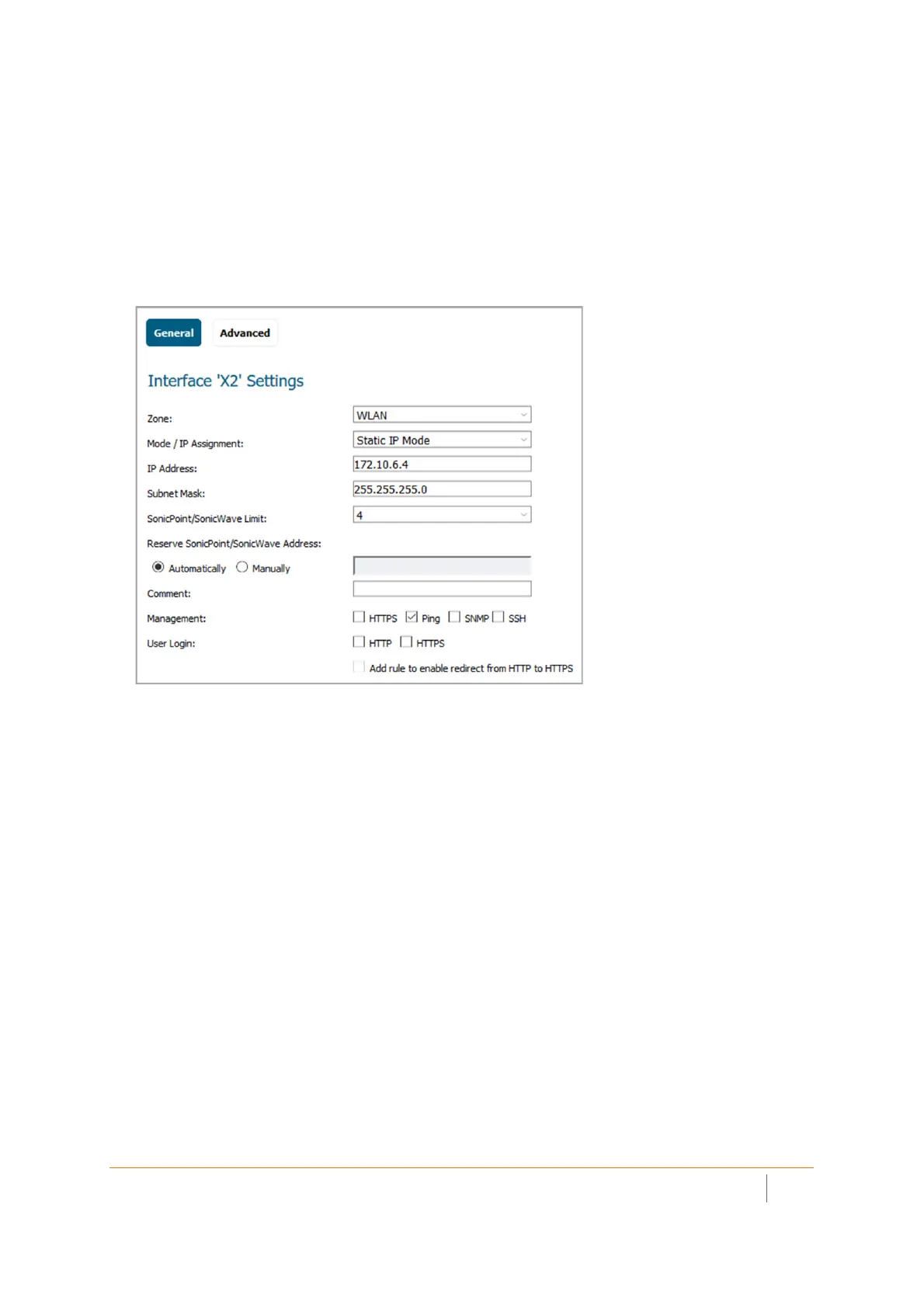
1In the MANAGE view, navigate to the System Setup | Network > Interfaces page and click the Configure
icon for the interface to which your SonicWave will connect.
2 Select WLAN or another (custom) wireless zone from the Zone drop-down list. The default wireless zone
is WLAN.
3 Select Static IP Mode for the Mode/IP Assignment.
4 In the IP Address field, type in any private IP address that does not interfere with the IP address range of
any other interfaces on the appliance. Wireless clients will be assigned an IP address in this subnet.
5Enter a Subnet Mask. The default is 255.255.255.0.
6 Select a non-zero number for SonicWave Limit. If No is selected, no access points can be discovered on
this interface.
7 Use the default settings or select appropriate settings for the other fields and then click OK.



 To Next Page