14 Chapter 2: Getting Started
Getting Started
Touch Screen
The touch screen is not active during live imaging. It can be used to select and adjust menu items
on frozen images, in Patient Information, in Image Review, and in System Set-up.
Tap the display gently with the stylus or a finger to select or adjust menu items. When performing
a measurement, it is recommended that the stylus be used rather than a finger for easier caliper
placement. Use the directional controller for precise caliper movements.
The following convention is used in the User Guide to describe the touch screen action:
Note: If the touch screen alignment is off, calibrate the touch screen. See “To calibrate the touch screen:”
on page 18.
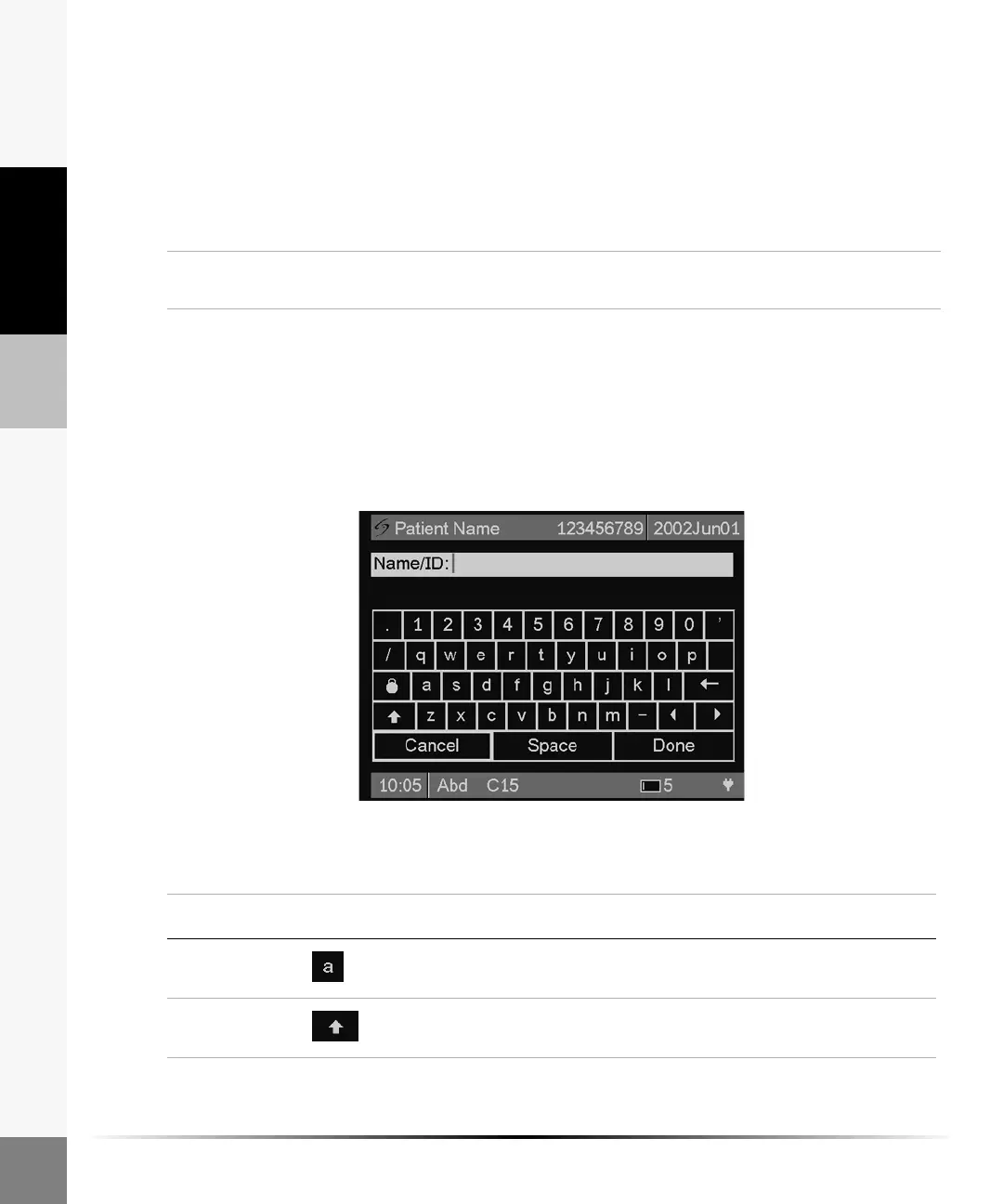
On-Screen Keyboard
The on-screen keyboard is used for alphanumeric data entry. It is available for entering Patient
Information and the System Date/Time. Alphanumeric data can be entered using the directional
controller and/or the touch screen.
Figure 4 On-screen Keyboard
Tap Touch the desired menu item or location on the screen using the stylus or your
finger.
Table 3: On-screen Keyboard
Key Icon Description
Alphanumeric Select or tap any alphanumeric key. Use numeric keys when
entering date/time.
Shift Select or tap the shift key to capitalize the first letter of a name.
The keyboard reverts to lower case after entering the first letter.



 To Next Page