Chapter 3: Imaging 19
Imaging
Chapter 3: Imaging
Imaging modes
Thesystemhasahigh‐performanceLCDand
advancedimage‐optimizationtechnologythat
simplifiesusercontrols.Imagingmodesavailable
dependonthetransducerandexamtype.See
“Imagingmodesandexamsavailableby
transducer”onpage 24.
2D imaging
2Disthesystemʹsdefaultimagingmode.The
systemdisplaysechoesintwodimensionsby
assigningabrightnesslevelbasedontheecho
signalamplit ude.Toachievethebestimage
quality,properlyadjustthedisplaybrightness,
gain,depthsettings,viewingangle,andexam
type.Also,useasuitableoptimizationsetting.
To display the 2D image
1 Dooneofthefollowing:
•Turnonthesystem.
•Fromanotherimagingmode,dooneof
thefollowing,dependingonyour
configuration:
•Press2D.
•PressModeand select2D.
2 Adjustcontrols.See“2Dcontrols.”
2D controls
Seealso“A dj us ti n gdepthandgain”onpage 23.
WARNING:
To avoid patient injury when using
a multi-angle bracket, make sure
that you select the same angle (A, B,
or C) on both the bracket and the
ultrasound system.
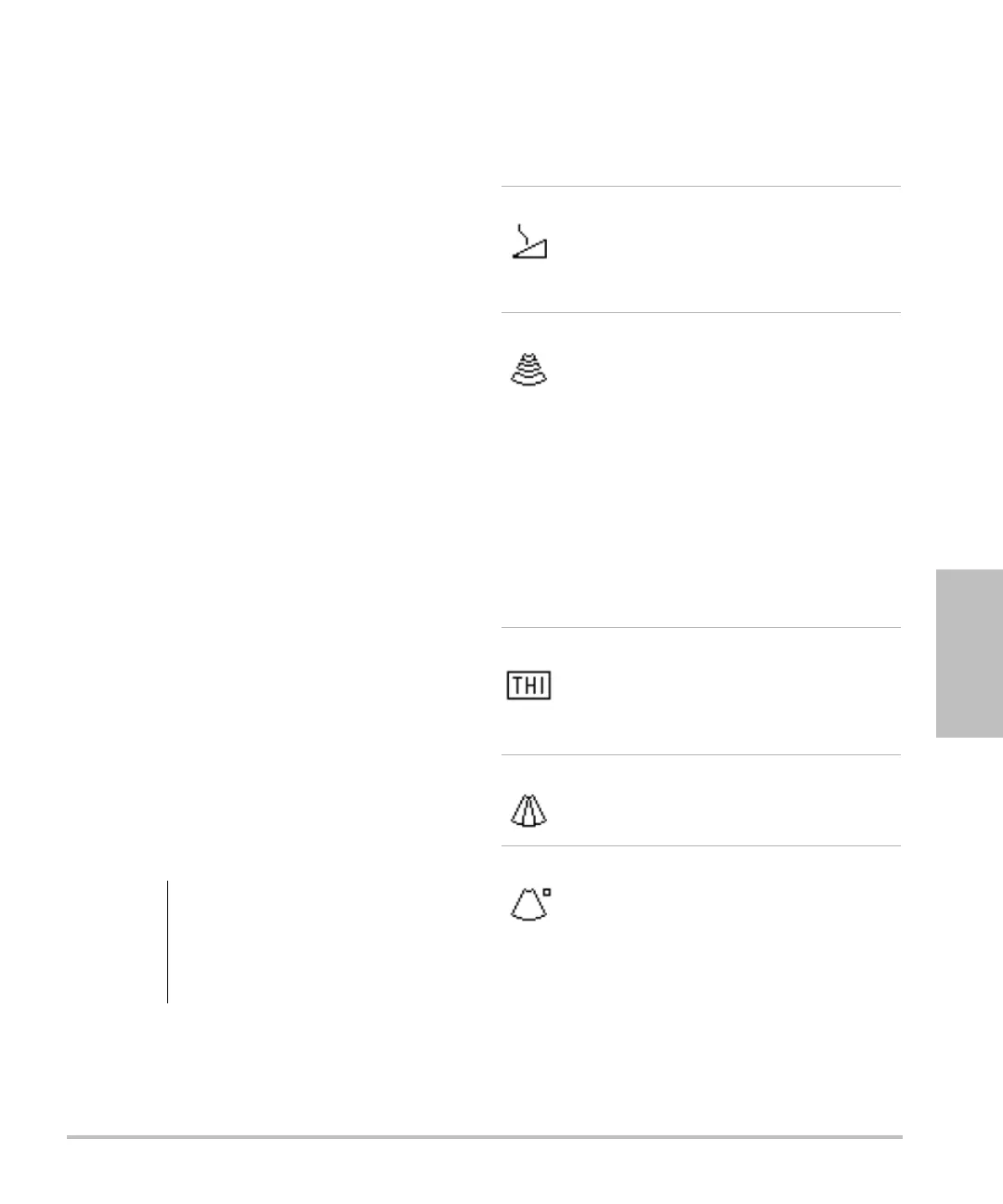
Auto Gain The gain adjusts automatically each
time you press the key.
To adjust gain manually, see
“Adjusting depth and gain” on
page 23.
Optimize Settings are as follows:
Res provides the best possible
resolution.
Gen provides a balance between
resolution and penetration.
Pen provides the best possible
penetration.
Some of the parameters optimized to
provide the best image include focal
zones, aperture size, frequency
(center and bandwidth), and
waveform. They cannot be adjusted
by the user.
THI Turns Tissue Harmonic Imaging on
and off.
When on, THI appears in the mode
data area. This feature depends on
transducer and exam type.
SonoMB
Turns SonoMB
®
multi-beam imaging
on and off. When on, MB appears in
the mode data area.
Orientation Select from four image orientations:
U/R (Up/Right), U/L (Up/Left), D/L
(Down/Left), D/R (Down/Right).



 To Next Page