For
Windows
This section describes an example
of
copying images to a
"My
Documents"
(For Windows Vista: "Documents") folder.
:'
pel,
fc,~:le!
!oJ
"leI'>,'
f
je
;al':J
'''''Uri:;'N
>
E.,
Of
e
1
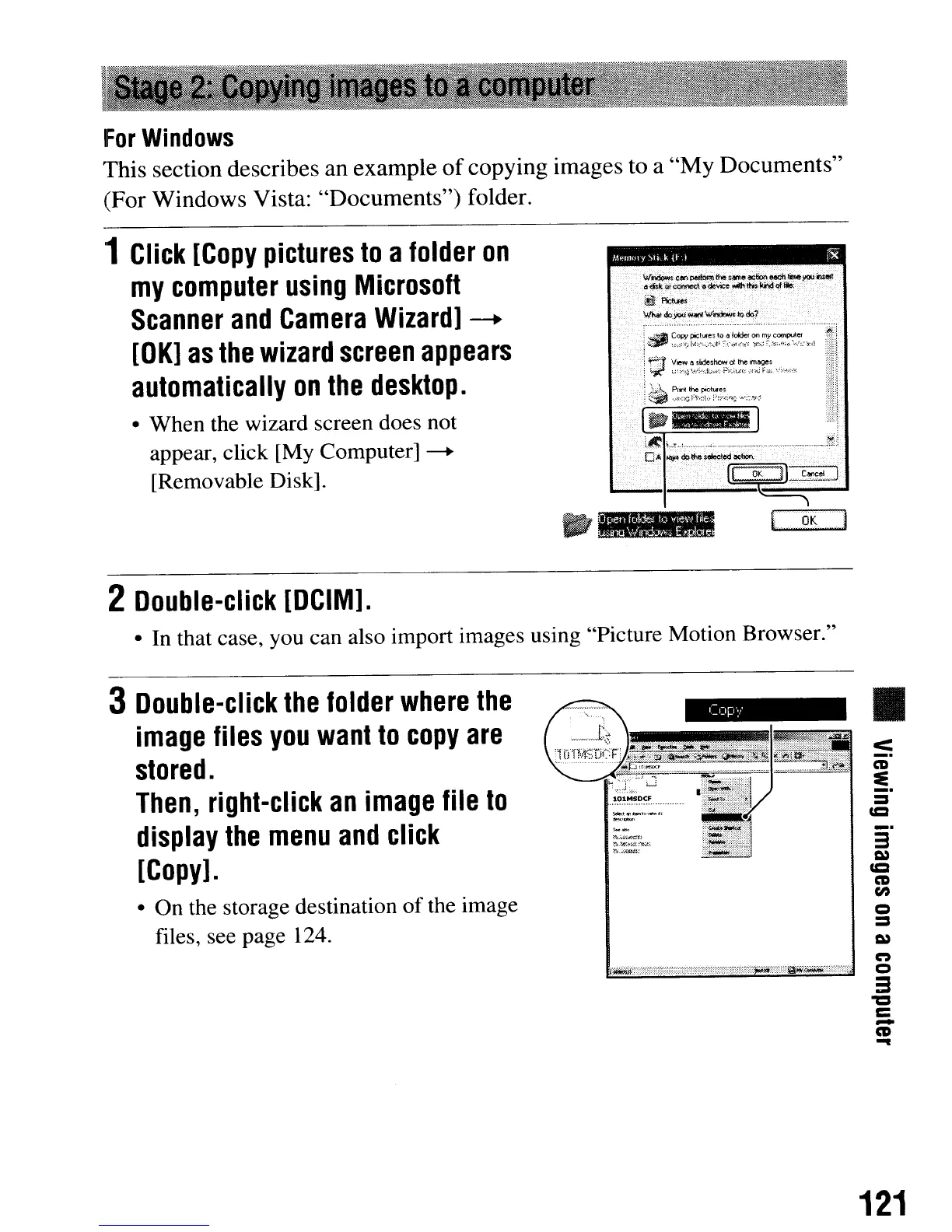
Click
[Copy
pictures
to
a
folder
on
my
computer
using
Microsoft
Scanner
and
Camera
Wizard]
~
[OK]
as
the
wizard
screen
appears
automatically
on
the
desktop.
• When the wizard screen does not
appear, click [My Computer]
-+
[Removable Disk],
2
Double-click
[DCIM].
W"n:Iow,
C'""
pejlolRllh<o
,
....
oc"""
eod1
tl>lo)'ClU
~
.
.':
'5:~knr:~n,·"~~tO:devic'e',~:tt#'~~:~::
1!l1.
11c",.,
.
~doP;~'W~"'do?
.....
_--_._
_ -
~
-.-
-_.-,
- .
,fJ1J
~:;:
~~~~.~oc~
~
~,7.·~~.,,'
i:~li·.
,'i
ti
~~,;~~~;~~,~;~~~
..
~~~.".:
..
:~,;.:,'
::}::!,
J
~
~:~~'~~I~,~:"J··,"'~,~t
D
....
1
Lt':
L,
_,_~
__
-".
~
~
._._~'!j
O<lj"
doIM
,oiooled
~ion.
..
'
---1
......
·--··
__
••
•
.......
ii(r·()Cll~.~~_J·
[.
'oK'j
•
In
that case, you can also import images using "Picture Motion Browser."
3
Double-click
the
folder
where
the
image
files
you
want
to
copy
are
stored.
Then,
right-click
an
image
file
to
display
the
menu
and
click
[Copy].
• On the storage destination
of
the image
files, see page 124,
•
<
_.
CD
~
:::::J
=
3
C»
CCI
CD
en
Q
=
C»
n
·~':::::::":,','·:·:/i·:::::}·}·,··,:·'/··
:':':'::'}',,"~"?T
..
_"
:}·,,\iiiw<
......
·",,"n':·:··
Q
:3
"CI
C
-
CD
-
121
For
Windows
This section describes an example
of
copying images to a
"My
Documents"
(For Windows Vista: "Documents") folder.
:'
pel,
fc,~:le!
!oJ
"leI'>,'
f
je
;al':J
'''''Uri:;'N
>
E.,
Of
e
1
Click
[Copy
pictures
to
a
folder
on
my
computer
using
Microsoft
Scanner
and
Camera
Wizard]
~
[OK]
as
the
wizard
screen
appears
automatically
on
the
desktop.
• When the wizard screen does not
appear, click [My Computer]
-+
[Removable Disk],
2
Double-click
[DCIM].
W"n:Iow,
C'""
pejlolRllh<o
,
....
oc"""
eod1
tl>lo)'ClU
~
.
.':
'5:~knr:~n,·"~~tO:devic'e',~:tt#'~~:~::
1!l1.
11c",.,
.
~doP;~'W~"'do?
.....
_--_._
_ -
~
-.-
-_.-,
- .
,fJ1J
~:;:
~~~~.~oc~
~
~,7.·~~.,,'
i:~li·.
,'i
ti
~~,;~~~;~~,~;~~~
..
~~~.".:
..
:~,;.:,'
::}::!,
J
~
~:~~'~~I~,~:"J··,"'~,~t
D
....
1
Lt':
L,
_,_~
__
-".
~
~
._._~'!j
O<lj"
doIM
,oiooled
~ion.
..
'
---1
......
·--··
__
••
•
.......
ii(r·()Cll~.~~_J·
[.
'oK'j
•
In
that case, you can also import images using "Picture Motion Browser."
3
Double-click
the
folder
where
the
image
files
you
want
to
copy
are
stored.
Then,
right-click
an
image
file
to
display
the
menu
and
click
[Copy].
• On the storage destination
of
the image
files, see page 124,
•
<
_.
CD
~
:::::J
=
3
C»
CCI
CD
en
Q
=
C»
n
·~':::::::":,','·:·:/i·:::::}·}·,··,:·'/··
:':':'::'}',,"~"?T
..
_"
:}·,,\iiiw<
......
·",,"n':·:··
Q
:3
"CI
C
-
CD
-
121






 To Next Page