1
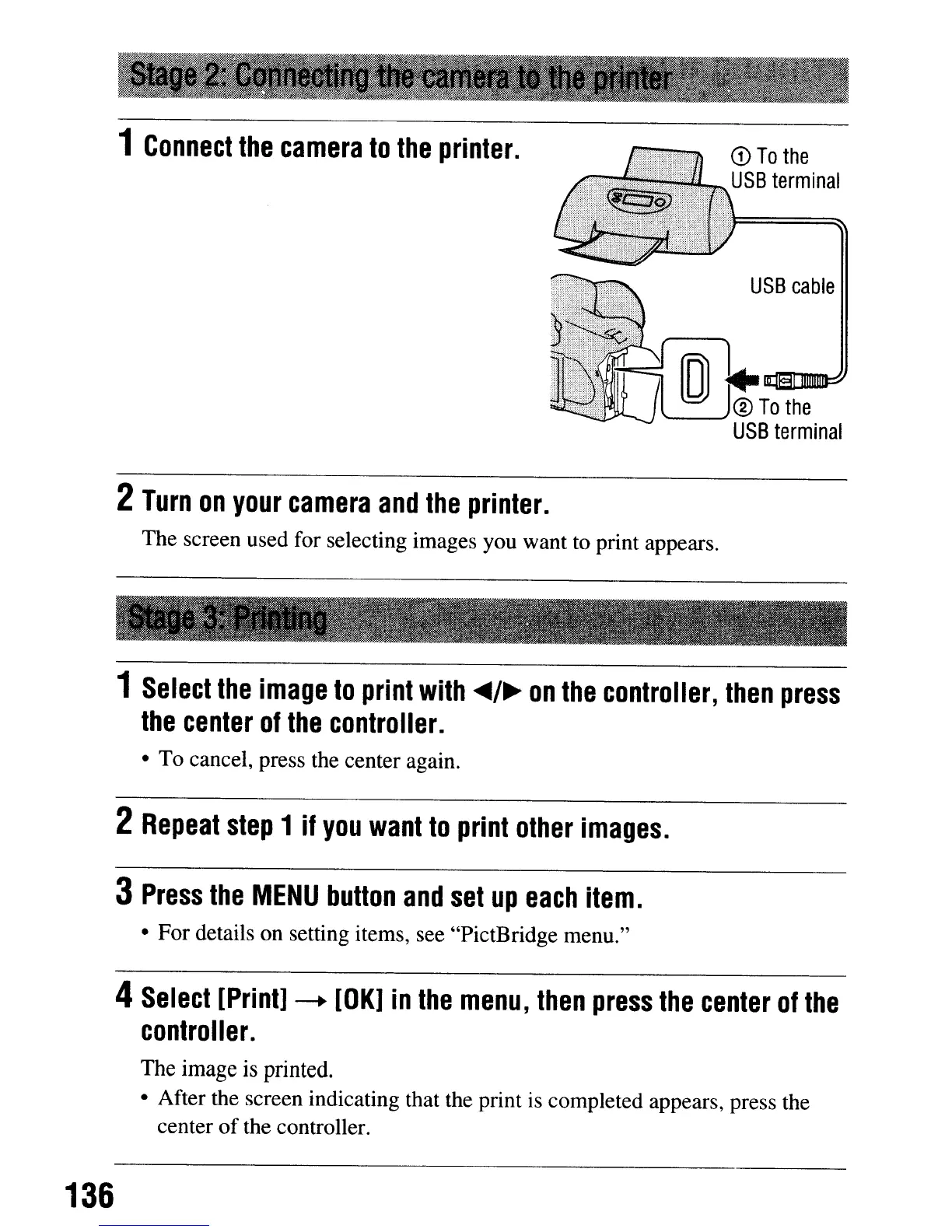
Connect
the
camera
to
the
printer.
2
Turn
on
your
camera
and
the
printer.
The screen used for selecting images you want to print appears.
CD
To
the
USB
terminal
USB
cable
1
Select
the
image
to
print
with
"/~
on
the
controller,
then
press
the
center
of
the
controller.
• To cancel, press the center again.
2
Repeat
step
1
if
you
want
to
print
other
images.
3
Press
the
MENU
button
and
set
up
each
item.
• For details on setting items, see "PictBridge menu."
4
Select
[Print]
--+
[OK]
in
the
menu,
then
press
the
center
of
the
controller.
The
image
is
printed.
• After the screen indicating that the print
is
completed appears, press the
center
of
the controller.
136
1
Connect
the
camera
to
the
printer.
2
Turn
on
your
camera
and
the
printer.
The screen used for selecting images you want to print appears.
CD
To
the
USB
terminal
USB
cable
1
Select
the
image
to
print
with
"/~
on
the
controller,
then
press
the
center
of
the
controller.
• To cancel, press the center again.
2
Repeat
step
1
if
you
want
to
print
other
images.
3
Press
the
MENU
button
and
set
up
each
item.
• For details on setting items, see "PictBridge menu."
4
Select
[Print]
--+
[OK]
in
the
menu,
then
press
the
center
of
the
controller.
The
image
is
printed.
• After the screen indicating that the print
is
completed appears, press the
center
of
the controller.
136






 To Next Page