109
Editing
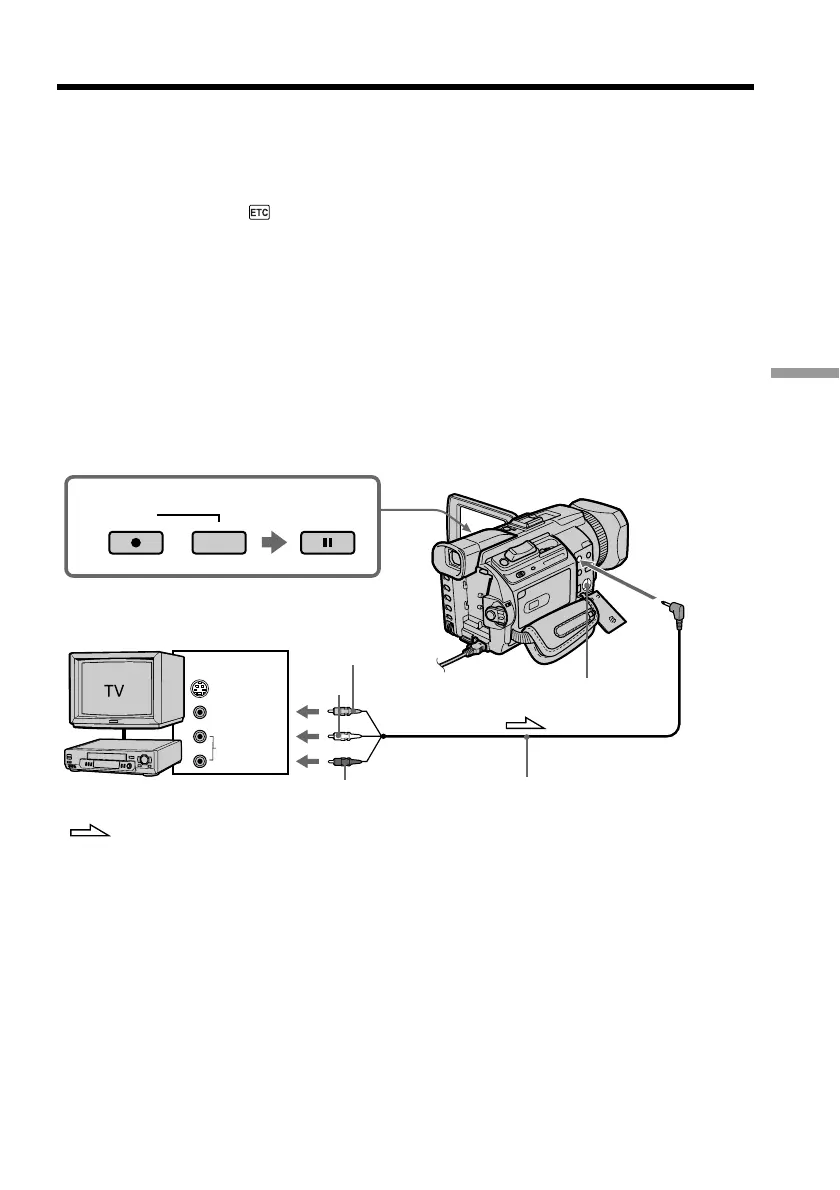
Using the A/V connecting cable
You can record a tape from another VCR or a TV program from a TV that has video/
audio outputs. Use your camcorder as a recorder.
Before operation
Set DISPLAY in to LCD in the menu settings. (The default setting is LCD.)
(1) Insert a blank tape (or a tape you want to record over) into your camcorder. If
you are recording a tape from the VCR, insert a recorded tape into the VCR.
(2) Set the POWER switch to VCR on your camcorder.
(3) Press z REC and the button on its right simultaneously on your camcorder,
then immediately press X on your camcorder.
(4) Press N on the VCR to start playback if you record a tape from a VCR. Select
a TV program if you are recording from a TV. The picture from a TV or VCR
appears on the screen.
(5) Press X on your camcorder at the scene where you want to start recording
from.
When you have finished dubbing a tape
Press x on both your camcorder and the VCR.
Using the Remote Commander
In step 3, press z REC and MARK simultaneously, then immediately press X. In step 5,
press X at the scene where you want to start recording from.
VCR
3
S VIDEO
VIDEO
AUDIO
OUT
AUDIO/
VIDEO
S VIDEO
REC PAUSE
: Signal flow
White
Yellow
Red A/V connecting cable (supplied)
Recording video or TV programs





 To Next Page